
Browse the docs
Guides
Open in dashboardYour bot answers from the knowledge you give it. The more accurate and specific that knowledge is, the better its answers. This guide shows each way to add knowledge and when to use which.
All knowledge belongs to the workspace, so every bot you have uses it. Admins and Staff can add knowledge; a few FAQ features are admin-only.
Before you begin
- A bot. If you don't have one yet, follow Get started.
- The material you want the bot to know: price lists, policies, opening hours, product guides, the questions customers ask most.
Choose the right place
| Your knowledge | Put it in | Why |
|---|---|---|
| Documents: catalogues, manuals, policies, articles | Files | Long material is split into searchable pieces automatically. |
| Pages on your website | Files › Import from website | Brings in many pages and linked PDFs at once. |
| Common questions with one fixed answer | FAQ | The bot sends your exact answer every time. |
| Short facts or policies you want to type in | Knowledge Base | Quick to write and edit, no file needed. |
| Products, prices and stock | Products | The bot can search and recommend products with links. |
1. Upload your documents
- Open Files (under More › Content).
- Drag your files onto the drop area, or click it to choose them. PDF, Word, text, Markdown, HTML and images are supported.
- Click Upload All, then Process Files.
- Wait until the status labels (PENDING, PROCESSING) disappear. Click Refresh to update the list.
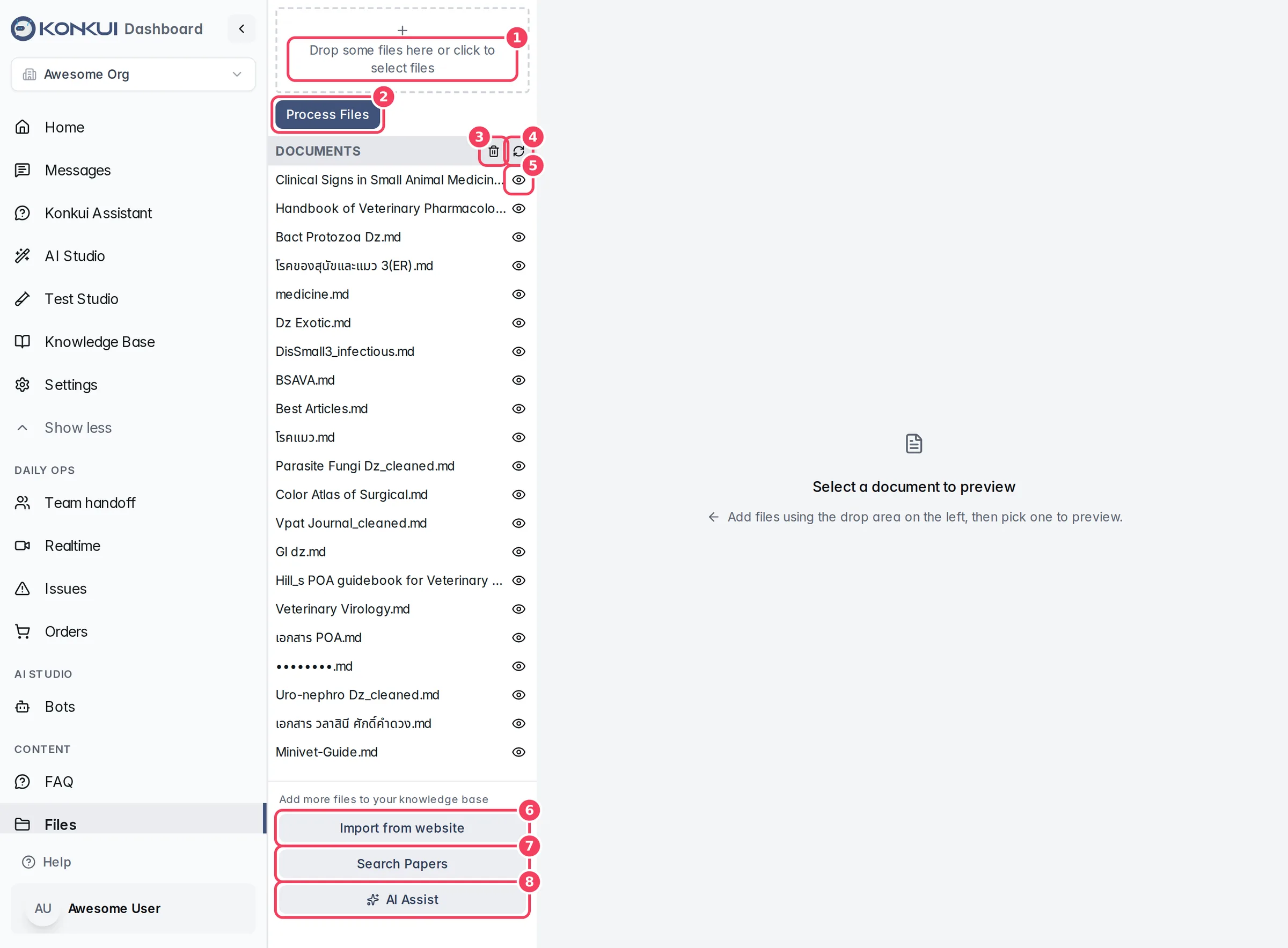
Click the eye icon on a file and choose Chunks to see exactly what the bot reads. This is worth checking for scanned PDFs.
2. Import your website
If your knowledge already lives on your website (help centre, blog, policy pages), import it instead of copying it by hand.
- On Files, click Import from website.
- Enter the page to start from and click Discover sources.
- Review what was found, then click Import and follow sources.
- Back in the file list, click Process Files if the imported files are waiting.
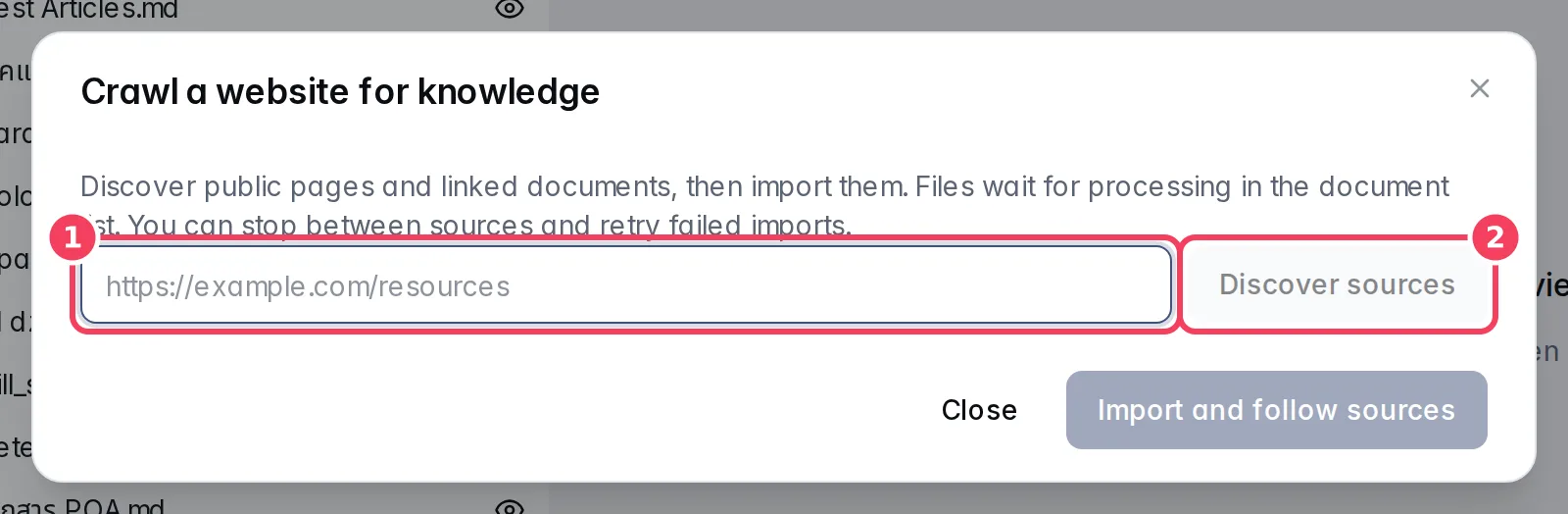
If a page can't be imported automatically, the dialog explains why, and you can download it yourself and upload it in step 1.
3. Add FAQs
FAQs are for questions with one right answer, such as shipping fees, opening hours or how to pay.
- Open FAQ (under More › Content).
- Type the Question the way customers ask it and the Answer they should get.
- Tick Call Admin if a person should be alerted when it's asked.
- Click Create.
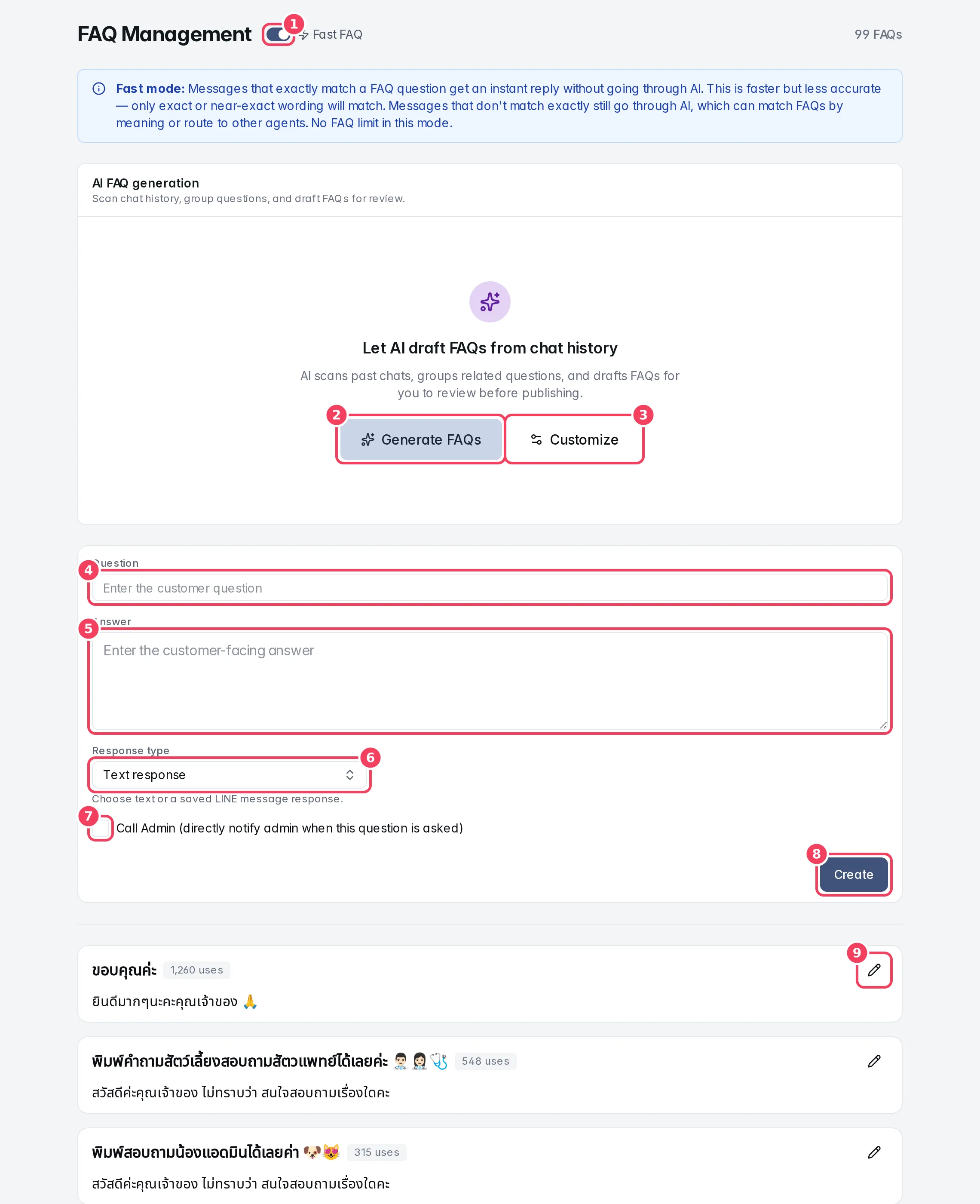
On LINE you can answer with a saved LINE message (an image, carousel or Flex message) instead of text: choose Saved LINE message as the Response type.
Let AI find your FAQs. Admins can click Generate FAQs to have AI scan past chats, group repeated questions and draft FAQs. Review each draft, edit it if needed, and Accept it. Tick Only chats needing admin under Customize to focus on the questions your bot couldn't answer.
Fast FAQ or Normal? Normal mode lets AI match FAQs by meaning, which catches different wordings but may be limited by your plan. Fast FAQ answers exact matches instantly with no limit. See FAQ › Fast mode and Normal mode.
4. Add knowledge entries
For a short fact you want to type in directly:
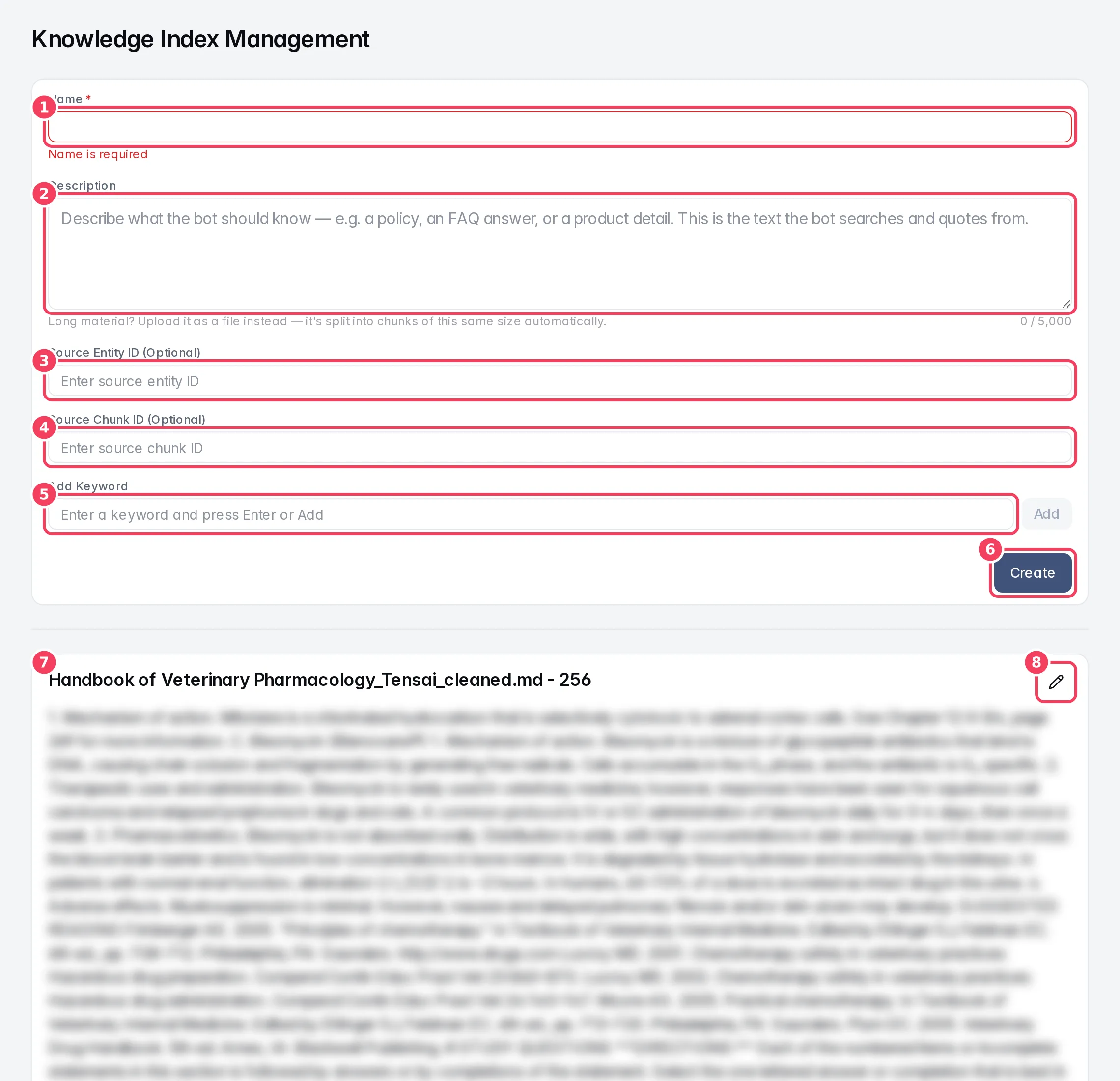
- Open Knowledge Base from the sidebar.
- Enter a Name and write the fact in Description (up to 5,000 characters).
- Add Keywords customers might use, such as synonyms or brand names.
- Click Create.
5. Connect your products
If you sell products, connect your store or add products so the bot can answer catalogue questions and send product links. Open Products; the details are on the Products page and in Sell online.
After adding products, open your bot and check its Product Catalog Summary. Click Regenerate so the bot knows what you sell and when to recommend it.
6. Let AI write missing documents
When you know what's missing but don't have a document for it, AI can draft one from your bot's profile:
- Open your bot from Bots and click Generate Knowledge Docs (or AI Assist on the Files page).
- Tick the suggested topics you want, or add your own, and click Continue.
- Choose Draft Mode to review before anything is saved, then Generate Drafts.
- In Edit Knowledge Drafts, read and correct each draft, then Publish it (or Publish All).
Always check AI-written documents for accuracy, especially prices and policies. See Bots › Generate knowledge and edit drafts.
Check that it worked
- In Files, your documents show no status label (they're ready).
- In Test Studio, ask questions your new knowledge should answer. The bot should answer correctly and in its own words, or with your exact FAQ answer.
- If an answer is still wrong, find the gap with Test and improve.
Next steps
- Test and improve
- Connect channels
- Files, FAQ and Knowledge Base reference