
Browse the docs
Dashboard reference
Open in dashboardSearch lets you look through your uploaded documents, knowledge and products with the same kind of search your bot uses to find answers. Use it to check whether the bot can find the right information for a question, and how relevant it thinks each result is. If the right document does not show up, that is a sign to add or improve knowledge.
Both Admins and Staff can use Search. Your searches are private to you.
Where to find it
Open More › Search in the left sidebar. It is shown when the Search toggle is on in the tab-visibility settings of Settings › General.
Run a search
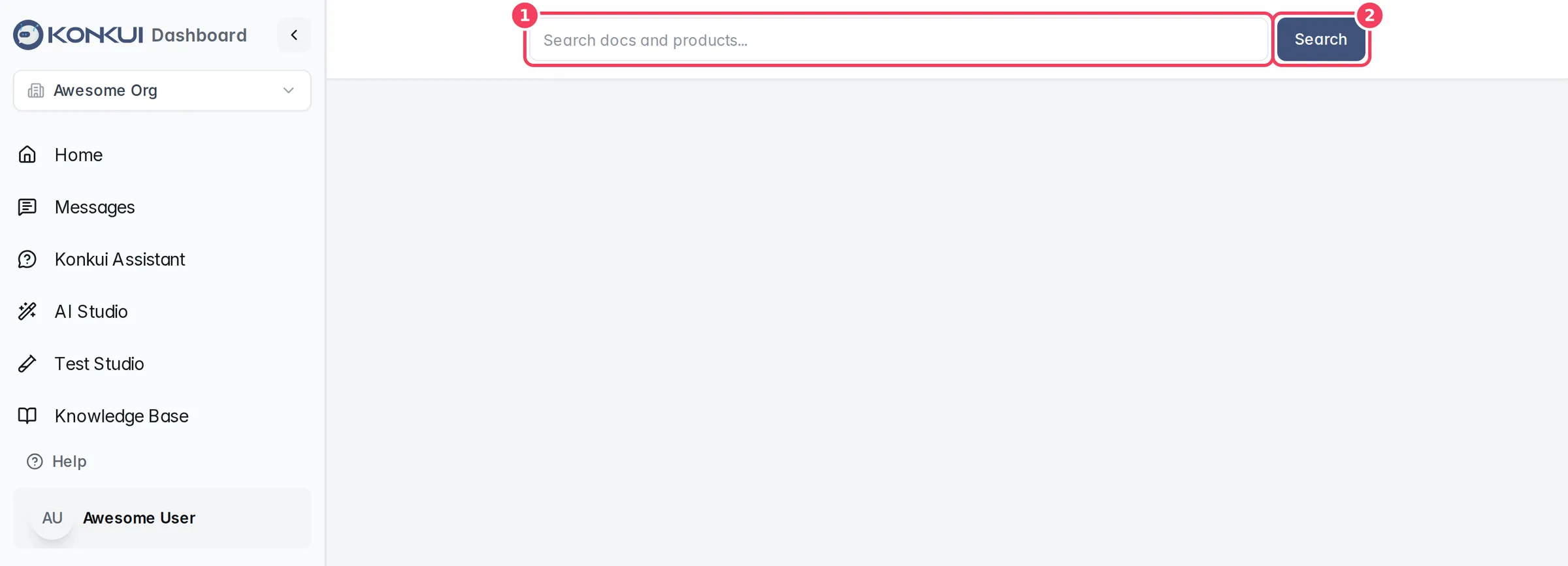
| # | Item | What it does |
|---|---|---|
| 1 | Search box | Type a question or keywords, the way a customer would ask. |
| 2 | Search | Runs the search and shows the results below. |
The results show how many were found. Each result card has the document or product name and a Relevance bar (fuller means more relevant).
| Result type | Tabs | What you see |
|---|---|---|
| Document | Markdown, Raw | The text the bot reads from the document, and a preview of the original file. |
| Product | Product, Source | The product's title, type, vendor and description, plus Open product page to edit it. |
Refine a search
After a search, a second box appears under the first. Type a follow-up to narrow or redirect the search, then click Refine. Each refinement is kept: use the arrows above the box to step between them (New starts another one), and View to switch the results back to that query. The button reads Viewing for the results currently shown.