
Browse the docs
Dashboard reference
Open in dashboardOrders lists every order placed on your Konkui storefront. Use it to check new orders, confirm manual bank-transfer payments, add tracking numbers and keep each order's status up to date.
Any workspace member can view and update orders.
Where to find it
Open Orders in the sidebar (it may be under More), or go to Orders. It is shown together with Products: admins can hide both with the Products switch under Tab Visibility in Settings › General.
Orders come from your storefront's checkout. To set up the storefront and its payment methods, see Settings › Storefront and the Sell online with Konkui guide.
Order list
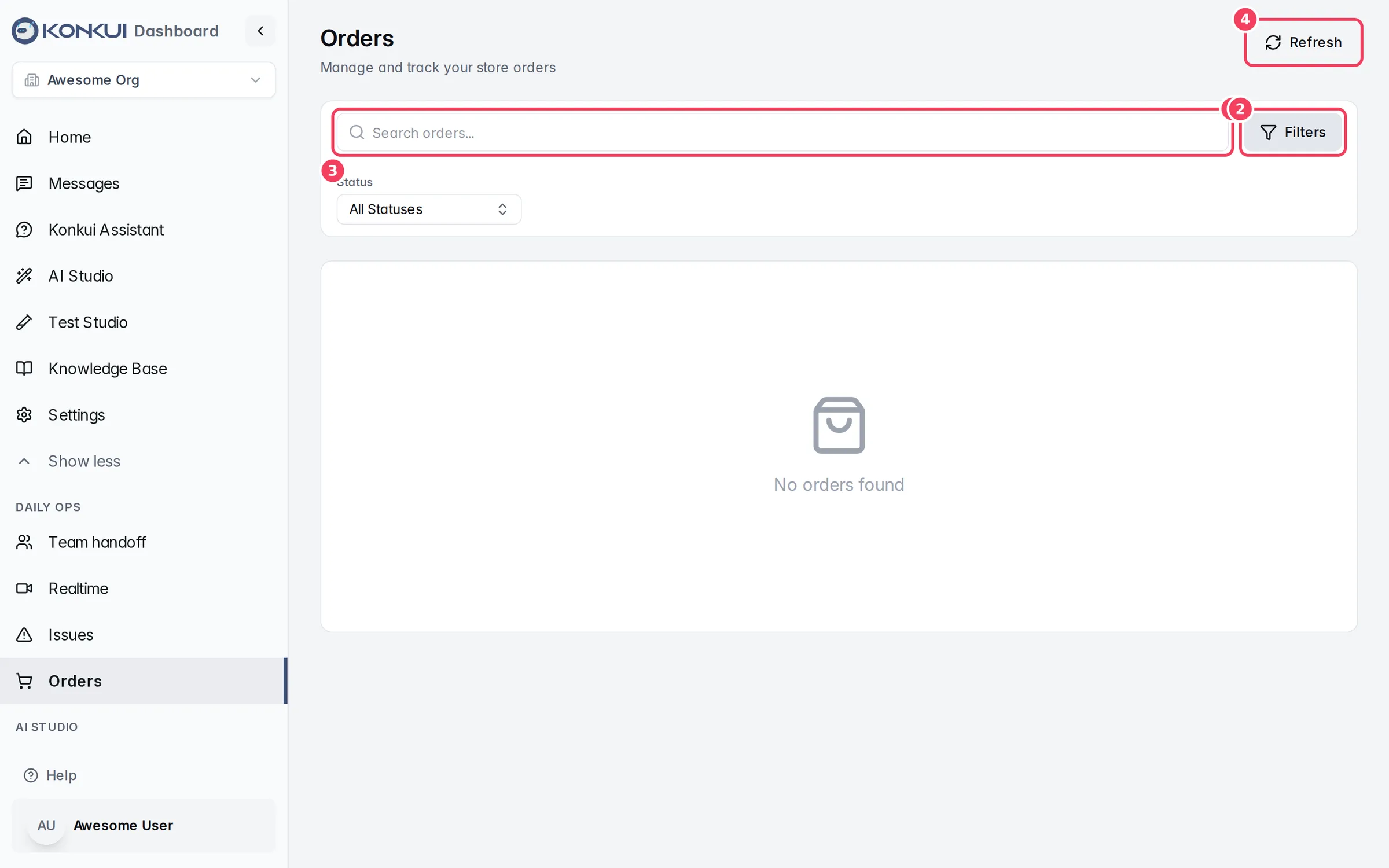
| # | Item | What it does |
|---|---|---|
| 1 | Search | Finds orders by order number, customer name or phone number. |
| 2 | Filters | Shows the Status filter. |
| 3 | Status | Shows only orders with one status, or All Statuses. Clear filters resets it. |
| 4 | Refresh | Reloads the list. |
Each row shows:
| Column | What it shows |
|---|---|
| ORDER | The order number and how many items it has. |
| CUSTOMER | The customer's name. |
| STATUS | The order status. |
| PAYMENT | The payment status: Pending, Processing, Paid, Failed or Refunded. Bank-transfer orders waiting for you show Verify slip here. |
| TOTAL | The order total. |
| DATE | When the order was placed. |
| ACTIONS | Open the order, or use the menu for quick status changes. |
Order statuses
| Status | Meaning |
|---|---|
| Pending | The order was placed. |
| Awaiting Payment | Waiting for the customer's payment, or for you to check their transfer slip. |
| Paid | Payment is confirmed. |
| Processing | You are preparing the order. |
| Shipped | The order is on its way. |
| Delivered | The customer has received it. |
| Cancelled | The order was cancelled. |
| Refunded | The payment was refunded. |
Quick actions
The row menu offers Mark as Processing, Mark as Shipped, Mark as Delivered and Cancel Order. Mark as Shipped and Mark as Delivered are not offered for orders that only book a service. Cancelled and refunded orders have no quick actions.
Order page
Click an order to open it. The header shows the order number, its status and when it was created, with an Update Order button.
| Section | What it shows |
|---|---|
| Order Items | Each item with its quantity, price and SKU. |
| Payment | The payment method and status, amount, card Charge ID and Paid at time, and the reason if a payment failed. For bank transfers: the Payment slip. |
| Notes | The Customer Note from checkout, and an Internal Note only your team sees. |
| Customer | Name, phone, email and, when the order came from LINE, the LINE User. |
| Shipping | The delivery address, Shipping Method and Tracking Number. Hidden for service-only orders. |
| Timeline | When the order was created, paid, shipped, delivered or cancelled. |
Confirm a bank-transfer payment
When a customer pays by Manual Bank Transfer, they upload a transfer slip and the order waits for you. Open the order from Verify slip in the list.
- In Payment, look at the slip. Click Download slip to see it full size.
- Check the amount, date and receiving account against your bank statement.
- Then either:
- Click Confirm payment. The order becomes Paid, and the customer is told by email or LINE when the order has those details. For a service booking, the appointment is confirmed.
- Click Reject, optionally give a Reason (for example "Slip amount doesn't match"), and click Reject payment. The order is cancelled and its stock, or appointment, is released.
The payment then shows "Confirmed" or "Rejected" with the date, and any rejection reason.
Card and PromptPay payments through Omise are confirmed automatically; you don't need to do anything.
Update an order
Click Update Order to change the order.
| Setting | What it does | Notes |
|---|---|---|
| Order Status | Moves the order to another status. | Only valid choices are listed. See below. |
| Tracking Number | The parcel tracking number for the customer. | Not shown for service-only orders. |
| Internal Note | A note for your team. | Customers never see it. |
Click Save Changes to apply.
Some status changes are limited to keep payments and stock consistent:
- Once payment is confirmed, the order can no longer be set to Cancelled from here.
- A cancelled order can only be marked Refunded, and only if it had been paid. A refunded order cannot change again.
- Orders that only book a service can't be marked Shipped or Delivered, and can't move into processing until they are paid.
- Cancelling an unpaid order releases its held stock.