
Browse the docs
Dashboard reference
Open in dashboardEntities hold structured information about what you sell, organized by entity type (a category such as "Dog food" or "Tours"). Each type defines the options a customer can choose (slots) and the facts about each item (attributes). Tags group items across types so you, and your bot, can find related items quickly.
Use Entities when your products have options and details that change the answer, for example sizes, weight bands or prices that depend on a choice. Both Admins and Staff can view and edit entities.
Where to find it
Open More › Entities in the left sidebar. It is shown when the Entities toggle is on in the tab-visibility settings of Settings › General.
The Entities page
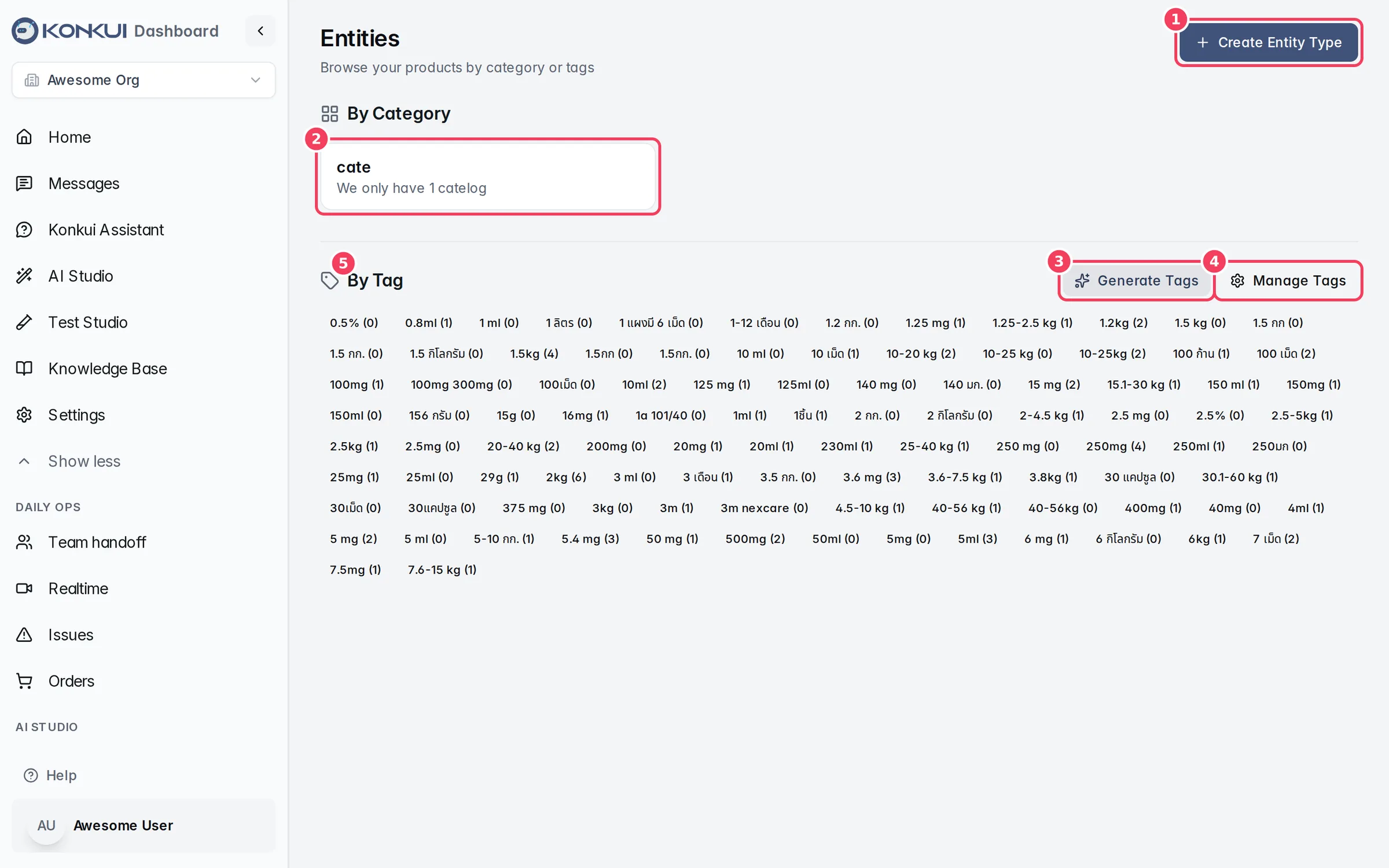
| # | Item | What it does |
|---|---|---|
| 1 | Create Entity Type | Opens the entity type builder at the top of the page. |
| 2 | By Category | Each card is an entity type. Click one to see its items and edit the type. |
| 3 | Generate Tags | Lets AI tag your items automatically. |
| 4 | Manage Tags | Opens Tag Management to create, edit, merge and delete tags. |
| 5 | By Tag | Every tag with the number of items using it. Click a tag to list the items tagged with it; click it again to clear. |
Entity types
An entity type is a template for a group of items. Open a type from By Category to edit it and see its items.
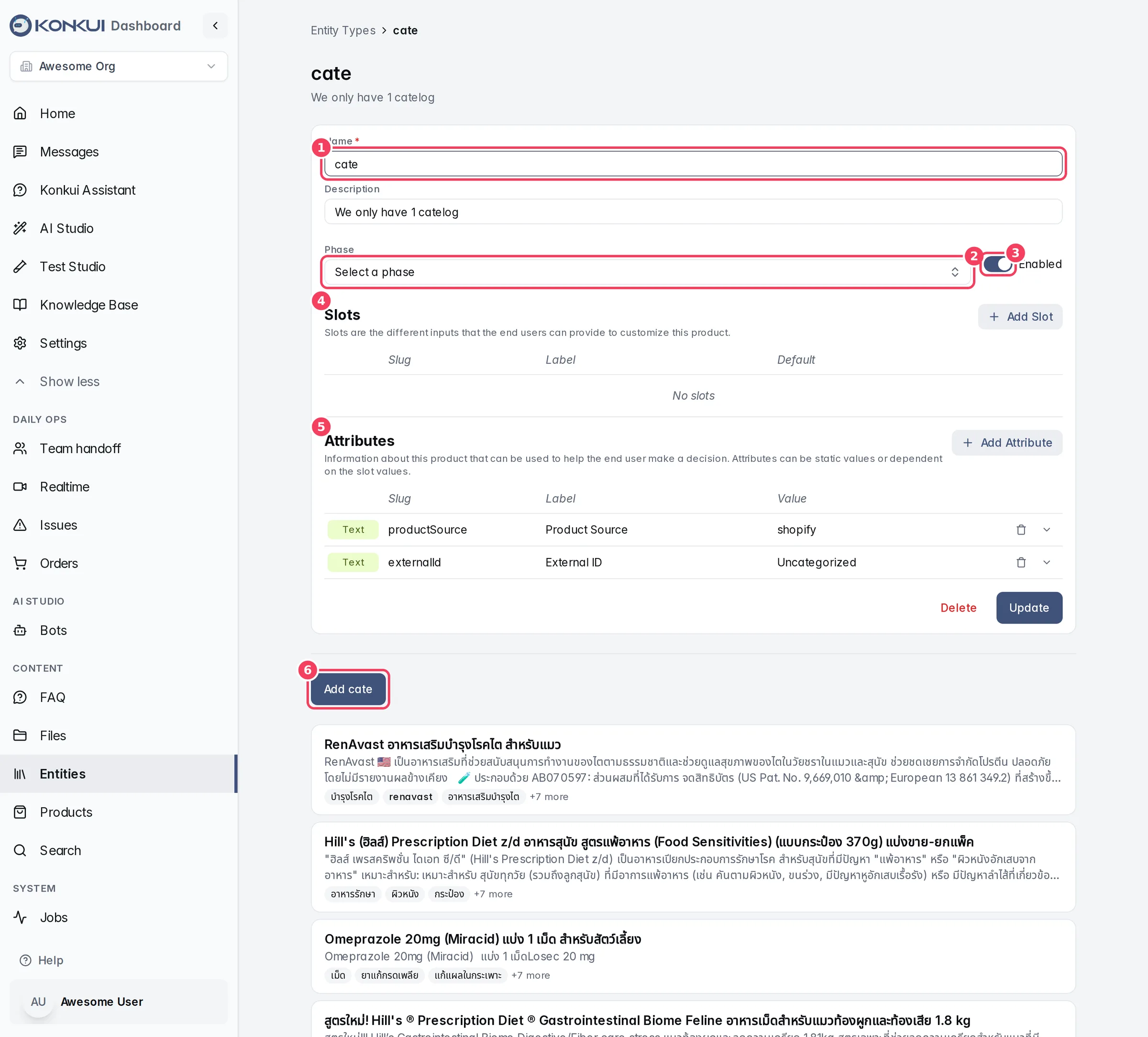
| # | Item | What it does |
|---|---|---|
| 1 | Name / Description | The type's name and a short description. |
| 2 | Phase | Optional. Assigns the type to one of the phases set up for your workspace. |
| 3 | Enabled | Turns the type on or off. |
| 4 | Slots | Inputs a customer can provide to customize an item, such as size or pet weight. |
| 5 | Attributes | Facts about the item that help the customer decide, such as price or dosage. |
| 6 | Add … | Adds a new item of this type. Existing items are listed below; click one to edit it. |
Click Update (or Create for a new type) to save, or Delete to remove the type.
Slots
| Setting | What it does | Notes |
|---|---|---|
| Slug | A short identifier for the slot, used to refer to it, for example in computed attributes. | |
| Label | What the slot is called. | |
| Type | Text, Number, Integer, Boolean, Date, Datetime, Time, Email or Enum. | Enum offers a fixed list of Options. |
| Default | The value used when the customer does not say. | Optional. |
Attributes
| Setting | What it does | Notes |
|---|---|---|
| Slug, Label and value type | The attribute's identifier, its name, and what kind of value it holds. | Same value types as slots. |
| Static | A fixed value. | The simplest choice for most details. |
| Webhook | Fetches the value from your own URL, with the method you choose (GET, POST, PUT, PATCH or DELETE). | For values kept in another system, such as live stock. |
| Computed | Calculates the value from slot values and other attributes with conditions (if / else if / else). | Use Validate to check the logic. |
Items
Each item belongs to one entity type. Its page has a Name, a Description, Tags, and the type's slots and attributes. Inherited slots and attributes are shown under "Slots inherited from …" and "Attributes inherited from …"; you can add item-specific ones or override inherited values. Save with Update, or remove the item with Delete.
Tags
Generate tags with AI
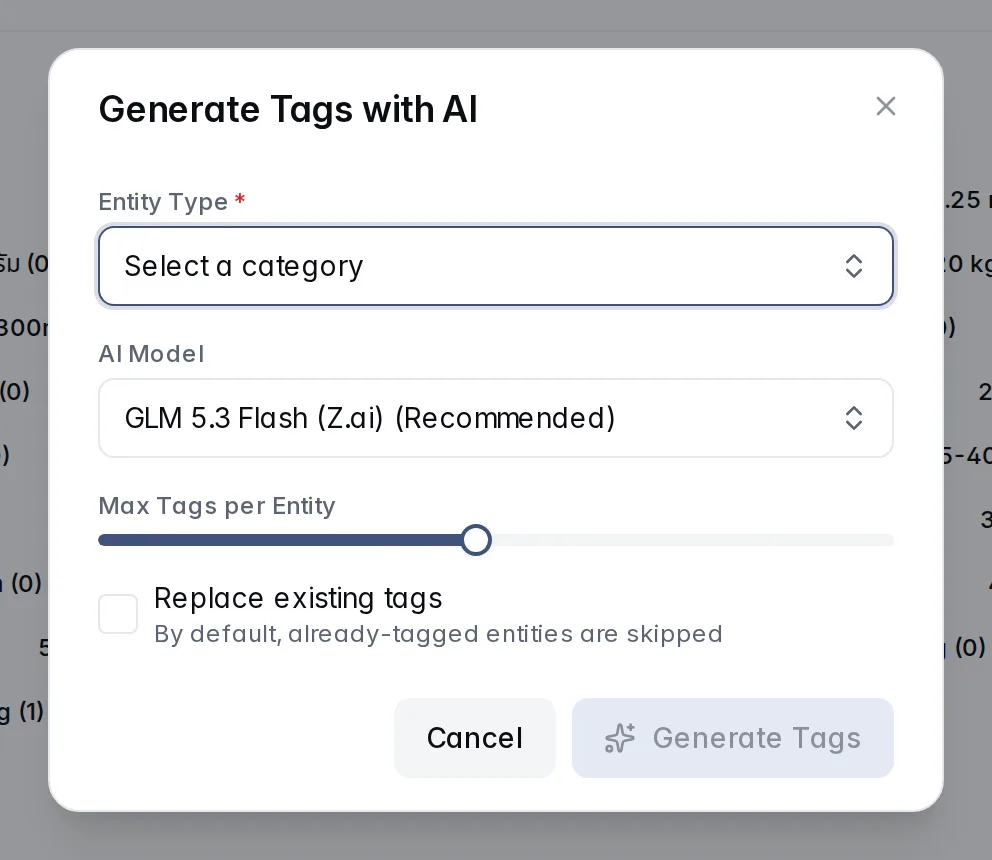
| Setting | What it does | Notes |
|---|---|---|
| Entity Type | Which category to tag, or all entity types at once. | Required. |
| AI Model | The model that writes the tags. | A recommended model is preselected. |
| Max Tags per Entity | The most tags each item can get. | 1 to 20 (default 10). |
| Replace existing tags | Retags items that already have tags. | Off by default, so tagged items are skipped. |
Click Generate Tags to start. A progress bar shows how many items have been tagged; when it finishes the tag cloud refreshes.
Tag Management
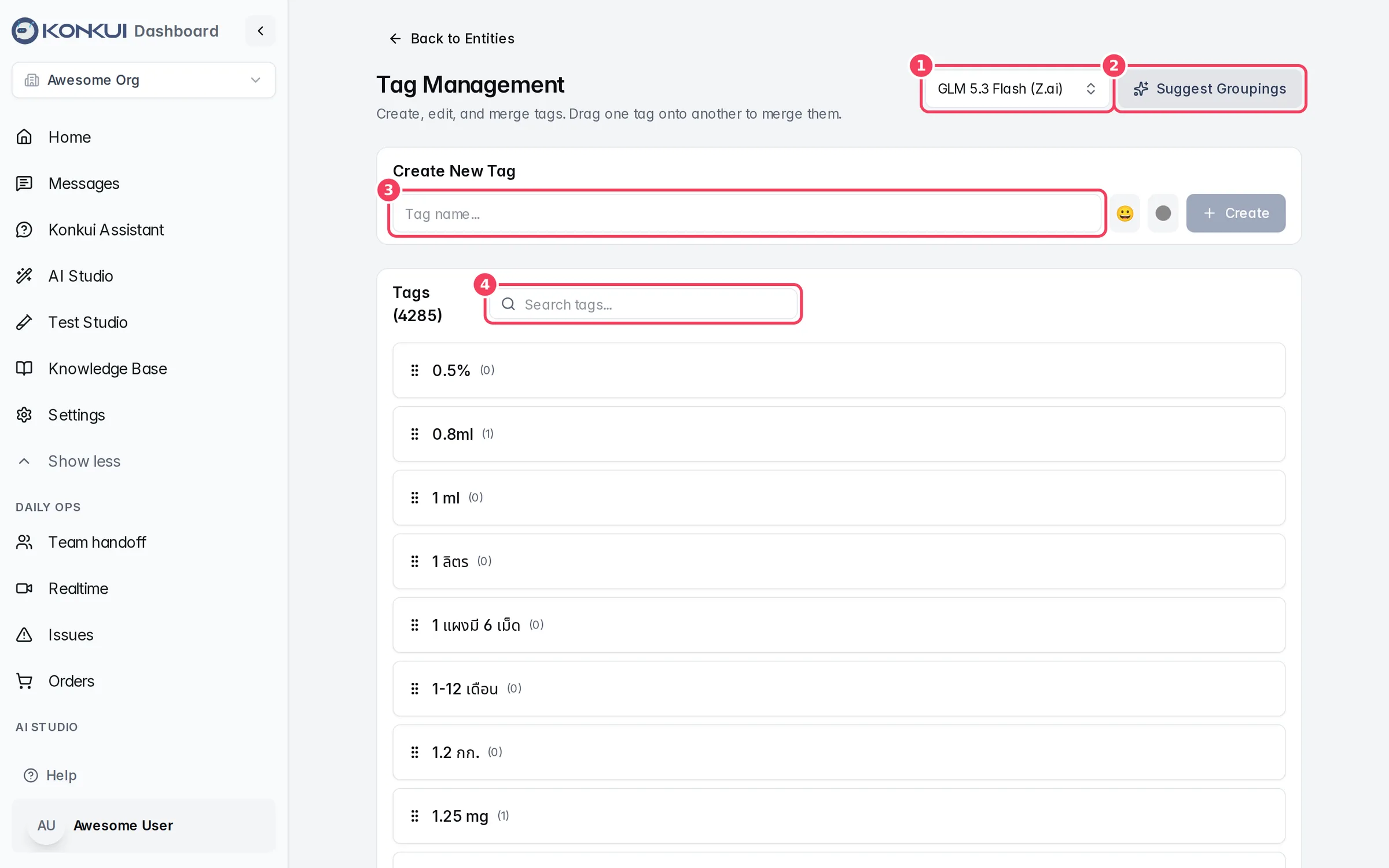
| # | Item | What it does |
|---|---|---|
| 1 | Select AI model | The model used for grouping suggestions. |
| 2 | Suggest Groupings | Asks AI to find similar tags that could be merged. Click a tag in a suggestion to keep it instead, then Merge or Skip. |
| 3 | Create New Tag | Type a name, choose an emoji and color, then Create. |
| 4 | Search tags | Filters the tag list. |
Each tag in the list can be edited (name, emoji, color) or deleted; deleting removes it from every item that uses it. To merge two tags, drag one onto the other and confirm: every item with the first tag is moved to the second, and the first tag is deleted. Suggestions look at the first 300 tags alphabetically.