
Browse the docs
Dashboard reference
Open in dashboardProducts holds your product catalog. The AI uses it to answer questions about what you sell, recommend products and quote prices and stock, and your storefront displays it. You can import products from Shopify or LINE Shop, add them by hand, or both.
The page has two tabs:
- Catalog: your datasources and products.
- Reviews: shopper reviews waiting for approval.
Who can use it
Any workspace member can manage the catalog. Only workspace admins can see and moderate Reviews.
Where to find it
Open Products in the sidebar (it may be under More), or go to Products. Admins can hide it, together with Orders, with the Products switch under Tab Visibility in Settings › General.
Catalog tab
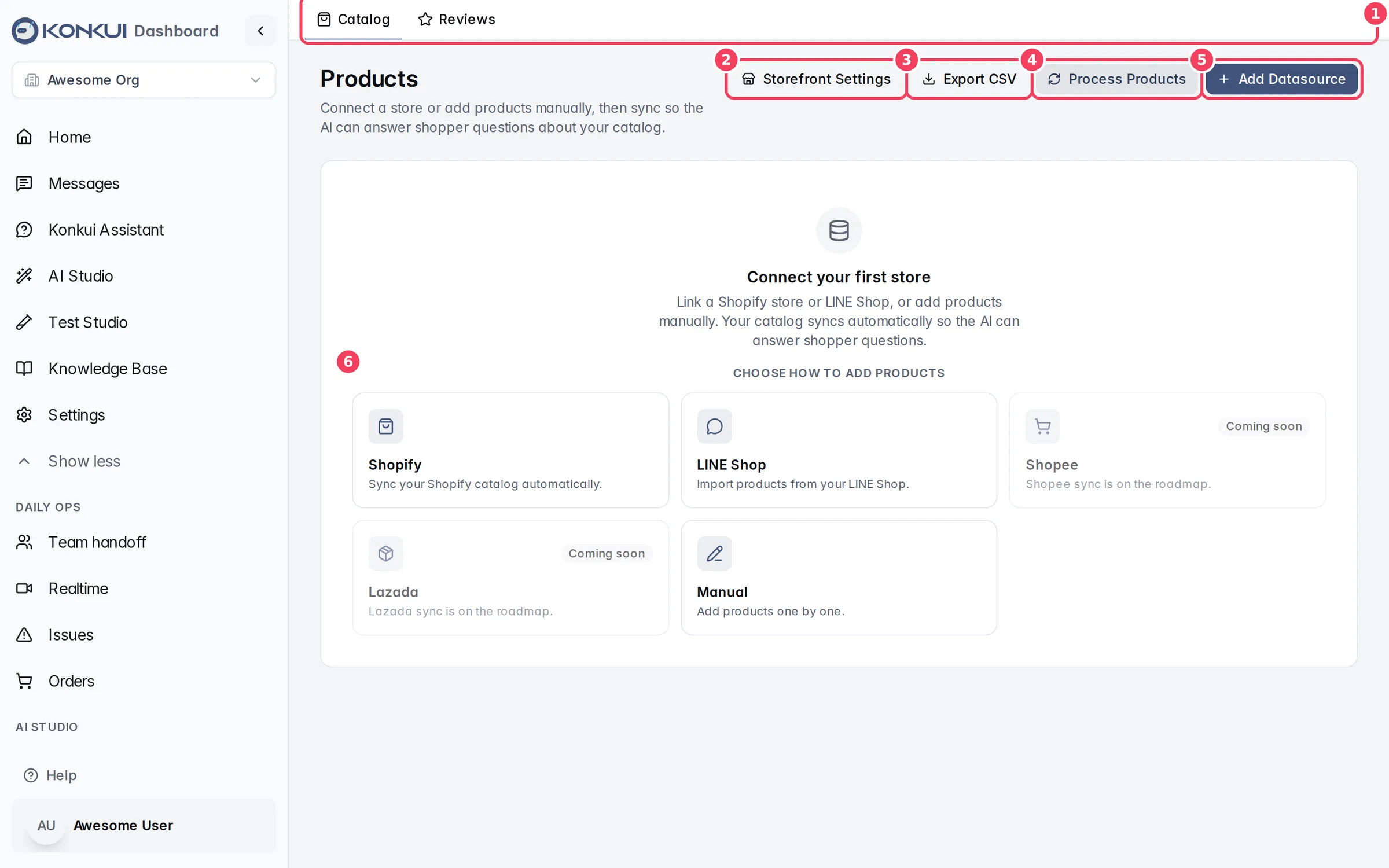
| # | Item | What it does |
|---|---|---|
| 1 | Tabs | Switch between Catalog and Reviews. |
| 2 | Storefront Settings | Opens Settings › Storefront. |
| 3 | Export CSV | Downloads your whole catalog as a CSV file. |
| 4 | Process Products | Re-indexes products for AI search and generates tags. |
| 5 | Add Datasource | Connects a store or creates a manual product list. |
| 6 | Source cards | Shown while your catalog is empty. Pick one to start. |
Datasources
A datasource is one source of products: a Shopify store, a LINE Shop, or a Manual list you maintain in Konkui. You can have several, for example a Shopify store plus a manual list of in-store-only items.
| Type | What it does | Settings |
|---|---|---|
| Shopify | Imports your Shopify catalog. | Name, Store Domain (.myshopify.com) and Access Token (the Storefront access token from Shopify's Headless channel). |
| LINE Shop | Imports your LINE Shop products. | Name, API Key and optionally OA Basic ID. |
| Manual | A list you add products to one by one. | Name. |
| Shopee, Lazada | Marked Coming soon. They cannot be selected yet. |
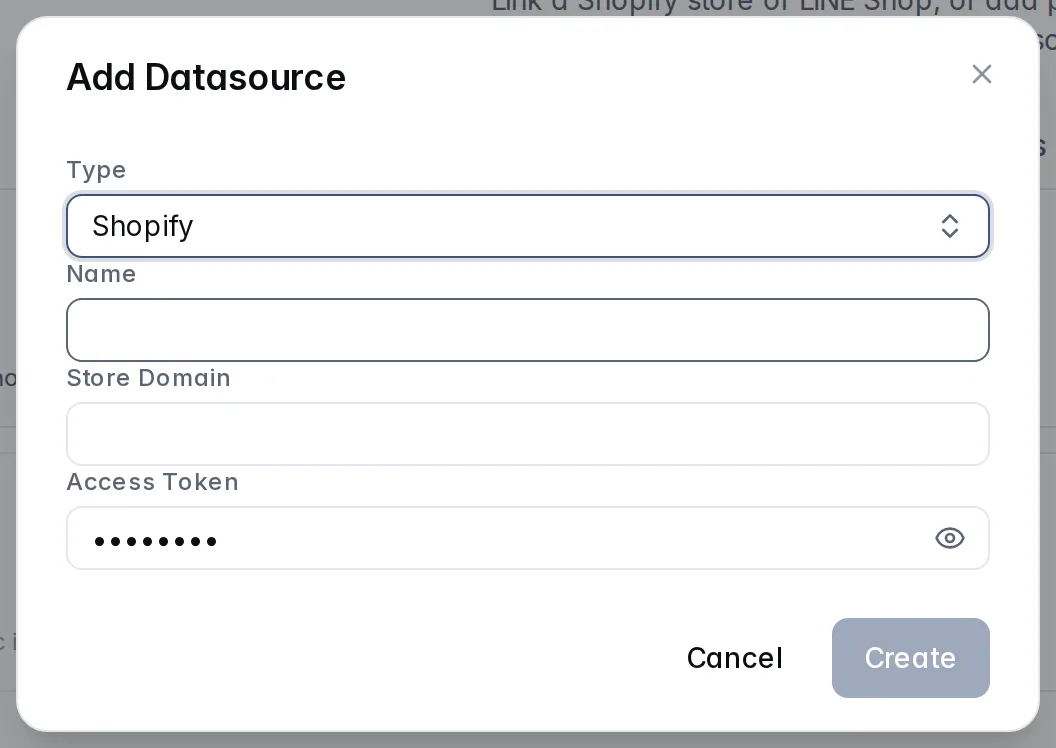
Once you have datasources, each appears as a card above the product list showing its type, name, number of products, when it last synced and, in red, the last sync error if there was one. Click a card to show its products. Each card has buttons to:
- Edit the name or credentials.
- Sync (not on manual lists) to re-import products from the store.
- Delete the datasource and all its products, after you confirm.
You can also connect LINE Shop and Shopify from Settings › General, where Sync (Merge) and Sync (Replace All) are available.
Syncing and processing
When you sync a datasource, a progress bar shows "Syncing products from source…", then indexing and tagging. Processing runs automatically after each sync, so new products become searchable by the AI.
Process Products lets you run processing yourself, for example after editing many products by hand.
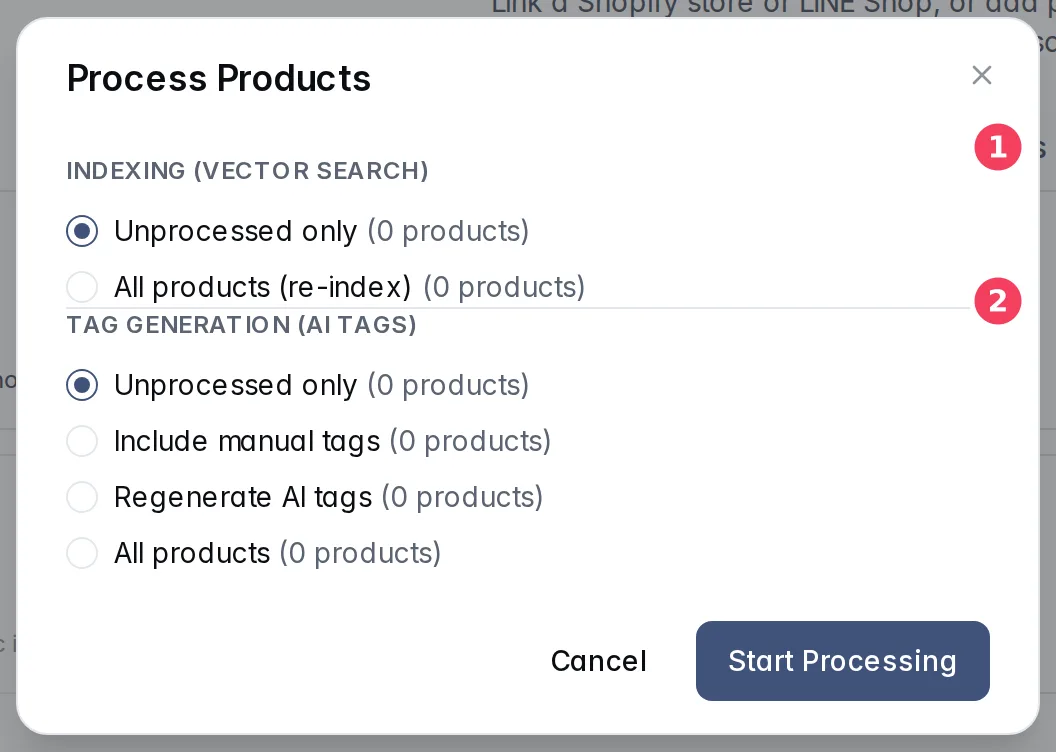
| # | Setting | Options |
|---|---|---|
| 1 | Indexing (Vector Search) | Unprocessed only, or All products (re-index). |
| 2 | Tag Generation (AI Tags) | Unprocessed only, Include manual tags, Regenerate AI tags, or All products. |
Each option shows how many products it affects. Click Start Processing to run it.
The product list
The list shows the selected datasource's products as cards with image, title, status, type, options, number of variants and last update. Icons on each card open the product on your storefront or on its original store.
| Control | What it does |
|---|---|
| Search | Finds products by text. |
| Status | Filters by Active, Draft or Archived. |
| Type | Filters by product type. |
| Add Product | Adds a product. Only on Manual datasources. |
| Checkboxes | Select products for bulk actions: Set status (Active, Draft, Archived) or Delete. Select all on page selects the whole page. |
Only Active products are shown on your storefront.
Adding a product
On a manual datasource, click Add Product and fill in Title, Description, Status, Vendor, Product Type, Handle and an optional image, then click Create. Add prices and stock afterwards as variants on the product page.
Product page
Click a product card to open its page. The top bar has a breadcrumb back to Products and View Product, which opens the product on Our Storefront or on its original store.
Product Info
| Setting | What it does | Notes |
|---|---|---|
| Product Images | The product's photos. | Up to 10 images; PNG, JPEG, GIF or WebP, up to 10 MB each. |
| Title, Description | What shoppers and the AI see. | |
| Status | Active, Draft or Archived. | Only Active products appear on the storefront. |
| Vendor, Product Type, Handle | Catalog details. The handle is the product's URL slug. | |
| Sale Priority | Which products the AI should favour when recommending. | Lower number = higher priority (1 is highest). Leave empty for no priority. |
| Options | The product's option names and values, such as Color: Red, Blue. | Read-only; shown when the product has options. |
| Fulfillment | Whether the product ships to the customer or books a time slot. | Applies to every variant. Booking a time slot is only available when Booking is enabled for your workspace. |
| Tags | Tags that help the AI find the product. A marker shows No tags, Manual or AI Generated. | Search and add tags, then Save Tags. Reset discards changes. |
| Product URL | A link to the product on its original store. |
Save keeps your changes; Cancel discards them. An "Unsaved changes" note appears while you have edits. Delete Product removes the product.
Variants
Variants hold prices and stock for each SKU. Click Add Variant, or the edit icon on a row, to open the variant form.
| Setting | What it does |
|---|---|
| Title, SKU, Barcode | Identify the variant. Option values (for example Color) appear here when the product has options. |
| Image URL | A picture for this variant. |
| Price, Compare At Price, Currency | The selling price, an optional original price to show a discount, and the currency. |
| Inventory | Units in stock. |
| Weight, Weight Unit | Shipping weight. |
Reviews tab
Shoppers can leave star reviews, with photos or a video, on your storefront's product pages. New reviews wait here for approval. Only approved reviews appear on the product page and count toward its rating. A Verified purchase badge means the shopper proved they bought the product.
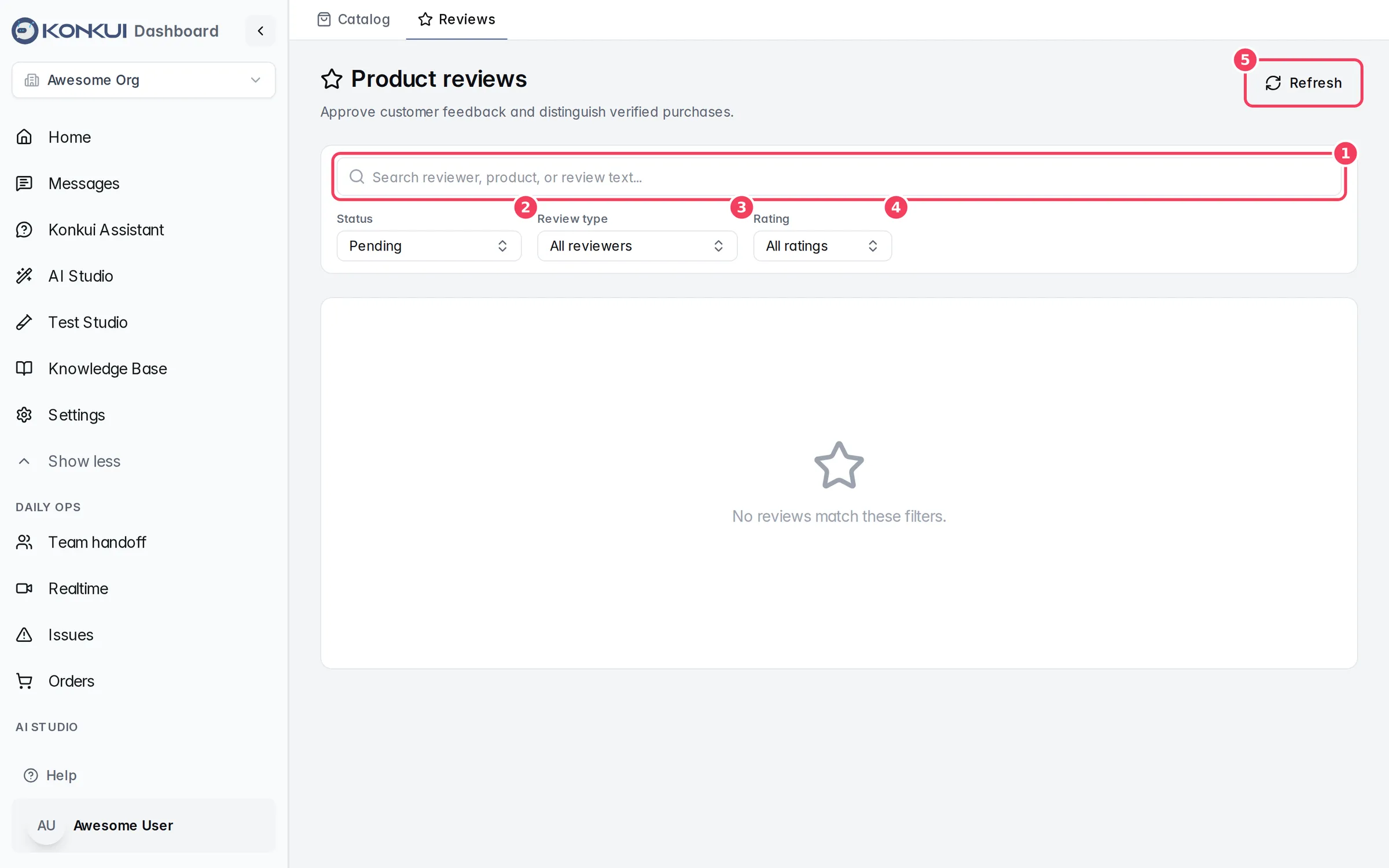
| # | Item | What it does |
|---|---|---|
| 1 | Search | Finds reviews by reviewer, product or review text. |
| 2 | Status | Pending (default), Approved, Rejected, Removed or all. |
| 3 | Review type | Verified purchases, Unverified reviews or all reviewers. |
| 4 | Rating | Filter by number of stars. |
| 5 | Refresh | Reloads the list. |
Click a review to open it. You see the rating, text, uploaded media, verification and the moderation history. Add an optional Internal note, then:
- Approve review or Reject review for a pending review.
- Remove from storefront for an approved review you no longer want shown.