
Browse the docs
Dashboard reference
Open in dashboardWhen a customer reports a problem in a conversation, the AI can open an issue for it, with a title, description, priority and category. Customer Issues collects these in one list so your team can follow up, mark progress, and record how each one was resolved.
Admins and Staff can view issues and change their status.
Where to find it
Click More in the sidebar, then Issues under Daily Ops.
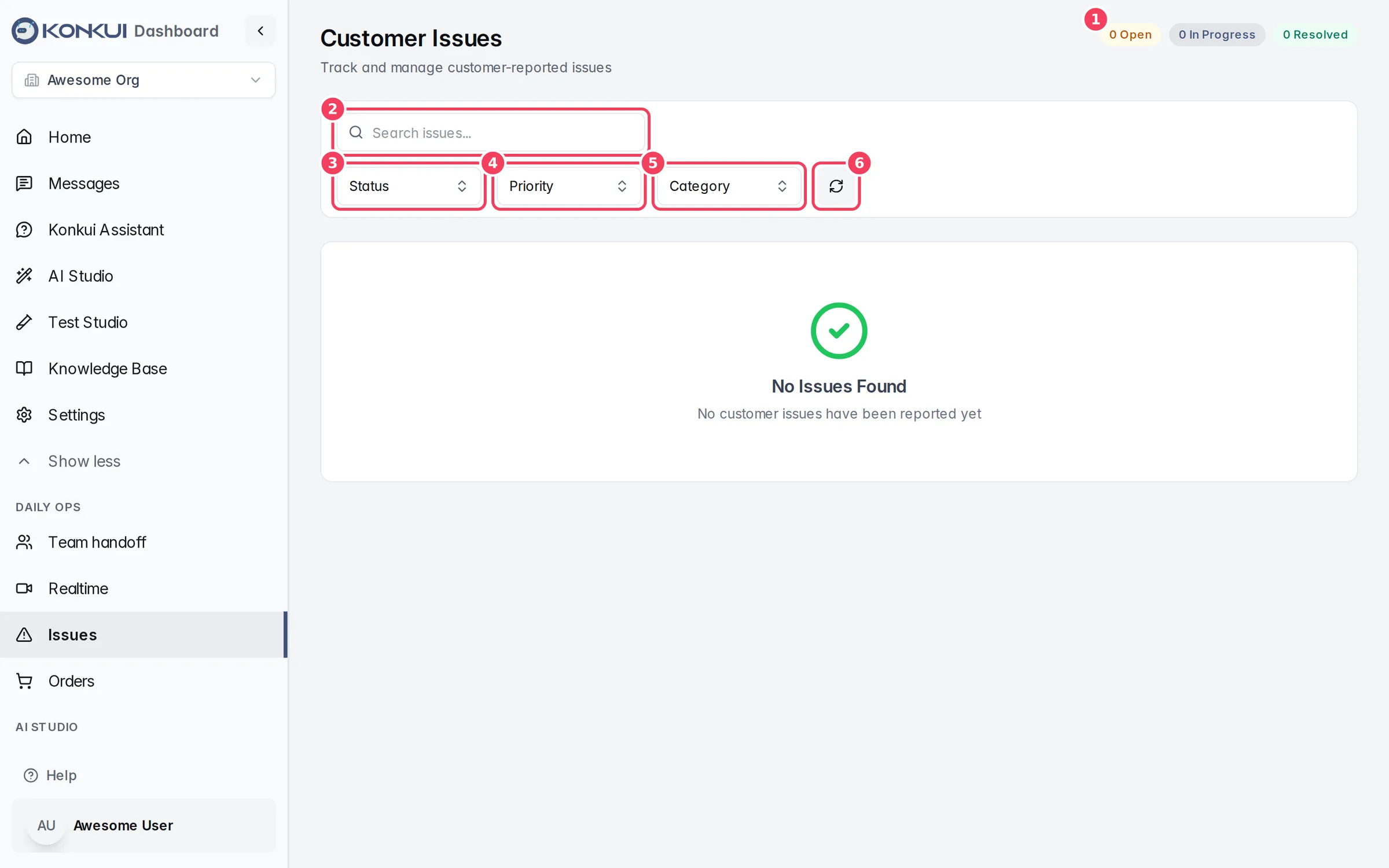
| # | Item | What it does |
|---|---|---|
| 1 | Status counts | How many issues are Open, In Progress and Resolved across the workspace. |
| 2 | Search issues... | Searches issue titles and descriptions. |
| 3 | Status | Shows only Open, In Progress, Resolved or Closed issues. |
| 4 | Priority | Shows only High, Medium or Low priority issues. |
| 5 | Category | Shows only Billing, Technical, Feedback or Other issues. |
| 6 | Refresh | Reloads the list. |
When any filter or search is set, Clear Filters appears to reset them all.
Where issues come from
The AI opens an issue when a customer describes a problem it should record. Each new issue starts as Open. The AI picks a priority and a category from the conversation.
The issue list
Each issue card shows:
- the title, with priority, status and category labels;
- the first lines of the description;
- how long ago it was opened, the customer ID, and Resolved by name once resolved;
- a conversation button that opens the conversation in Messages, when the issue came from one;
- a ⋮ menu to change the status.
Issues load 20 at a time. Click Load More at the bottom to see older ones.
Change an issue's status
Open the ⋮ menu on an issue and choose:
| Action | Result |
|---|---|
| Reopen Issue | Sets the issue back to Open and clears its resolution note. |
| Mark In Progress | Shows the team someone is working on it. |
| Mark Resolved | Opens a dialog where you can add a Resolution Note (optional), then confirm with Mark Resolved. Your name is recorded as the resolver. |
| Close Issue | Opens the same dialog, confirmed with Close Issue. Use it for issues that need no fix, such as duplicates. Your name is recorded here too. |
The option matching the current status is disabled.