
Browse the docs
Dashboard reference
Open in dashboardSettings › Billing is where you see your current plan and what you owe, compare plans and upgrade, set a cap on pay-per-use charges, enter the company details printed on your invoices, and download invoices and receipts.
Every member can view this page. Only admins can upgrade, cancel, change the overage cap, or save billing details; a staff member who tries gets a permission error.
Where to find it
Open Settings in the sidebar and choose the Billing tab, or go straight to Settings › Billing.
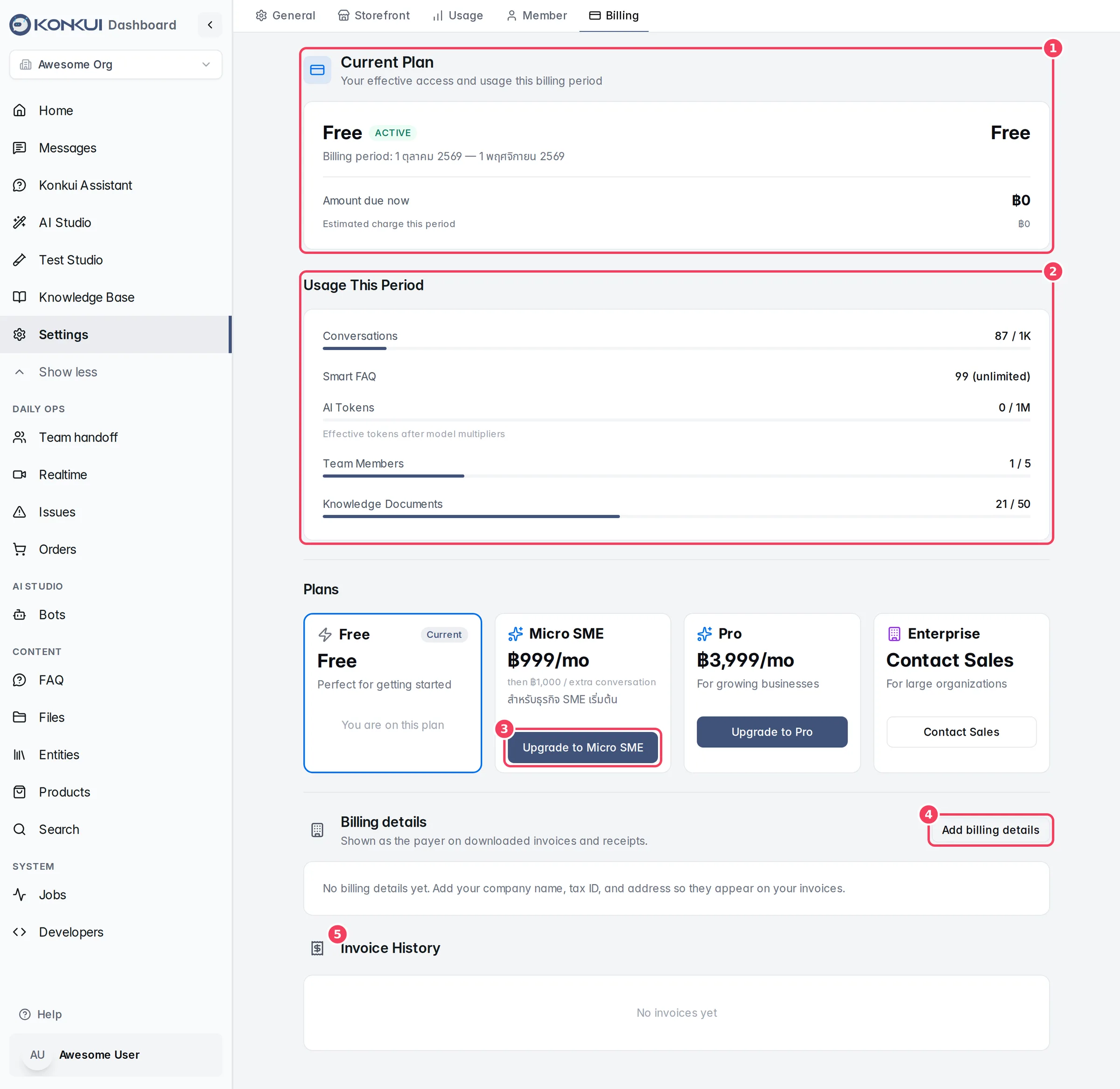
| # | Item | What it does |
|---|---|---|
| 1 | Current Plan | Your plan, its status and billing period, the amount due now and the estimated charge this period. |
| 2 | Usage This Period | Meters for each plan limit. |
| 3 | Plan cards | Compare plans and start an upgrade. |
| 4 | Billing details | The payer details printed on your invoices and receipts. |
| 5 | Invoice History | Every invoice, with PDF downloads. |
Banners
Banners appear at the top of the page only when they apply:
| Banner | When it appears | What to do |
|---|---|---|
| You've been gifted extra tokens | Konkui has added bonus tokens to your plan (monthly, one-time, or both). | Nothing; the tokens are applied automatically. |
| Access granted via redeem code | A redeem code currently gives you a plan. Shows the plan, the code and its expiry. | Nothing. You can still subscribe or pay invoices if you want to. |
| Payment overdue — grace period active | A PromptPay renewal wasn't paid by the end of the period. Service continues for a 7-day grace period; the banner shows the end date. | Pay the pending invoice before that date. |
| Upcoming plan change | Your plan's price will change on a set date. Shows the new price and date. | Review it; no action needed to keep the plan. |
| Service halted — payment required | The grace period ended without payment. | Pay the invoice below to restore service. |
Current Plan
| Item | What it shows | Notes |
|---|---|---|
| Plan name and status | The plan you have access to now and the subscription status (for example ACTIVE or PAST_DUE). | Shows COUPON ACCESS when a redeem code grants the plan. |
| Billing period | Start and end dates of the current period. | |
| Price | The plan's monthly price. | With a redeem code, shows ฿0 with the normal price crossed out. |
| Cancel subscription | Opens the cancel confirmation. | Not shown on the Free plan or once cancelled. Admins only. |
| Cancelled — active until … | Shown after you cancel. | You keep the plan until the period ends. |
| Amount due now | The total of issued invoices that are not paid yet. | |
| Estimated charge this period | The plan fee plus any pay-per-use charges so far. | Not shown for redeem-code access or contact-sales plans. |
Usage This Period
One meter per plan limit. Bars turn yellow at 70% and red at 90%.
| Meter | What it counts | Notes |
|---|---|---|
| Conversations | Customer conversations started this period. | |
| Smart FAQ | FAQ entries. | Shows "(unlimited)" when Fast FAQ is enabled for your workspace. |
| AI Tokens | Effective tokens used this period. | Effective tokens include model multipliers. See Settings › Usage for the breakdown. |
| Team Members | Members in the workspace. | |
| Knowledge Documents | Documents in your knowledge base. |
Pay-per-use overage
This section appears when your plan charges for extra conversations. It explains the rate per extra conversation and shows Extra conversations this period with the charge so far. Overage is added to your next invoice.
| Setting | What it does | Notes |
|---|---|---|
| Monthly overage spend cap — Cap (THB) | Limits how much pay-per-use overage can cost in one period. | Leave blank for no cap (the default). Enter 0 to never pay overage: AI work then stops at your included quota. Admins only. |
| Save cap | Saves the amount you entered. | |
| Remove cap | Clears the cap so overage is unlimited again. | Shown only when a cap is set. |
When usage reaches the cap, a warning appears and new conversations pause until the next period or until you raise the cap. The same cap also limits AI-token overage, shown as Monthly cap on Settings › Usage.
Plans
Each card shows the plan's monthly price, the rate for extra conversations (if any), a short description and its features. Current list prices are also on the pricing page.
| Button or label | When you see it | What it does |
|---|---|---|
| Upgrade to … | On plans above your current one. | Opens the payment choice. Admins only. |
| Subscribe to … | On the plan a redeem code gives you. | Lets you pay for it voluntarily. |
| Contact Sales | On plans without a listed price. | Opens an email to the sales team. |
| Downgrade via cancellation | On plans below your current one. | To move down, cancel; the workspace moves at the end of the period. |
| You are on this plan | On your current plan. |
Choose how to pay
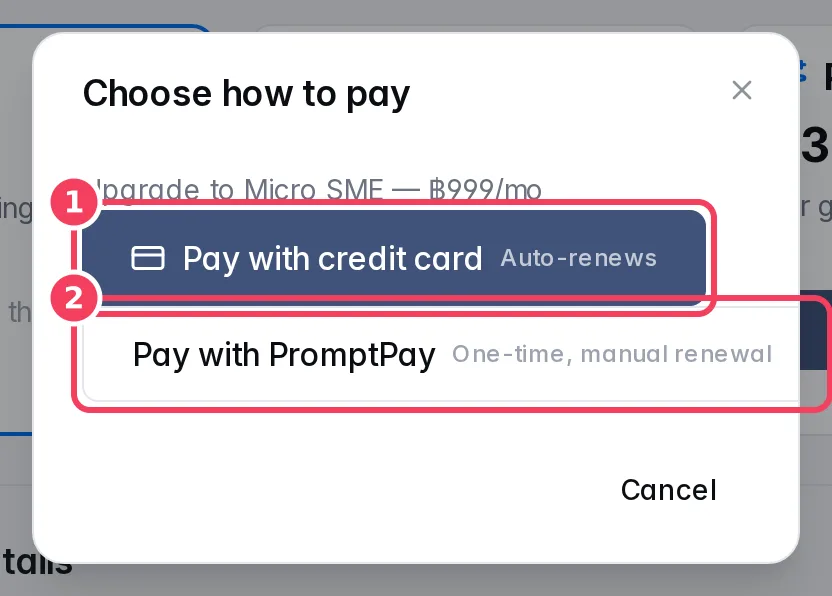
| # | Option | What happens |
|---|---|---|
| 1 | Pay with credit card | You go to a secure card checkout page, then come back to Billing. The plan auto-renews each period. |
| 2 | Pay with PromptPay | A PromptPay QR code appears with the amount and a countdown. Scan it with your banking app; the dialog confirms Payment Successful! within seconds. PromptPay is one-time: you renew manually each period. |
If checkout can't start, a Could not start checkout message explains why.
Billing details
These details are printed as the payer on the invoice and receipt PDFs you download. Click Add billing details (or Edit once saved).
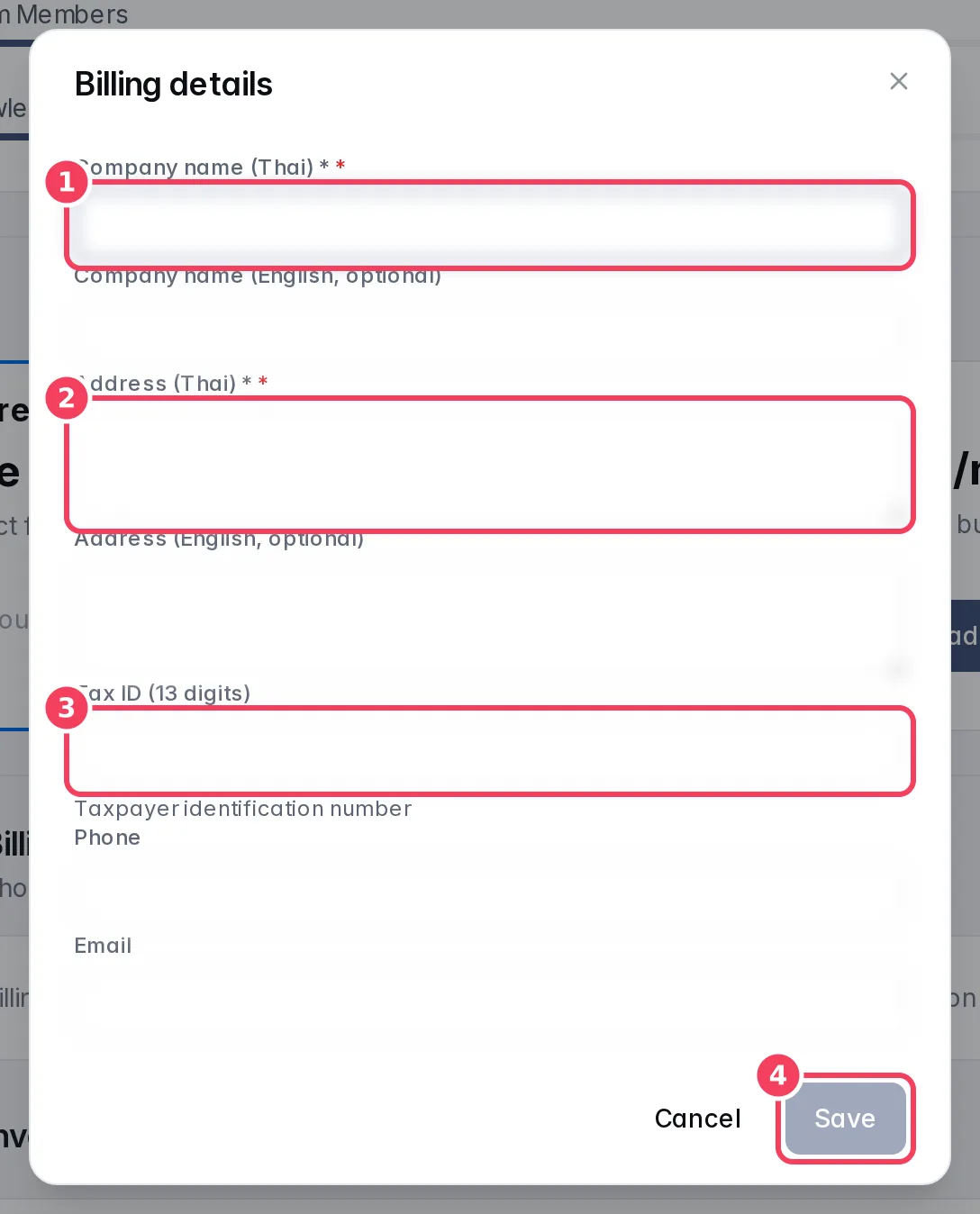
| # | Field | Notes |
|---|---|---|
| 1 | Company name (Thai) | Required. Company name (English, optional) sits below it. |
| 2 | Address (Thai) | Required. Address (English, optional) sits below it. |
| 3 | Tax ID (13 digits) | Your taxpayer identification number. Digits only, up to 13. |
| — | Phone, Email | Optional contact details for the invoice. |
| 4 | Save | Enabled once both required fields are filled. Admins only. |
Invoice History
| Column | What it shows |
|---|---|
| No. | The invoice number. |
| Date | Issue date. |
| Plan | The plan billed, or the description of a manual invoice. |
| Period | The billing period covered. |
| Amount | Total amount, in the invoice currency. |
| Status | PAID, PENDING or FAILED. |
| Download | Invoice opens the invoice PDF in a new tab. Receipt appears once the invoice is paid. |
Cancel a subscription
Admins can click Cancel subscription under the plan price. The dialog confirms that the plan ends at the end of the current billing period and that every feature keeps working until then. Choose Cancel Subscription to confirm or Keep Plan to back out.
Card subscriptions stop renewing. PromptPay subscriptions move to the Free plan at the end of the period instead of being halted.