
Browse the docs
Dashboard reference
Open in dashboardTeam handoff is where you connect your team to conversations the AI cannot finish alone. When the AI asks for a person, every available teammate with a notification destination gets an alert with a link to the conversation. This page lets you set up your own alerts, check who on the team will be alerted, and jump to conversations that are waiting.
Admins and Staff can both use this page. Each person sets up their own alert destination and availability; you cannot set them up for a teammate.
Where to find it
Click More in the sidebar, then Team handoff under Daily Ops. You can also reach the setup from Set up team handoff in Messages and from the Home checklist. Admins can hide the sidebar item under Settings › General › Tab Visibility › On-Call.
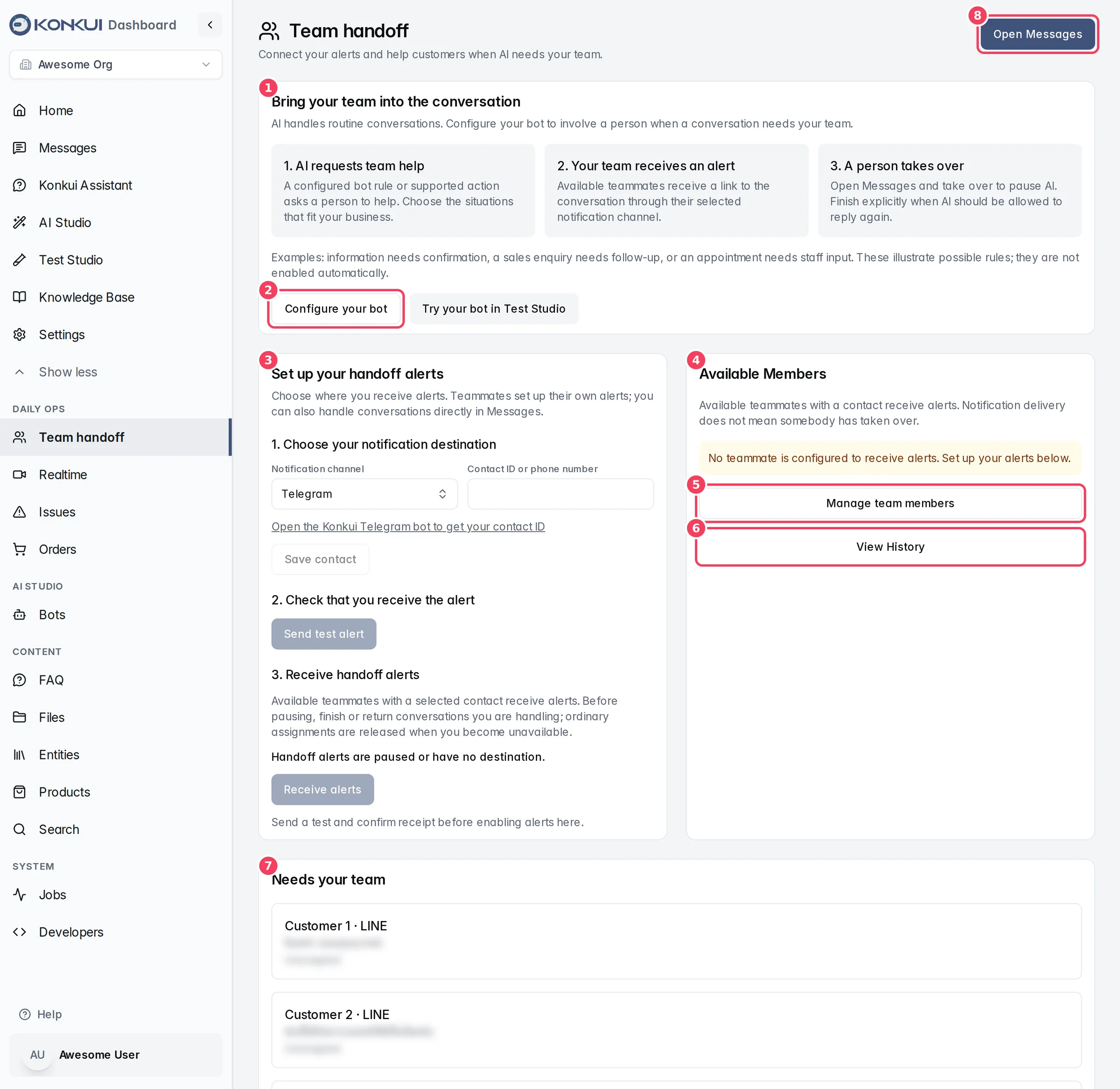
| # | Item | What it does |
|---|---|---|
| 1 | Bring your team into the conversation | Explains the three steps of a handoff: the AI requests help, your team receives an alert, a person takes over. |
| 2 | Configure your bot | Opens Bots, where you decide when the AI should ask for a person. Try your bot in Test Studio lets you test it. |
| 3 | Set up your handoff alerts | Your personal alert setup. See Set up your alerts. |
| 4 | Available Members | Teammates who are currently available, with the destination their alerts go to. |
| 5 | Manage team members | Opens Settings › Member. |
| 6 | View History | Opens the Notification History. |
| 7 | Needs your team | Conversations waiting for a person. This list refreshes every 15 seconds. |
| 8 | Open Messages | Opens the Messages inbox, where you take over and reply. |
How a handoff works
- AI requests team help. A rule in your bot, or a supported action, asks for a person. Examples: information needs confirming, a sales enquiry needs follow-up, or an appointment needs staff input. These examples are not switched on automatically; you choose the situations in your bot settings.
- Your team receives an alert. Every teammate who is Available and has a notification destination gets a message with a link to the conversation.
- A person takes over. Open the conversation in Messages and click Take over. This pauses the AI for that conversation. When you are done, click Finish and return to AI.
While a conversation is waiting for your team, the AI stays quiet so it does not talk over the person who is coming.
An alert being sent does not mean somebody has taken over. Check Needs your team or the Messages inbox to see what is still waiting.
Set up your alerts
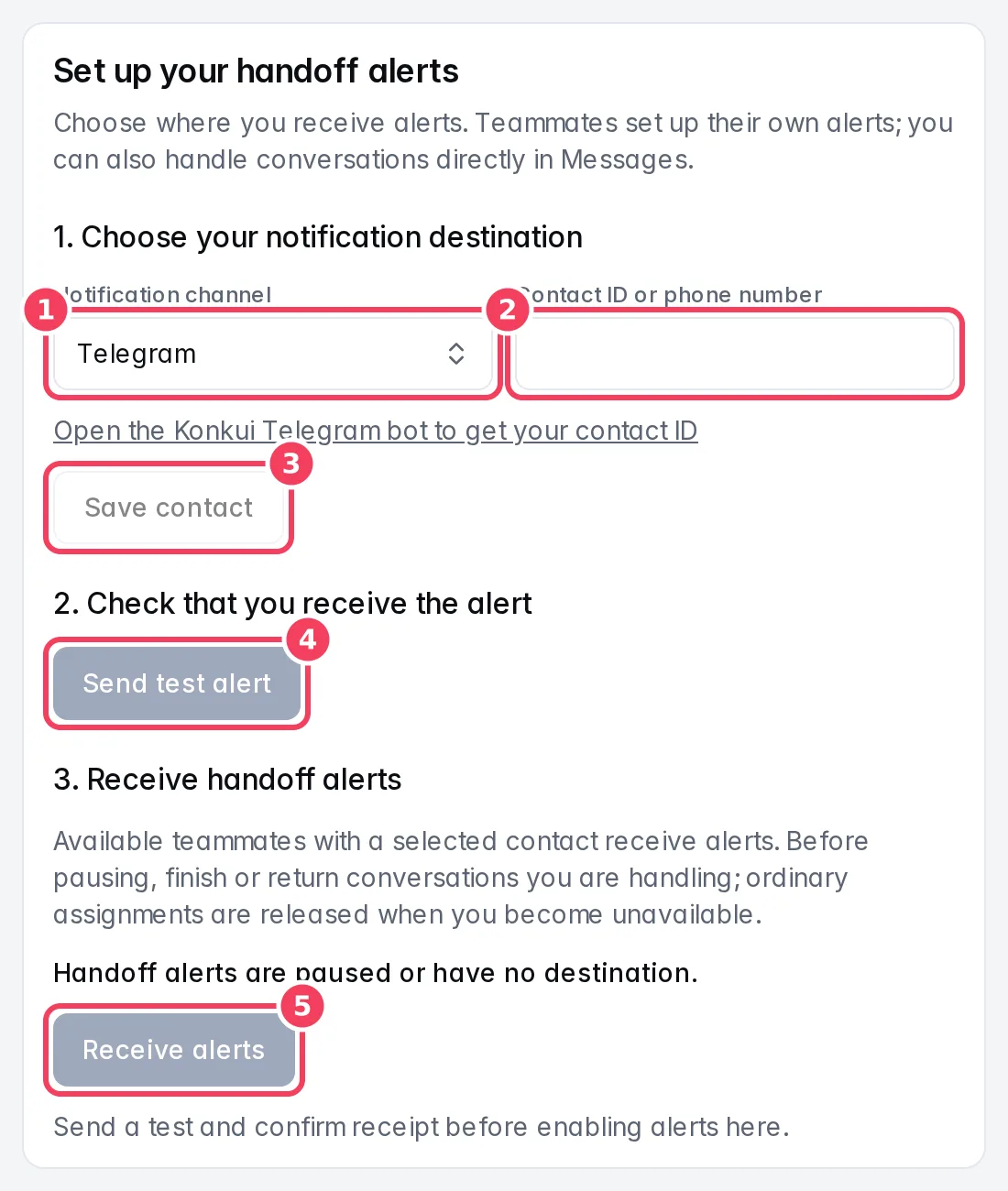
| # | Setting | What it does | Notes |
|---|---|---|---|
| 1 | Notification channel | Where your alerts go: Telegram, LINE or SMS. | Once you have saved a contact, a Send my alerts to list also appears so you can choose between your saved contacts. |
| 2 | Contact ID or phone number | Your ID on that channel. | Telegram: open the Konkui Telegram bot from the link under the field to get your contact ID. LINE: send /admin_getstart to your connected LINE Official Account and copy the LINE User ID it returns. SMS: your full number with the country code, for example +66812345678. |
| 3 | Save contact | Saves the contact to your list. | Your first saved contact is selected automatically. |
| 4 | Send test alert | Sends a test to your selected destination. | Check your app or phone, then click I received the test. A successful send does not prove the alert arrived, which is why you confirm it yourself. |
| 5 | Receive alerts / Pause alerts | Turns your alerts on or off. | Receive alerts unlocks after you confirm the test. When alerts are on, the card shows Alerts enabled · and your destination. |
Turning alerts on here is the same as switching yourself to Available in Messages or on Settings › Member. Before you pause alerts, finish or return any conversation you have taken over. Ordinary assignments are released when you become unavailable.
Available members
This card lists every teammate who is currently available, with the destination their alerts go to. A teammate shown with You're online but won't receive any alerts is available but has no destination, so they will not be alerted.
If nobody can receive alerts, an amber notice reads No teammate is configured to receive alerts. Set up your alerts below. Until someone sets up alerts, the AI keeps answering conversations that would otherwise wait for your team.
Conversations that need your team
The Needs your team card lists conversations waiting for a person, with the customer ID, channel, latest message, and whether a teammate has taken it (Unassigned or Assigned to name). Click one to open it in Messages. When the list is empty you will see No conversations need attention right now.
Notification History
View History opens a log of the alerts sent to your team. Click Back to team handoff to return.
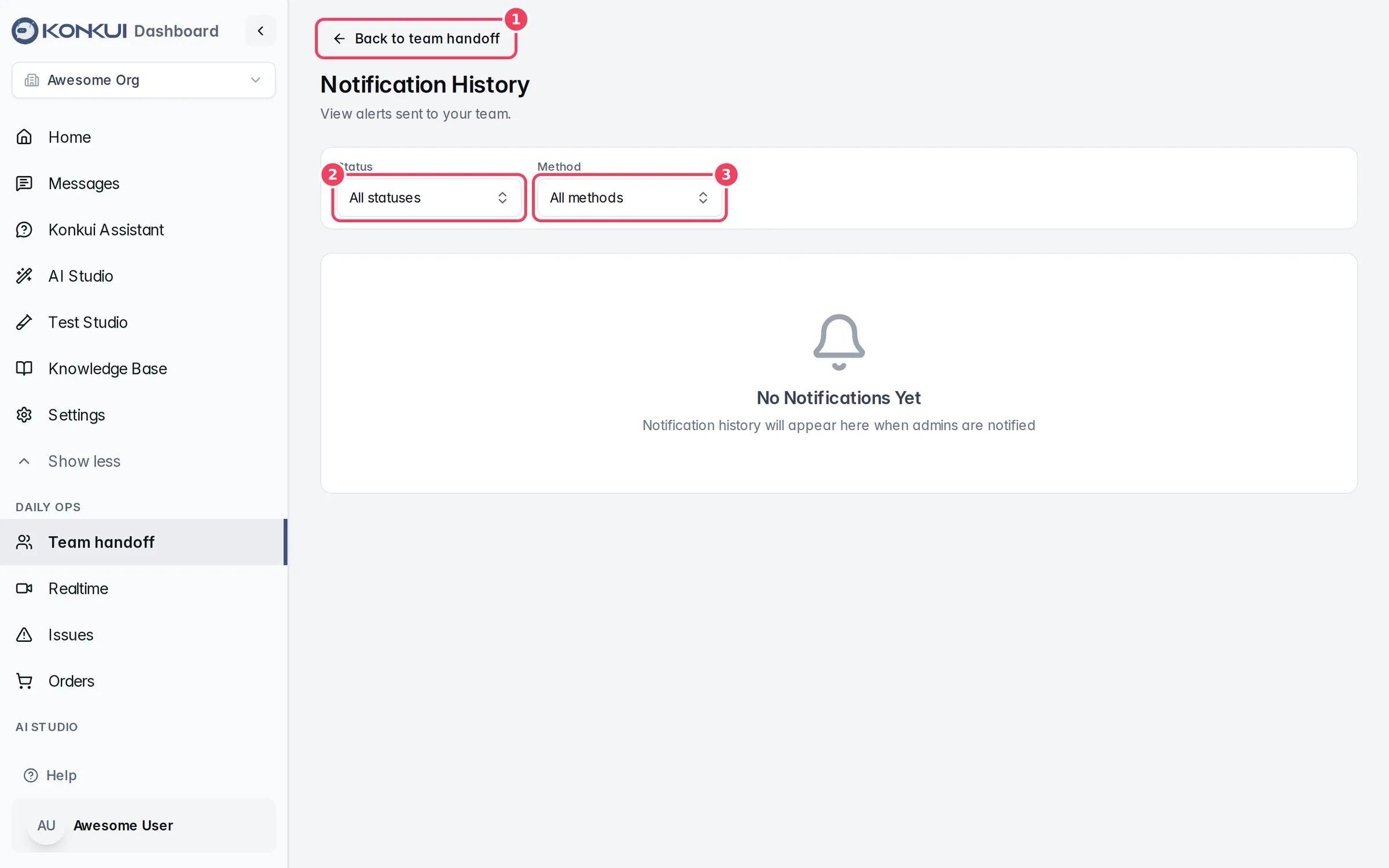
| # | Item | What it does |
|---|---|---|
| 1 | Back to team handoff | Returns to the Team handoff page. |
| 2 | Status | Filters by Pending, Sent, Delivered or Failed. |
| 3 | Method | Filters by SMS, Email, Push or In-App. |
Each entry shows when the alert was sent, its status and method, who it went to (one teammate, or All On-Call for everyone available), the User Message: that triggered it, the Notification Sent: text, and the channel and customer. Some entries also show a cost. Click View Conversation to open the conversation. Use Clear Filters to reset the filters. Results show 25 per page.