
Browse the docs
Guides
Open in dashboardA bot gets better through a simple loop: test → fix → retest. You try questions the way customers ask them, keep the important ones as test cases, look at which answers score low, fix the knowledge or instructions behind them, and run the tests again to confirm the fix. This guide walks through that loop with Test Studio and AI Studio.
Before you begin
- You need a bot with some knowledge already added. If you are starting from scratch, follow Teach your bot first.
- Test Studio and AI Studio must be visible in your sidebar. If they are not, ask an admin to turn on Test Studio and Test Cases under tab visibility in Settings › General.
- Tests use real AI, so they count toward your usage.
1. Try your bot in Test Studio
Open Test Studio. Under Run this test as, choose the bot you want to check (you can pick a disabled bot to try it before going live), then type a message exactly as a customer would. You can attach or paste an image too.
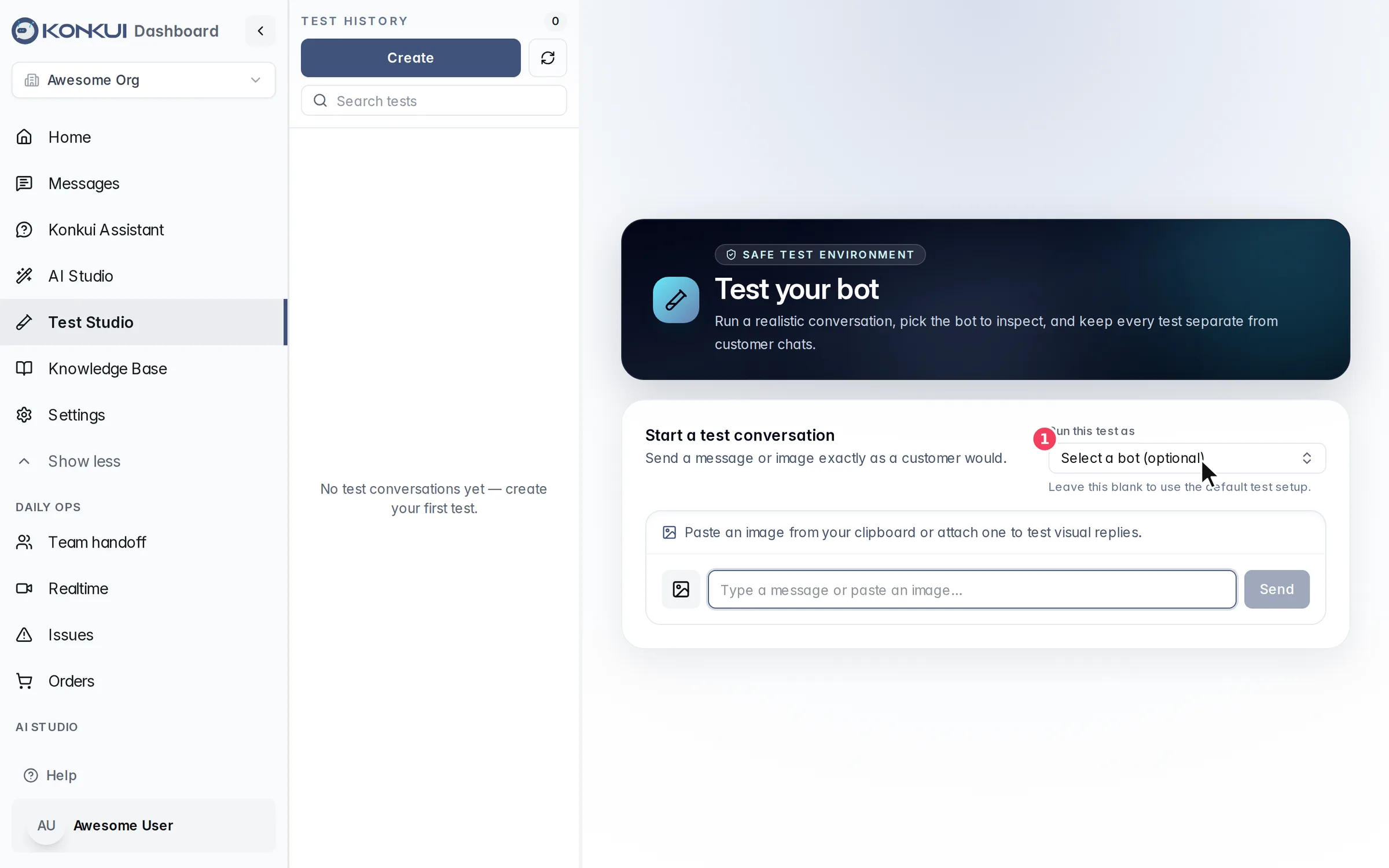
Ask the questions customers ask most, plus the tricky ones: prices, stock, policies, and anything where a wrong answer is costly. Under each reply, use 👍 or 👎, or click Improve to write the answer you wanted.
Test conversations never reach real customers. See Test Studio for every option.
2. Turn real conversations into test cases
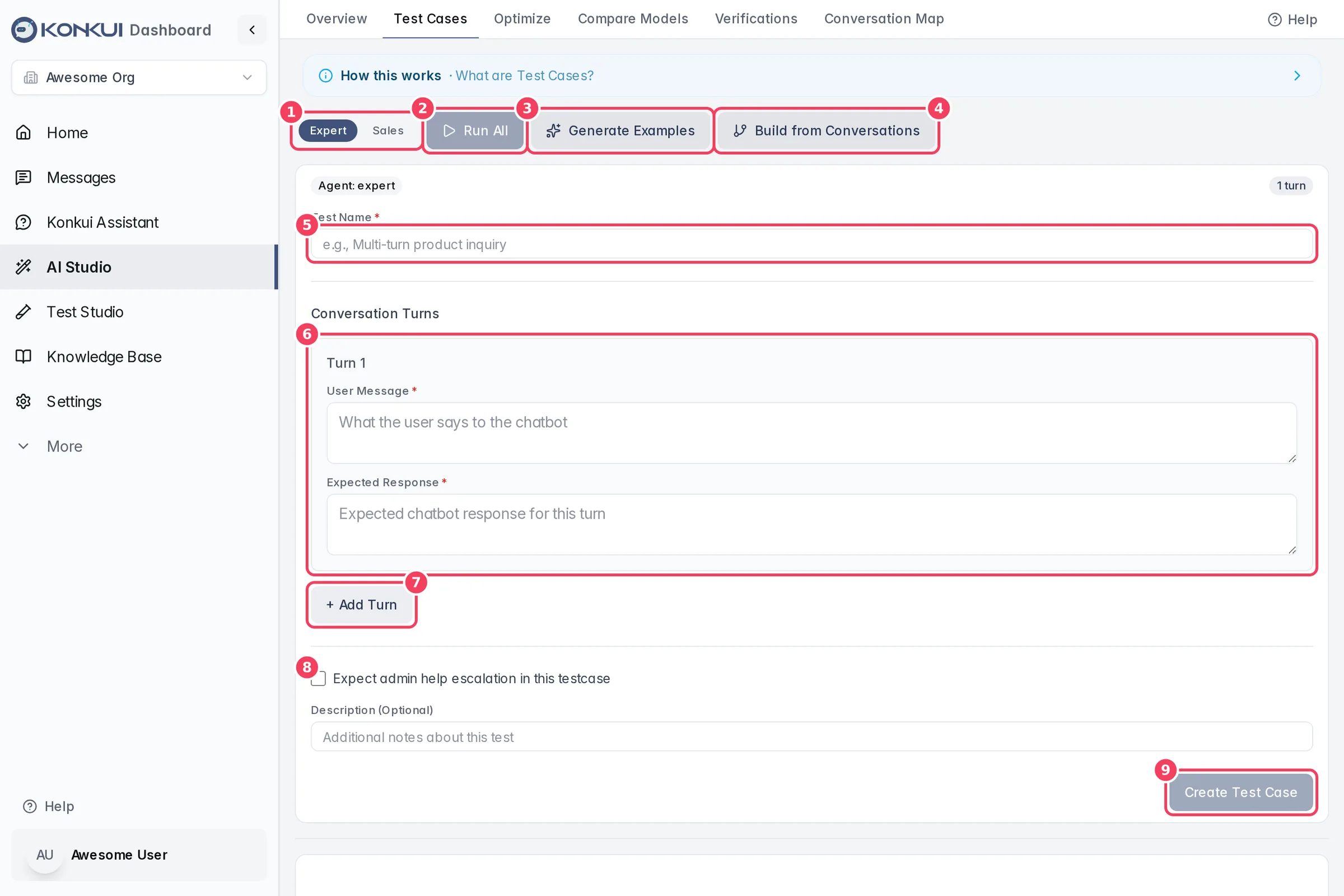
A test case is an example conversation with the answer you expect. Collect a set of them so you can measure the bot the same way every time. Open AI Studio › Test Cases and choose Expert or Sales at the top, then add test cases in any of these ways:
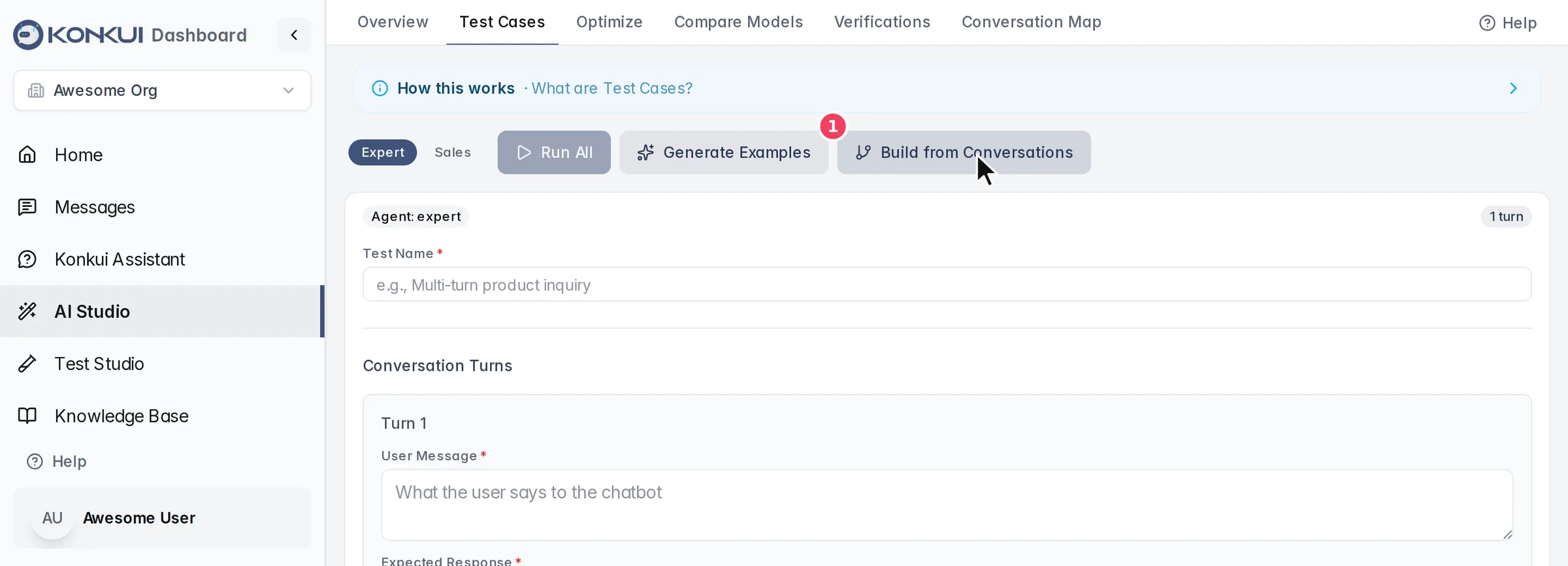
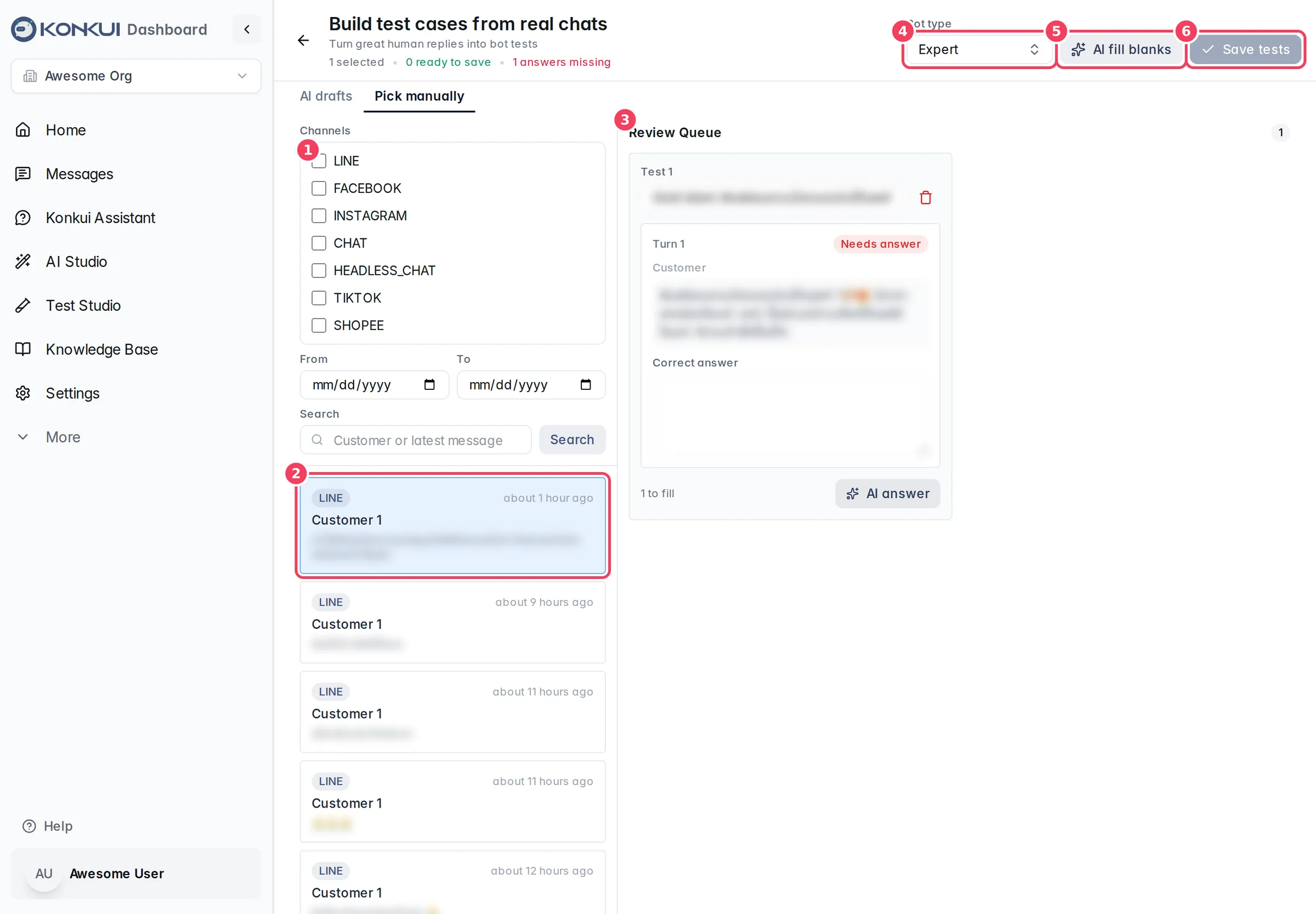
- Build from Conversations opens the review queue:
- AI drafts: click Generate automatically and AI scans past chats, finds answers it thinks were wrong, and drafts test cases. Review each draft, fix the correct answer if needed, and Accept or Reject it. Starting scans and accepting drafts is for admins.
- Pick manually: click conversations where your team replied well. Each becomes a test with the human reply as the expected answer. Fill any missing answers (or use AI fill blanks), check them, and click Save tests.
- Generate Examples drafts five test cases from your bot's setup and knowledge.
- Write your own in the form: a Test Name, the customer's message and the Expected Response for each turn, then Create Test Case.
3. Run your test cases
Click Run Test on a card, or Run All to run every test case for the selected personality. An AI judge scores each reply from 1 to 5 against your expected answer (5 is excellent, below 3 is failing). Open the result to read the actual reply and the Judge Reasoning.
Make a note of the failing tests. They tell you what to fix.
4. Fix what the bot got wrong
Read the judge's reasoning and the bot's actual reply, then decide what kind of problem it is:
| The bot… | Fix it here |
|---|---|
| Did not know the fact, or used outdated information | Add or correct it in the Knowledge Base, FAQ, Files or Products. |
| Had the information but could not find it | Use Search with the customer's words to see what comes up, then improve the title or wording of the right document. |
| Knew the answer but phrased or behaved badly | Adjust the bot's settings in Bots, or let Optimize tune its instructions. |
| Gave a risky answer, such as a wrong dose or price | Add a verification rule so risky answers are checked before they are sent. |
5. Retest
Run the failing test cases again, then Run All to make sure the fix did not break anything else. Repeat the same questions in Test Studio for a quick check. Keep going around the loop until your important tests pass.
6. Let Optimize tune the instructions
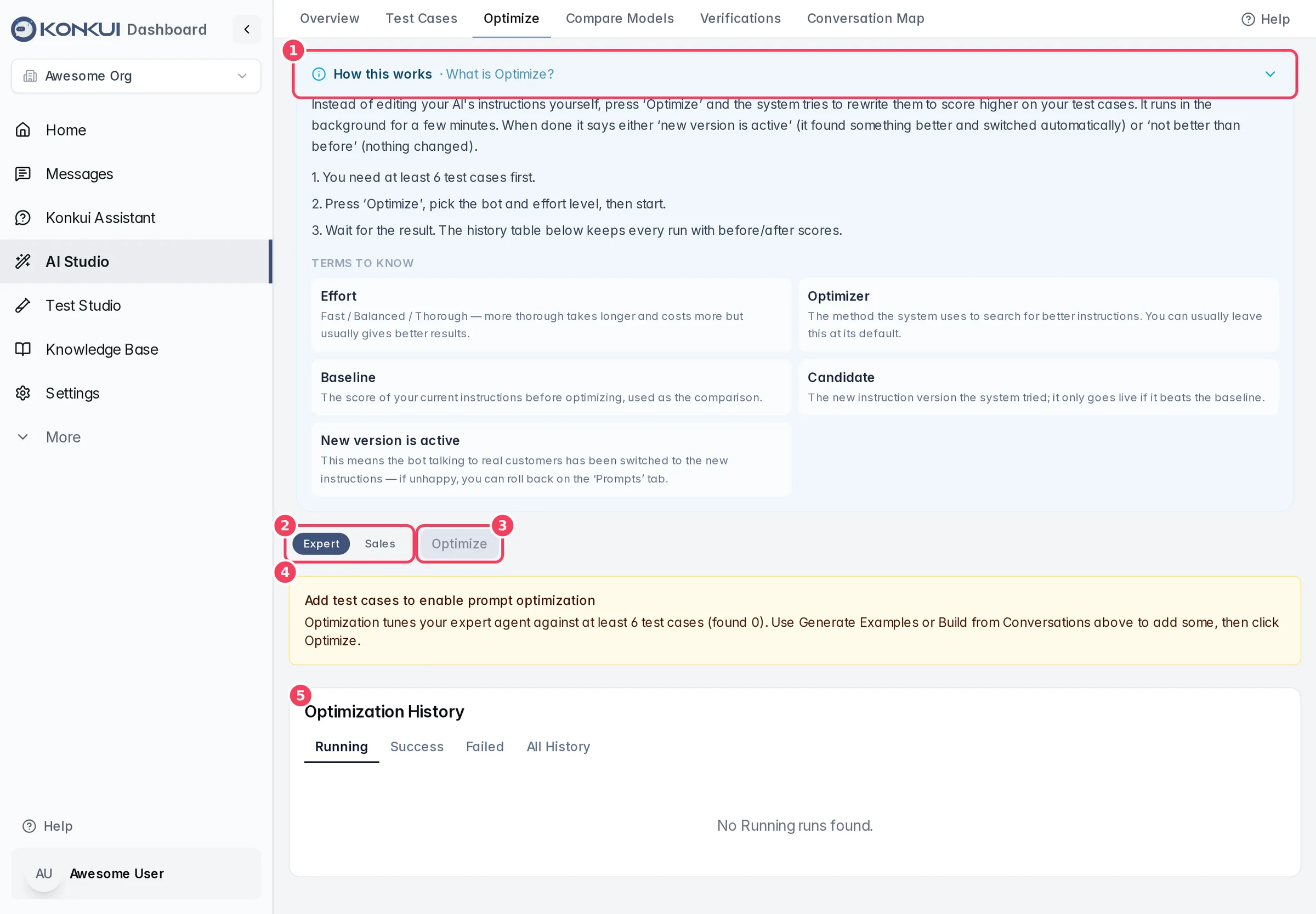
When the knowledge is right but answers still miss the mark, use AI Studio › Optimize. It needs at least 6 test cases for the selected personality.
- Click Optimize, choose the bot, and keep the default Balanced effort unless you have a reason to change it.
- Click Improve my bot. The run takes a few minutes in the background; you can leave the page.
- When it finishes, review the recommendation, the before and after scores, and the per-test comparison.
- Click Apply to make the new instructions live, or Discard to keep your current ones. If results get worse after applying, click Roll back.
Check that it worked
- Run All on your test cases shows more passing tests than before.
- The same questions in Test Studio now get the answers you expect.
- On the Home page and in Messages, fewer chats need your team's help over the following days.
Next steps
- Before switching your bot to a different AI model, use Compare Models to replay real conversations offline and switch only when it is safe.
- Use the Conversation Map to find frequent questions you have not tested yet.
- Watch background work such as scans and optimizations in Background jobs.