
Browse the docs
Dashboard reference
Open in dashboardTest Studio is a safe place to chat with your bot as if you were a customer. Test conversations are kept separate from real customer chats, so you can try questions, images and edge cases, compare bots, and give feedback on replies without anyone else seeing them.
Both Admins and Staff can use Test Studio.
Where to find it
Open Test Studio in the left sidebar. It is shown when the Test Studio toggle is on in the tab-visibility settings of Settings › General.
Start a test conversation
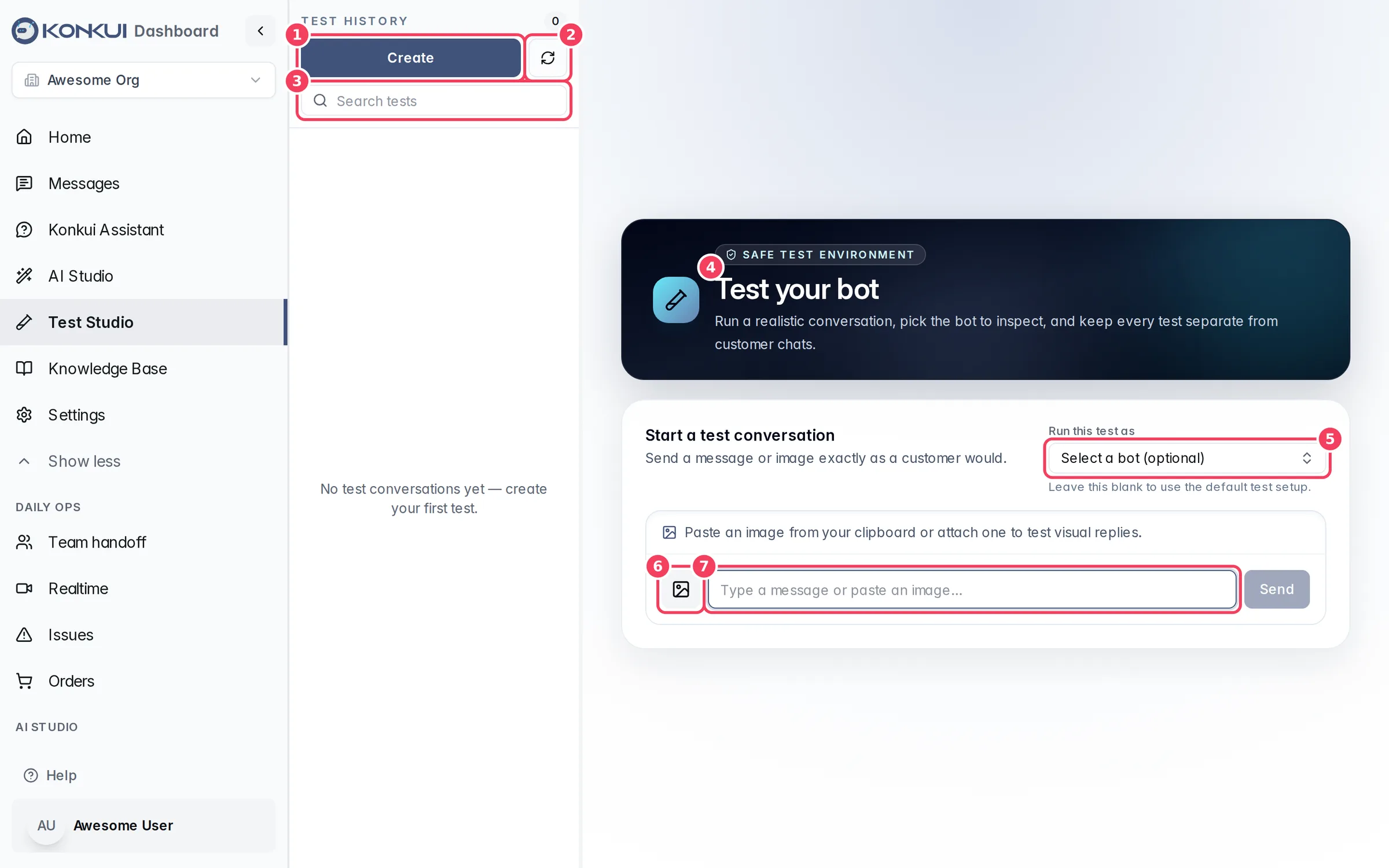
| # | Item | What it does |
|---|---|---|
| 1 | Create | Opens this start screen for a new test conversation. |
| 2 | Reload | Refreshes the test history and the open conversation. |
| 3 | Search tests | Filters your test history by name or last message. |
| 4 | Test your bot | Reminds you that this is a safe test environment, separate from customer chats. |
| 5 | Run this test as | Chooses which bot answers. Each bot is listed as active or disabled. Leave it blank to use the default test setup. |
| 6 | Attach image | Attaches an image. You can also paste an image from your clipboard into the message box. |
| 7 | Message box | Type what a customer would say, then press Send. The conversation opens as soon as it is created. |
If your workspace is over its conversation usage limit, a Top up to continue testing notice appears with Open billing, and new tests cannot start until billing is sorted out.
Test history
The left column lists your test conversations, newest first, with a counter. A red bell badge marks a test where the bot asked for a person, just as it would in a real chat. Each conversation's ⋮ menu has:
| Action | What it does |
|---|---|
| Mark as read / Mark as unread | Clears or sets the "needs help" flag on the test conversation. |
| Open in new tab | Opens the test in a separate browser tab, handy for comparing two bots side by side. |
| Delete conversation | Deletes the test after you confirm. |
Inside a test conversation
The conversation view has a Bot selector at the top. Changing it switches which bot answers your next messages, so you can ask the same question of different bots in one conversation. Status bars tell you when the bot is replying or queued.
Under each bot reply you can rate the answer:
| Control | What it does | Notes |
|---|---|---|
| 👍 / 👎 | Marks the reply as good or bad. | Click the other one to change your rating. |
| Improve | Opens Suggest improved response: write the reply you wanted and click Submit. | The improved text is saved with the message. ↩️ removes it again. |
| Save as test case | Appears right after you submit an improvement. Saves this exchange as a test-case draft, with a Review link to the review queue. | Admins only. |