
Browse the docs
Guides
Open in dashboardThis guide shows you where to check two things every week: how well your bot is doing (Home › Detailed reports) and how much AI usage you've spent against your plan (Settings › Usage). It ends with what to do when usage runs high.
Before you begin
- Any member can read the reports and the usage page.
- Changing the plan or the overage spend cap needs an admin. See Billing and plans.
1. Check the Home overview
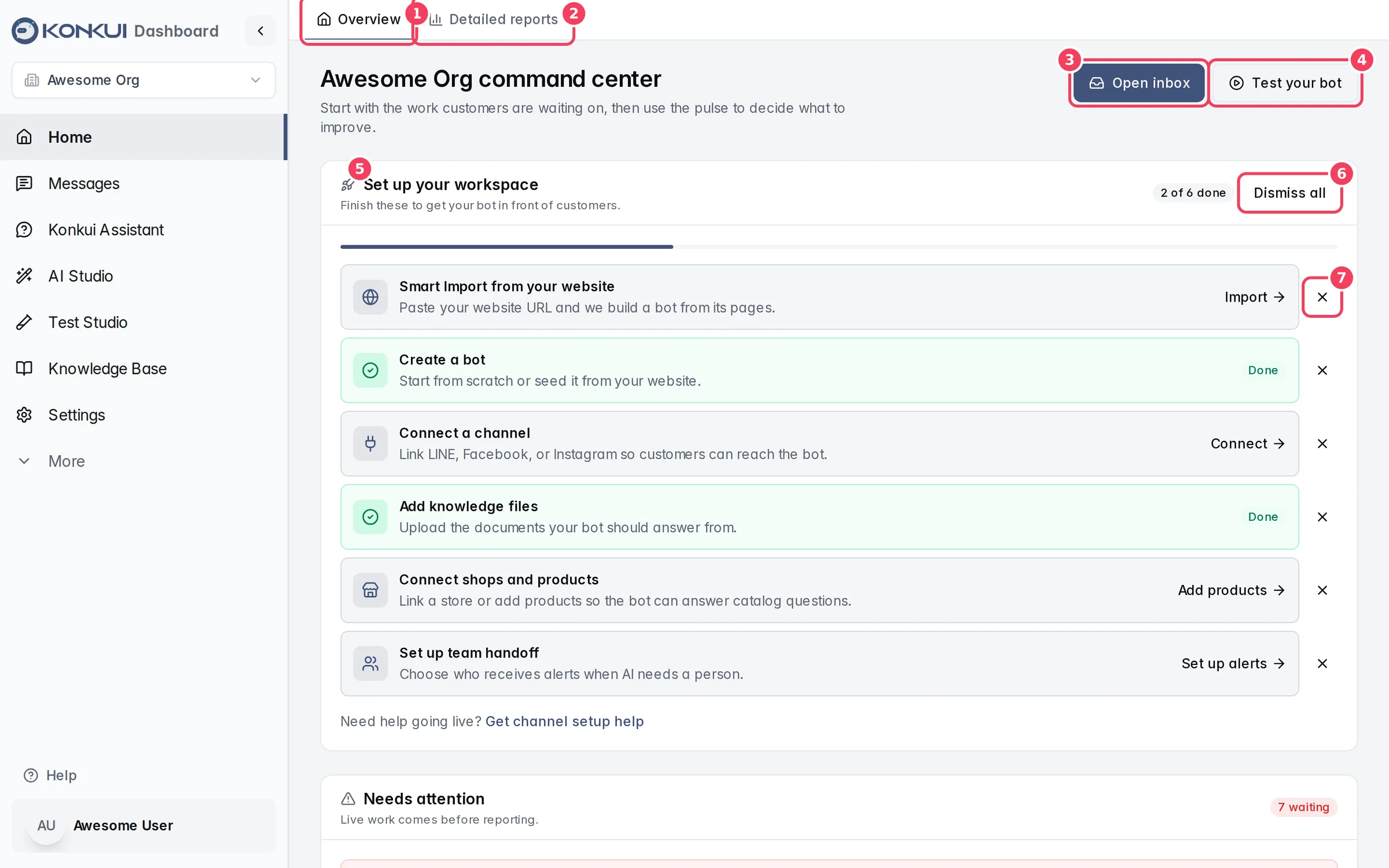
Open Home. The Overview tab is your daily to-do list: what needs attention now, bot health, and shortcuts. Its cards are described in the Home reference.
2. Open the detailed reports
Click Detailed reports at the top of Home.
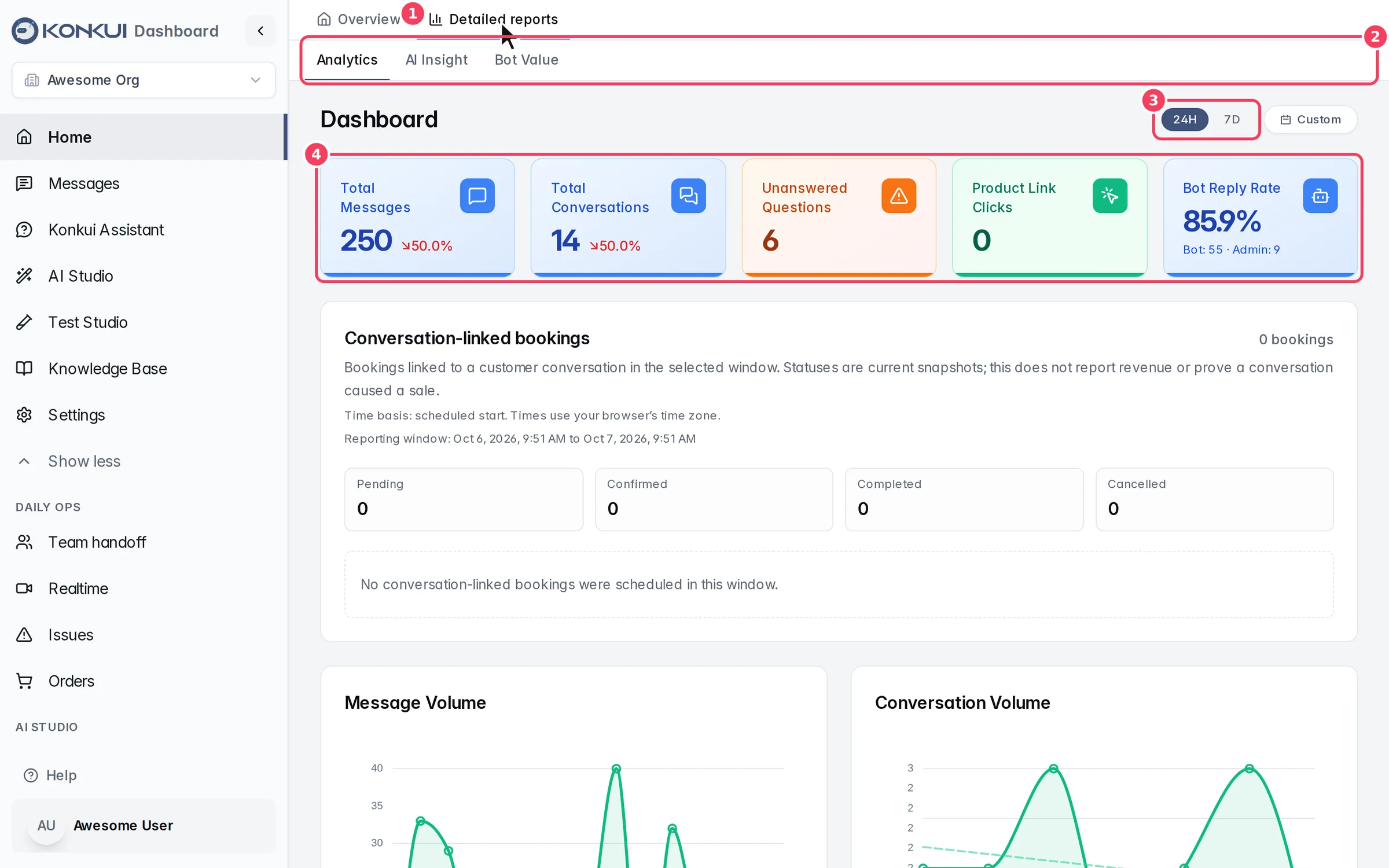
| # | Item | What it does |
|---|---|---|
| 1 | Detailed reports | Switches Home from the overview to the reports. |
| 2 | Report tabs | Analytics, AI Insight and Bot Value. |
| 3 | Time frame | 24H, 7D or Custom (pick a date range and click Apply). |
| 4 | Headline numbers | Messages, conversations, unanswered questions, product link clicks and bot reply rate for the time frame. |
What to look at
| Number | What it tells you | What to do |
|---|---|---|
| Bot Reply Rate | The share of replies sent by the bot rather than your team (the card shows both counts). | If it drops, your team is answering things the bot could handle. Teach the bot those answers. |
| Unanswered Questions | Conversations waiting for a person. The list further down shows recent ones. | Answer them in Messages, then add the answer to your knowledge base or FAQ so the bot handles it next time. |
| Message Volume / Conversation Volume | Traffic over time, with a trend line. | Spot your busy hours and days. |
| Product Link Clicks | How often customers click products the bot recommends. | A drop can mean product info is out of date. |
The Bot Value tab adds an automation funnel, automation and escalation rates, estimated savings, and What To Fix Next: the customer messages that most often lead to a hand-off. Fixing the top items there usually lifts your bot reply rate the fastest. AI Insight summarises customer sentiment and interest across recent conversations.
3. Check your AI usage
Open Settings › Usage. Usage is counted in effective tokens: model tokens weighted by each model's multiplier, plus the equivalent cost of internet searches. Your plan's quota and any overage use the same unit.
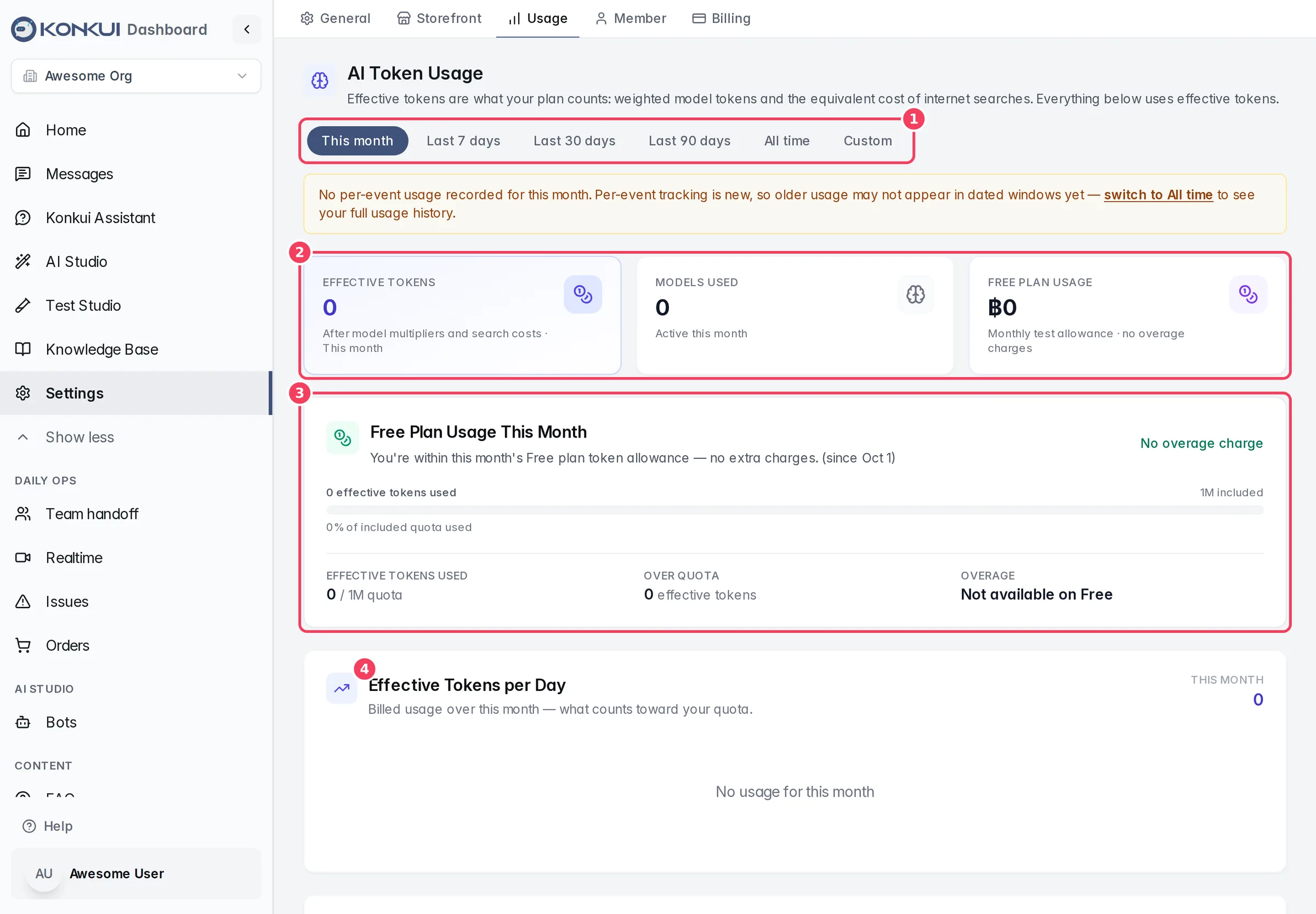
| # | Item | What it does |
|---|---|---|
| 1 | Date range | This month (default), the last 7/30/90 days, All time, or Custom. Everything on the page follows it. |
| 2 | Headline metrics | Effective tokens, models used, and the charge for the range. |
| 3 | Plan usage card | Used vs. included quota, tokens over quota, and your monthly cap. |
| 4 | Effective Tokens per Day | Daily usage, to spot spikes. |
To see the figure that tracks your actual invoice, choose All time: the plan usage card then shows your live billing period. Other ranges show an estimate for that range.
Scroll down for Effective Usage by Model and Token Distribution by Model, which show which models drive your bill. The green Fast FAQ — instant answers card counts the questions answered straight from your FAQ, which cost nothing. Every field is described in Settings › Usage.
What to do when usage is high
- Find the cause. On Settings › Usage, look for a spike in Effective Tokens per Day and check which model leads Token Distribution by Model.
- Answer common questions for free. Questions answered by Fast FAQ cost ฿0. Add your most frequent questions to FAQ so the bot answers them instantly. See Teach your bot.
- Use a lighter model where it's good enough. Heavier models have higher multipliers and use your quota faster. Review each bot's model in Bots, then test the change in Test Studio before you rely on it.
- Watch internet search. If Internet search is a large row in the model table, the bot is searching the web often. Adding the facts it looks up to your knowledge base reduces searches.
- Control the bill. An admin can set a Monthly overage spend cap on Settings › Billing, or upgrade to a plan with a larger quota. See Billing and plans.
Check it worked
- After adding FAQ answers, the Fast FAQ — instant answers card on Settings › Usage starts counting instant answers.
- After teaching the bot, Unanswered Questions goes down and Bot Reply Rate goes up on the next days' reports.