
Browse the docs
Dashboard reference
Open in dashboardSettings › General is the control room for your workspace. It is where you connect LINE, Facebook, Instagram and Shopify, turn optional features on or off, decide which pages appear in the sidebar, and pause the bot in an emergency.
Open it from Settings in the sidebar: Settings › General. The tabs along the top lead to the other settings pages: Storefront, Usage, Member and Billing.
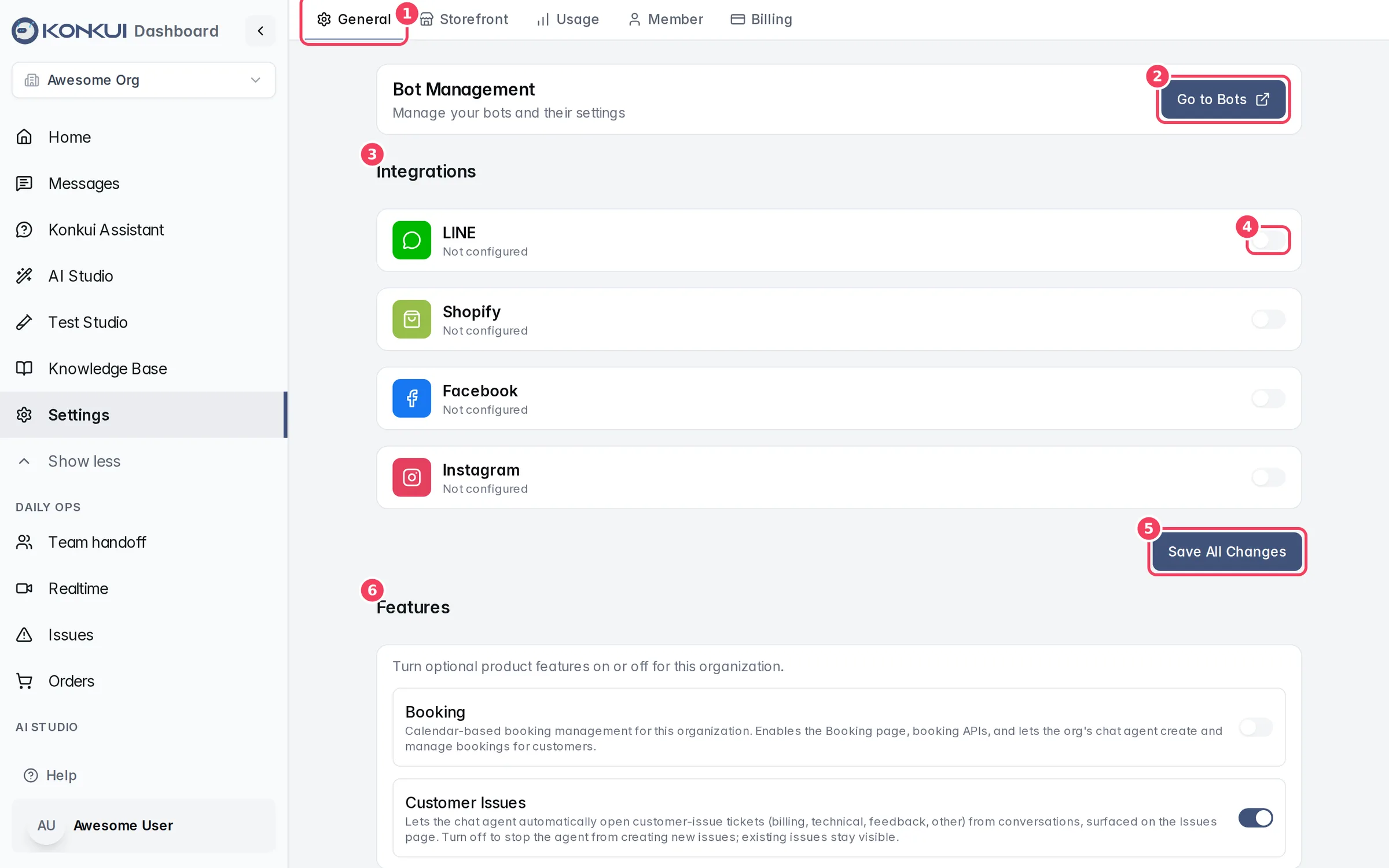
| # | Item | What it does |
|---|---|---|
| 1 | Settings tabs | Switch between General, Storefront, Usage, Member and Billing. |
| 2 | Go to Bots | Opens Bots, where you create and configure your bots. |
| 3 | Integrations | One card per channel or store. A card shows Configured once any of its fields has a value. |
| 4 | Card switch | Expands or collapses the card. It only shows or hides the fields; it does not connect or disconnect anything. |
| 5 | Save All Changes | Saves every integration field on the page in one go. |
| 6 | Features | Optional features you can switch on or off for this workspace. |
The sections below follow the page from top to bottom.
Integrations
Integrations hold the credentials Konkui uses to receive and answer messages on each channel and to import your products. For step-by-step setup, including where to find each value, follow Connect your channels.
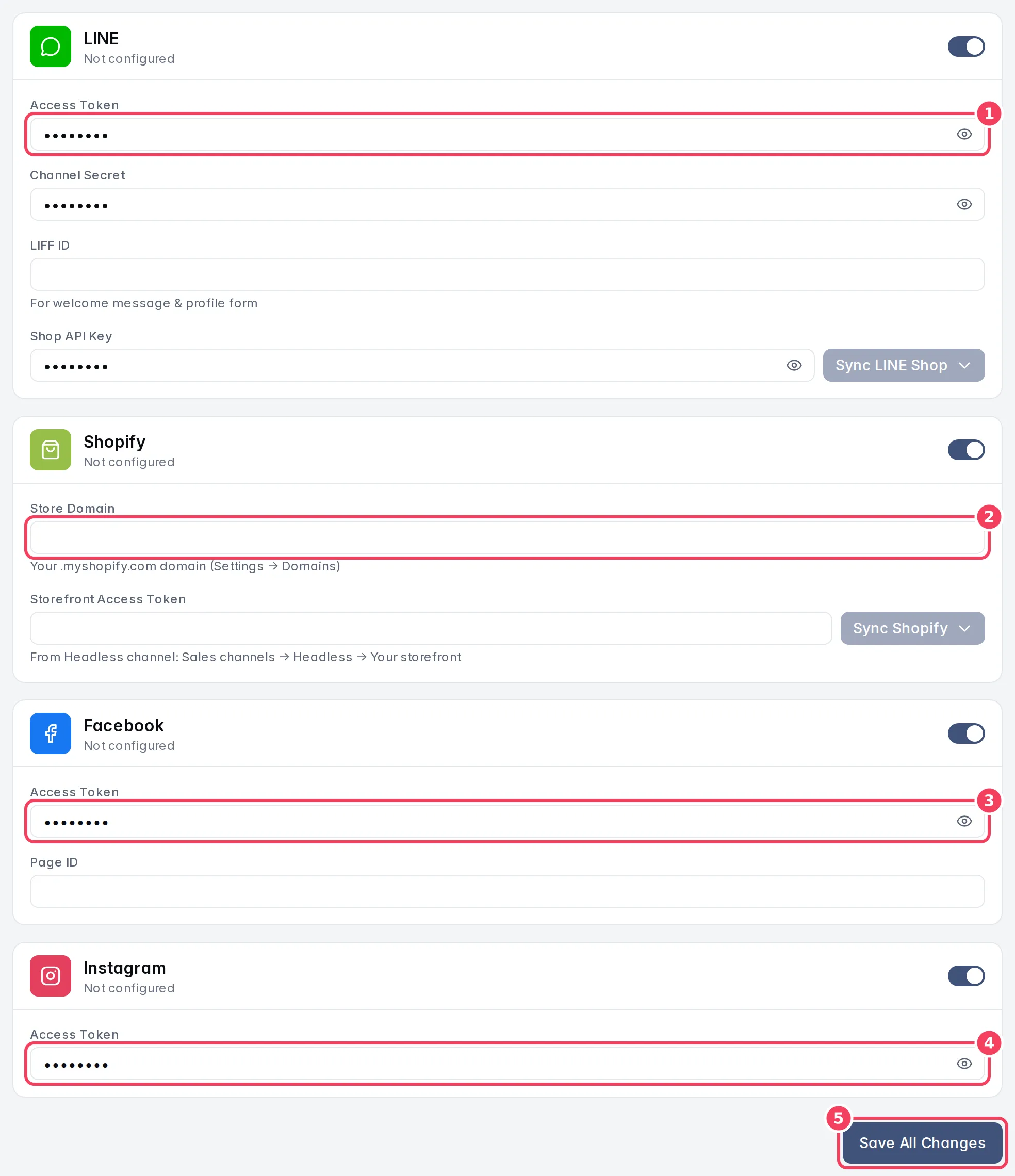
| # | Item | What it does |
|---|---|---|
| 1 | LINE | Credentials for your LINE Official Account. |
| 2 | Shopify | Your Shopify store, for importing products. |
| 3 | Credentials for your Facebook Page. | |
| 4 | Credentials for Instagram messaging. | |
| 5 | Save All Changes | Saves all four cards. |
Secret fields are hidden as dots. Click the eye icon at the end of a field to show or hide what you typed.
LINE
| Setting | What it does | Notes |
|---|---|---|
| Access Token | The channel access token that lets Konkui read and send messages for your LINE Official Account. | When you save a valid token, the card shows a green Verified banner with your LINE OA ID. |
| Channel Secret | Lets Konkui confirm that incoming messages really come from LINE. | LINE counts as connected only when both the Access Token and the Channel Secret are saved. |
| LIFF ID | The ID of a LIFF app, used for the welcome message and profile form, and for rich-menu buttons that open a LIFF page. | Optional. |
| Shop API Key | The API key of your LINE Shop, used to import its products. | Optional. Enables the Sync LINE Shop button. |
Sync LINE Shop saves the page first, then imports your LINE Shop products into Products. It offers two modes:
- Sync (Merge): re-imports LINE Shop products and keeps products from other sources, such as Shopify.
- Sync (Replace All): deletes the products previously imported from LINE Shop and imports them again as physical products. Any service-booking setup on those products is lost. You are asked to confirm, and it cannot be undone.
Shopify
| Setting | What it does | Notes |
|---|---|---|
| Store Domain | Your .myshopify.com domain. | Find it in Shopify under Settings → Domains. |
| Storefront Access Token | Lets Konkui read your Shopify catalog. | Create it in Shopify's Headless channel: Sales channels → Headless → Your storefront. |
Sync Shopify becomes available once both fields are filled. It saves the page, then imports your Shopify products. It offers the same Sync (Merge) and Sync (Replace All) modes as LINE Shop.
| Setting | What it does | Notes |
|---|---|---|
| Access Token | A Page access token for your Facebook Page. | Needed before Messenger replies can be switched on. |
| Page ID | The numeric ID of your Facebook Page. | A Page can be connected to only one Konkui workspace. Saving a Page that another workspace already uses shows an error. |
| Setting | What it does | Notes |
|---|---|---|
| Access Token | A Page-scoped access token with Instagram messaging permission. | Used to send replies to Instagram conversations. |
Features
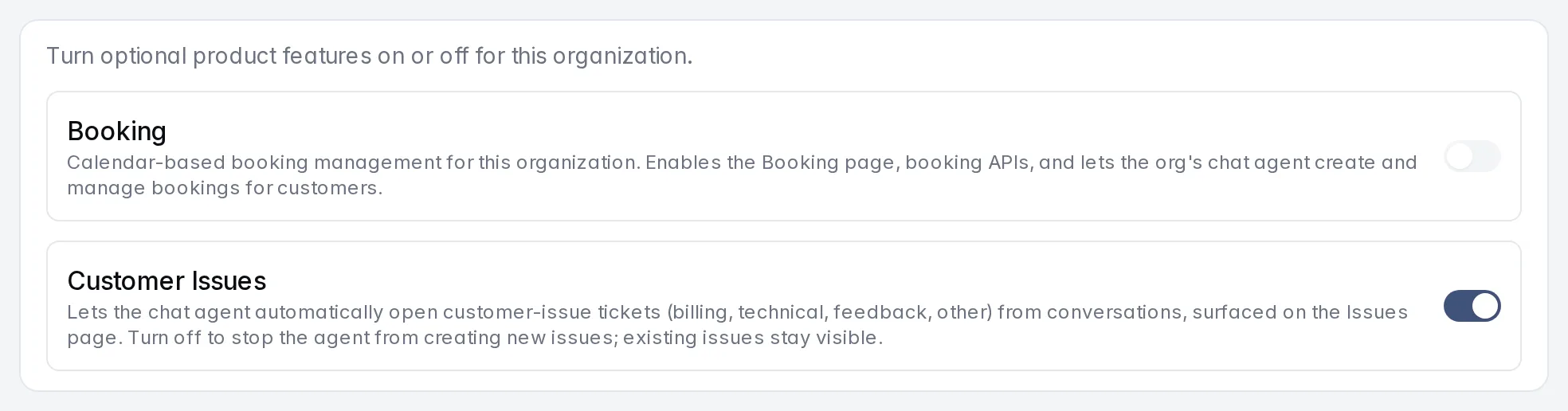
Features are optional parts of Konkui that you switch on or off for the whole workspace. Each row shows the feature's name, what it does, and a switch. The list depends on what is available to your workspace.
| Setting | What it does | Notes |
|---|---|---|
| Customer Issues | Lets the AI open customer-issue tickets (billing, technical, feedback and so on) from conversations. They appear on Issues. | On by default. Turning it off stops new issues being created; existing issues stay visible. |
| Other features | Some features, such as Booking, appear here only when they are offered to your workspace. |
Changes save as soon as you flip a switch.
Dismissed tasks
The Home page shows setup tasks that help you get started. If you dismiss one, it moves here. Click Restore next to a task to show it on Home again. When you have not dismissed anything, the section says No dismissed tasks.
Tab Visibility
Tab Visibility controls which pages appear in the left sidebar. Use it to keep the sidebar focused on what your team actually uses. Hiding a tab only removes it from the sidebar; the page keeps working.
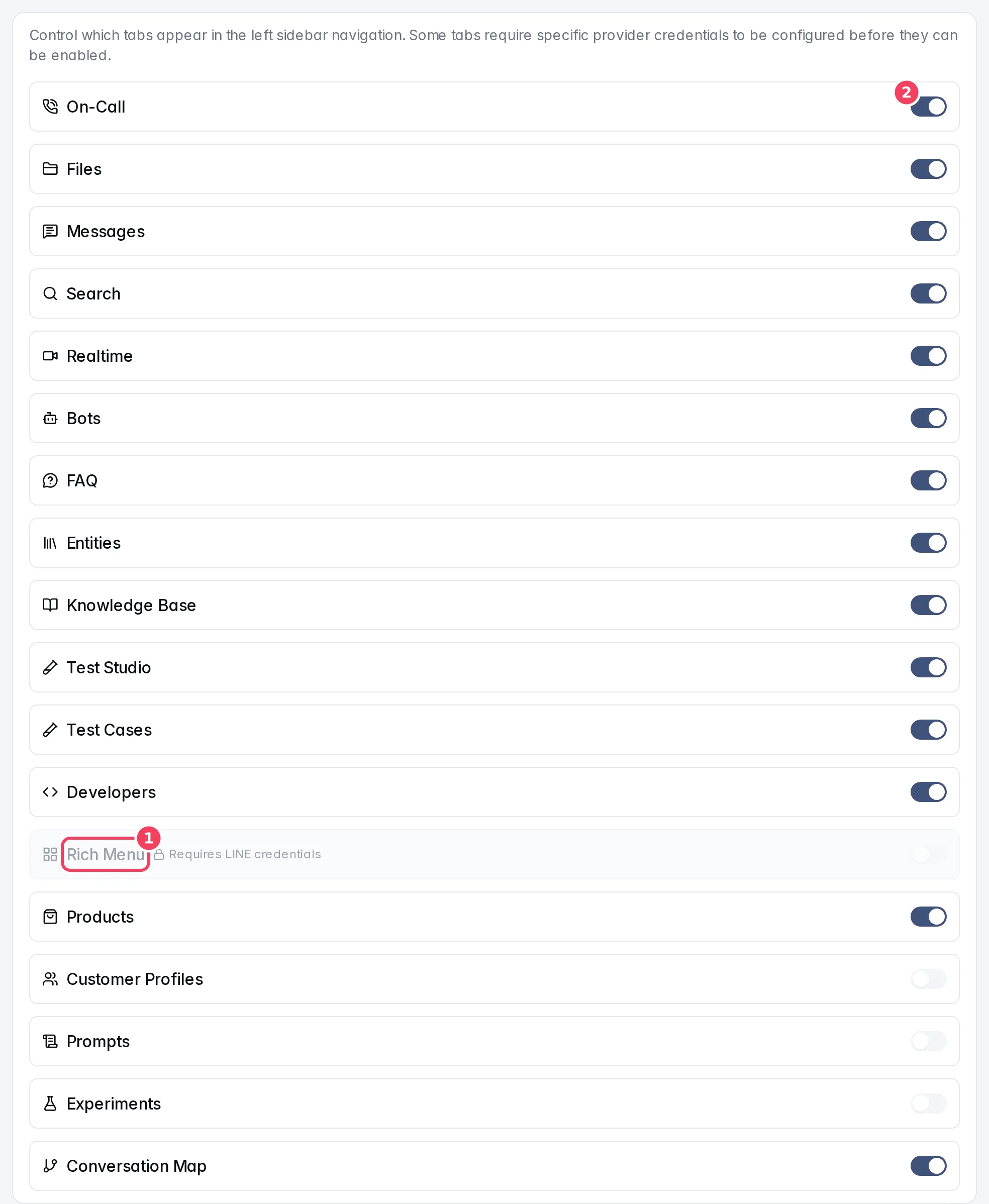
| # | Item | What it does |
|---|---|---|
| 1 | A locked row | Some tabs need a channel first. Rich Menu stays greyed out with "Requires LINE credentials" until LINE is connected. |
| 2 | Tab switch | Shows or hides that page in the sidebar. Saves immediately. |
| Setting | Controls the sidebar item |
|---|---|
| On-Call | Team handoff |
| Files | Files |
| Messages | Messages |
| Search | Search |
| Realtime | Realtime |
| Bots | Bots |
| FAQ | FAQ |
| Entities | Entities |
| Knowledge Base | Knowledge Base |
| Test Studio | Test Studio |
| Test Cases, Prompts, Experiments, Conversation Map | Tools inside AI Studio |
| Developers | Developers |
| Rich Menu | LINE Features. Needs LINE connected. |
| Products | Products and Orders |
| Customer Profiles | Customers |
LINE Waitlist
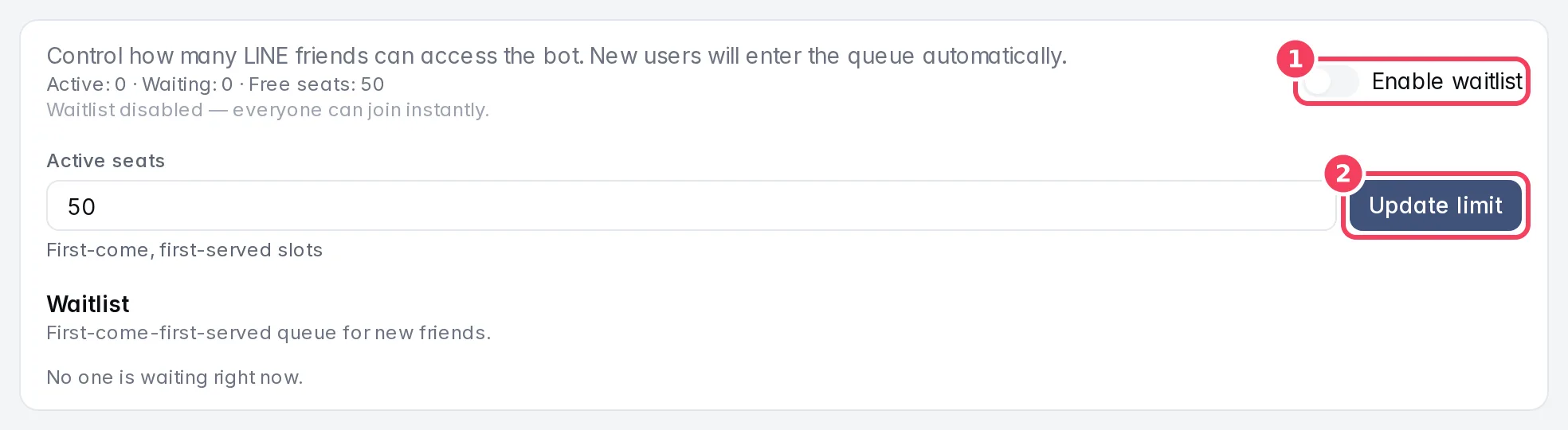
The LINE waitlist limits how many LINE friends can use your bot at the same time. Use it when you launch to a large audience and want to let people in gradually, for example during a pilot.
| # | Item | What it does |
|---|---|---|
| 1 | Enable waitlist | Turns the waitlist on. While it is off, everyone can use the bot immediately. |
| 2 | Update limit | Saves the number in Active seats. |
| Setting | What it does | Notes |
|---|---|---|
| Enable waitlist | When on, new LINE friends beyond the seat limit join a first-come, first-served queue. | The summary line shows Active, Waiting and Free seats. |
| Active seats | How many LINE friends can use the bot at once. | Between 1 and 5,000. |
| Quick add (+5, +10, +25, +50) | Raises the seat limit in one click and lets that many waiting people in. | Shown only while people are waiting. |
When the waitlist is on, two lists appear:
- Active Users: people currently using the bot. The bin icon removes the person and permanently deletes their conversation history.
- Waitlist: people in the queue, with their position. The person-plus icon lets someone in straight away; the bin icon removes them from the queue.
People in the queue receive a short message saying they are on the waitlist instead of a bot reply. When a seat frees up (for example, someone unfollows your account or you raise the limit), the next person is let in and notified.
Bot Response Settings
This section shows whether your bot is currently answering customers.

| # | Item | What it does |
|---|---|---|
| 1 | Disable All Bots | Turns off every bot at once, so the bot stops replying to all conversations. Use it as an emergency stop. |
| 2 | Manage Bots | Opens Bots, where you turn a bot back on. |
Only one bot can be enabled at a time. The status line reads "1 bot enabled" while a bot is answering, or "No bot enabled - bot responses are paused" when none is. Disable All Bots is greyed out when no bot is enabled.
Realtime Room Limits
These limits control how many video rooms your workspace can run on Realtime, which helps keep usage and costs predictable. Each value saves as soon as you change it to a number in the allowed range.
| Setting | What it does | Notes |
|---|---|---|
| Max Active Rooms | The most rooms that can be open at the same time. | 1 to 500. |
| Rooms Per Rate Limit Window | The most rooms that can be created within one window. | 1 to 100. |
| Rate Limit Window (minutes) | The length of that window, in minutes. | 1 to 60. |