
Browse the docs
On this page
- Before you begin
- Step 1: Set up where your alerts go
- Step 2: Decide when the AI asks for a person
- Step 3: Start your day as Available
- Step 4: Work through the inbox
- Step 5: Take over a conversation
- Step 6: Reply to the customer
- Step 7: Hand the conversation back
- Pause or resume the AI for one conversation
- End your day
- Keep your team covered
- Check that it worked
- Next steps
Guides
Open in dashboardThe AI answers most customer messages on its own. Some conversations still need a person: a customer wants to confirm details, a sale needs follow-up, or the AI is unsure. This guide shows your team how to get alerted, take over from the AI, reply, and hand the conversation back when you are done.
Before you begin
- Connect at least one channel, such as your LINE OA. See Connect your channels.
- Have an enabled bot. If no bot is enabled, the AI does not reply and nothing is handed off. See Bots.
- Every teammate who should handle conversations needs their own account in the workspace. See Manage your team and roles.
Admins and Staff can do everything in this guide.
Step 1: Set up where your alerts go
Each teammate does this once, for themselves.
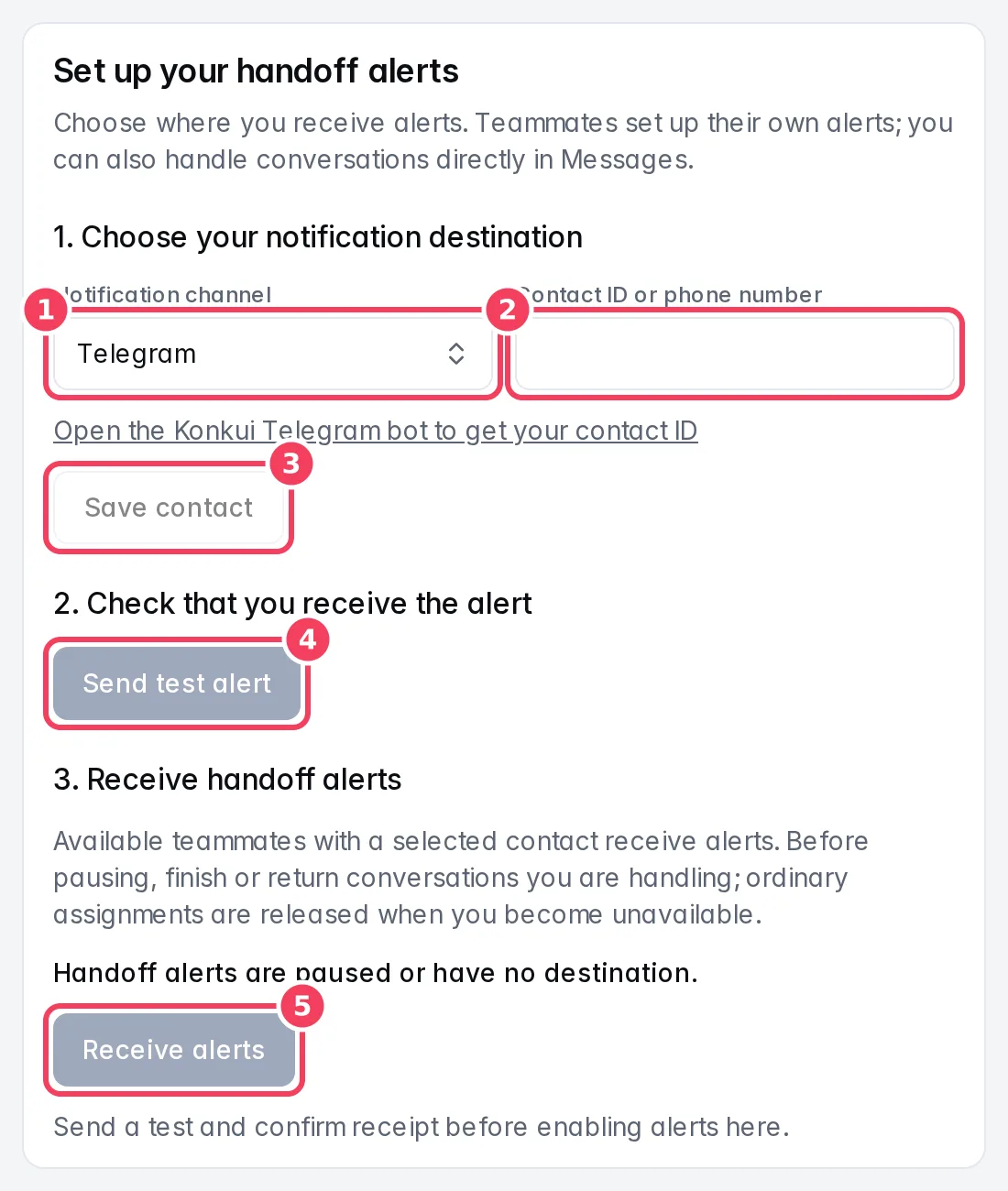
- Open Team handoff. From the inbox you can also click Set up team handoff.
- Under 1. Choose your notification destination, pick Telegram, LINE or SMS, enter your contact ID or phone number, and click Save contact.
- Under 2. Check that you receive the alert, click Send test alert. When the test arrives on your phone, click I received the test.
- Under 3. Receive handoff alerts, click Receive alerts.
Step 2: Decide when the AI asks for a person
The AI only hands a conversation to your team when your bot is set up to do so, for example when information needs confirming or a sales enquiry needs follow-up. Open Team handoff and click Configure your bot to set these situations, then Try your bot in Test Studio to check them.
When the AI asks for help:
- the conversation moves to Needs your team in Messages and gets a red bell;
- every Available teammate with an alert destination receives a link to it;
- the AI stays quiet in that conversation, so it does not talk over the person who is coming.
Step 3: Start your day as Available
Open Messages and turn on the Your availability switch at the top of the inbox. It changes to Available.
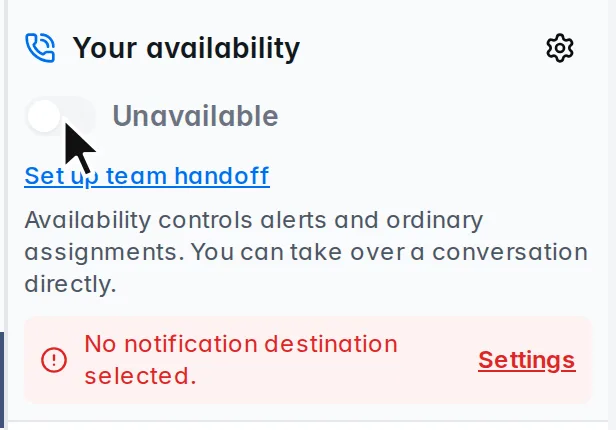
Being available means you receive handoff alerts and can be given ordinary assignments. You can still take over any conversation while unavailable.
Step 4: Work through the inbox
The inbox sorts conversations by urgency. Work from the top down.
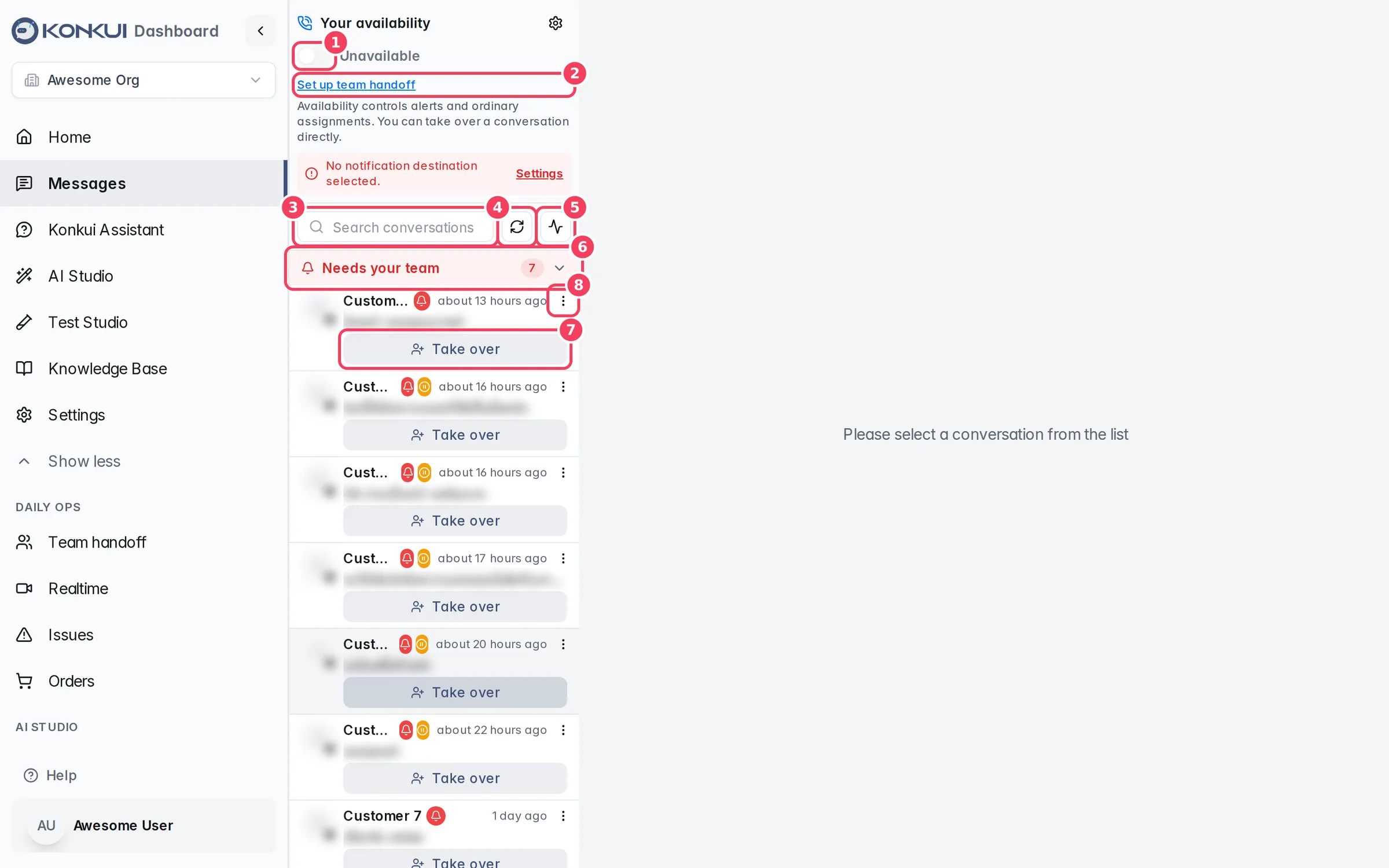
- Needs your team: customers waiting for a person. Start here.
- Bot Reply Queue: the AI is about to answer or is answering now. Wait for it rather than replying at the same time.
- Mine: conversations assigned to you.
- Other Messages: conversations the AI is handling normally.
Use Search conversations to find a customer by ID or by what they wrote. Turn on auto-refresh if you want the list to update every 10 seconds while you work.
Step 5: Take over a conversation
Click Take over on a conversation in Needs your team, or open any conversation and click Take over in the panel above the messages.
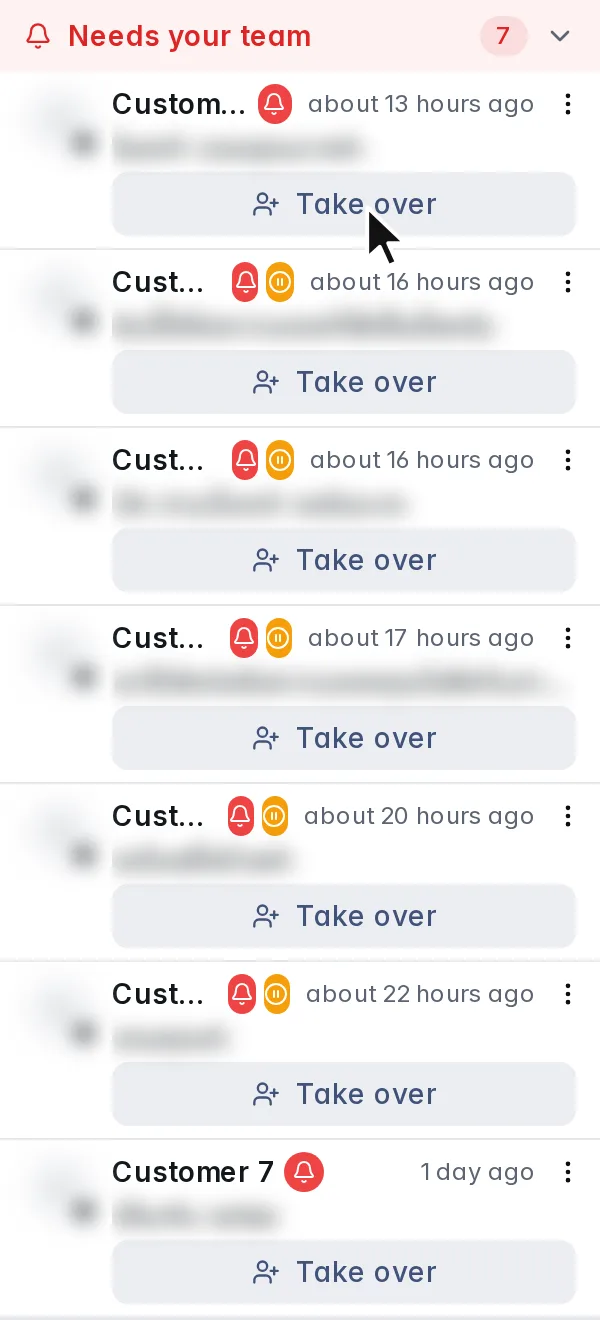
Taking over assigns the conversation to you and pauses new AI replies in it. Teammates see Assigned to with your name, and the panel shows that you are handling it.
Step 6: Reply to the customer
Type in the reply box and click Send. On LINE, Facebook and Instagram your message goes straight to the customer.
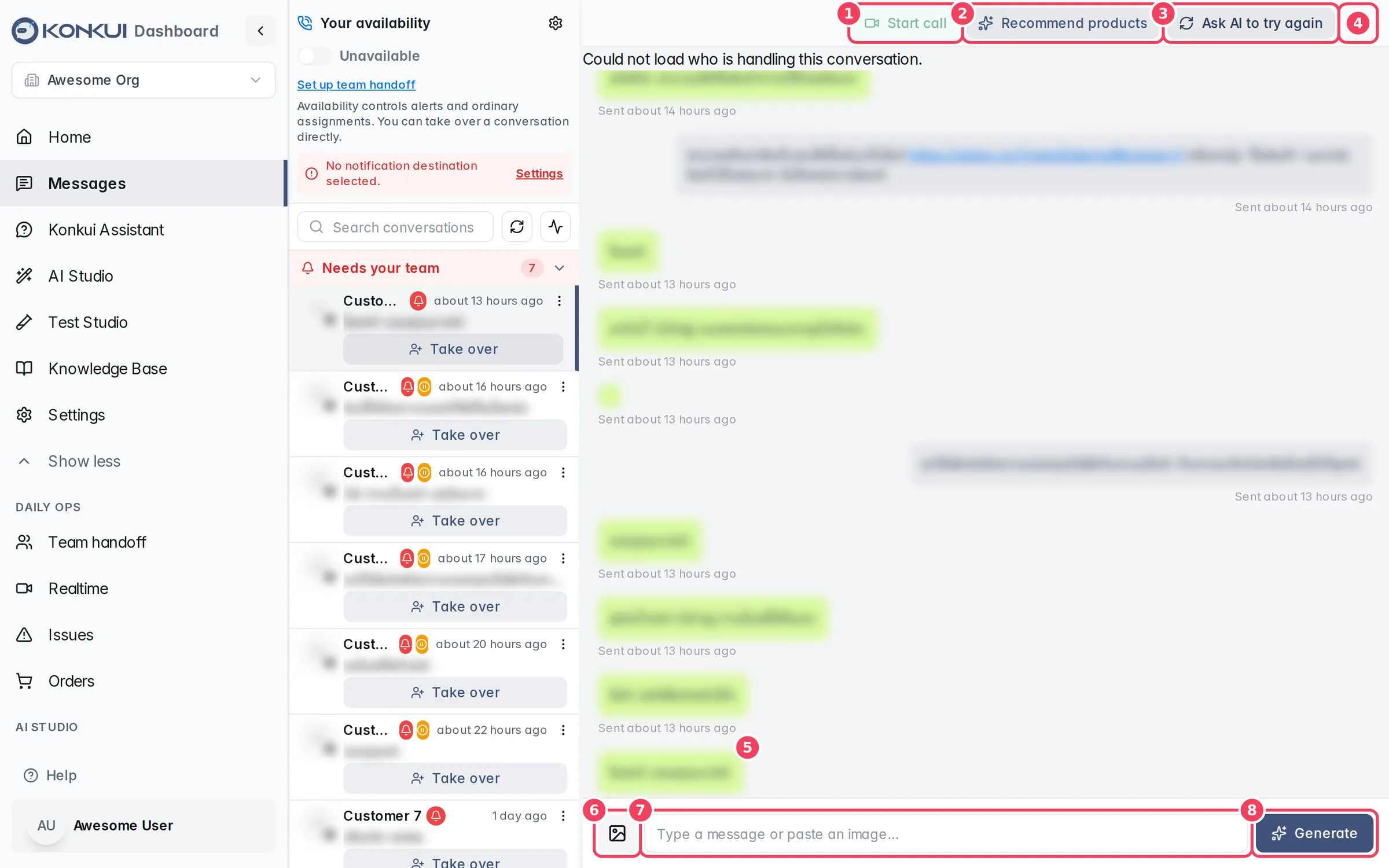
To save typing, leave the reply box empty and click Generate. The AI writes a draft into the box; edit it and click Send. Nothing is sent until you do.
Other tools in the conversation:
- Recommend products to send product cards (LINE only).
- Start call to send the customer a video or voice call link.
- Ask AI to try again to have the AI send a new reply immediately, without a draft.
Step 7: Hand the conversation back
When the customer is taken care of, choose one:
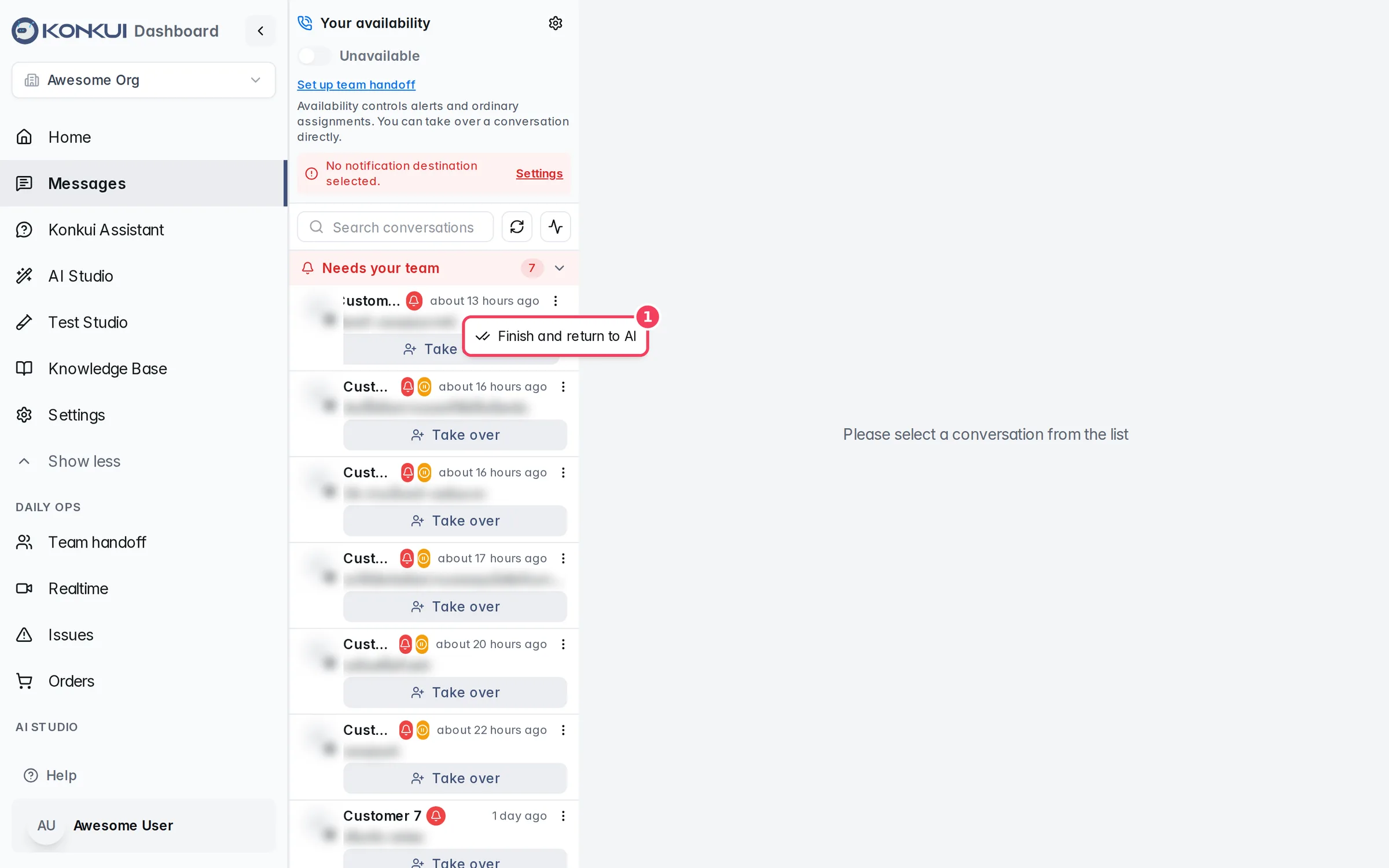
- Finish and return to AI: you are done, and the AI can answer this customer again.
- Return to team: you cannot finish it, so it goes back to Needs your team for someone else.
Both are in the panel above the messages and in the row's ⋮ menu in the inbox.
Pause or resume the AI for one conversation
Sometimes you want the AI to stay out of a conversation without taking it over, for example while you wait for a customer to send documents. Open the conversation and use the switch next to the AI status (Bot active or Bot paused) above the messages. It affects only that conversation. While a teammate is handling the conversation, use Finish and return to AI instead.
End your day
Switch Your availability off and confirm with Go Offline. Before you can, finish or return every conversation you have taken over. Your ordinary assignments go back to the team automatically.
Keep your team covered
- Check Available Members on Team handoff. If it says No teammate is configured to receive alerts, nobody will be alerted and the AI keeps answering on its own.
- Admins can see everyone's ON-CALL and CONTACT status on Settings › Member. A teammate who is Online but Not configured receives no alerts.
- Review past alerts in Notification History to see what was sent and whether it was delivered.
Check that it worked
- Send yourself a test alert and confirm it arrives.
- In Test Studio, ask your bot something that should need a person. The test conversation should appear under Needs your team on Team handoff, and available teammates should get an alert. Test conversations are not listed in Messages.
- After Finish and return to AI, the conversation leaves Needs your team and the AI status shows Bot active again.
Next steps
- Messages reference: every control in the inbox and conversation view.
- Team handoff reference: alert setup and notification history.
- Manage your team and roles: invite the people who will cover the inbox.
- Test and improve your bot: tune when the AI asks for help.