
Browse the docs
Guides
Open in dashboardYour bot can only answer customers on channels you connect. This guide walks you through connecting a LINE Official Account (the most common setup), Facebook and Instagram, and a Shopify store, and then checking that everything works with a test message.
All channel credentials live in one place: Settings › General › Integrations.
Before you begin
- You need a Konkui workspace with at least one bot enabled. If you have not created one yet, follow Get started.
- For LINE, you need admin access to your LINE Official Account in LINE Official Account Manager and to its channel in the LINE Developers Console.
- For Facebook or Instagram, you need to manage the Facebook Page (and the Instagram professional account linked to it).
- For Shopify, you need to be able to change settings and sales channels in your Shopify admin.
- Find your workspace ID. It is the part after
/org/in your dashboard address. For example, inhttps://konkui.com/org/my-shop/msgthe workspace ID ismy-shop. You need it for the LINE webhook URL.
Connect LINE
Connecting LINE takes three things: a Messaging API channel for your Official Account, two values copied into Konkui, and a webhook URL pasted into LINE.
Step 1: Turn on the Messaging API
- Sign in to LINE Official Account Manager and open your Official Account.
- Open Settings, then Messaging API, and enable it. LINE asks you to choose or create a provider; this creates a Messaging API channel for the account.
If the Messaging API is already enabled for your account, skip this step.
Step 2: Copy the Channel Secret and Access Token
- Sign in to the LINE Developers Console and open the channel that belongs to your Official Account.
- On the Basic settings tab, copy the Channel secret.
- On the Messaging API tab, find Channel access token and issue a long-lived token if there is none yet. Copy it.
Step 3: Paste them into Konkui
- In Konkui, open Settings › General.
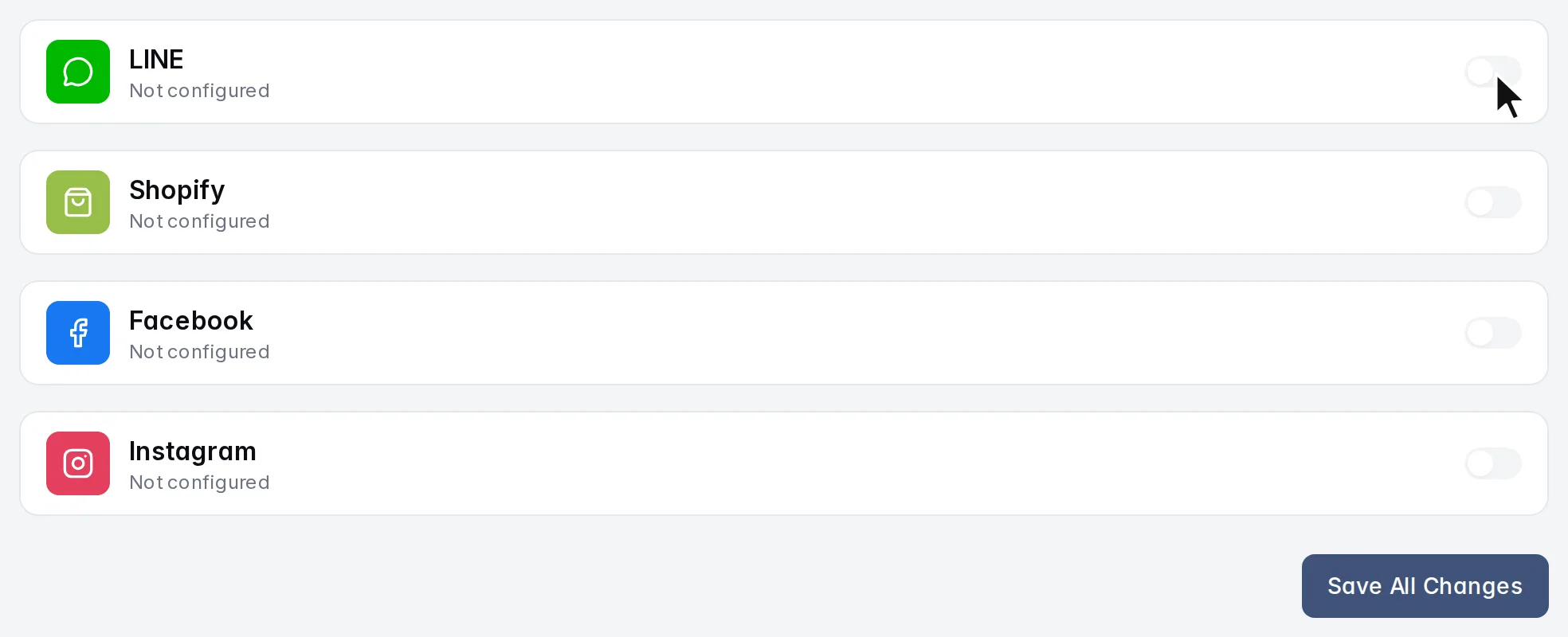
- Turn on the switch on the LINE card to show its fields.
- Fill in the fields and click Save All Changes.
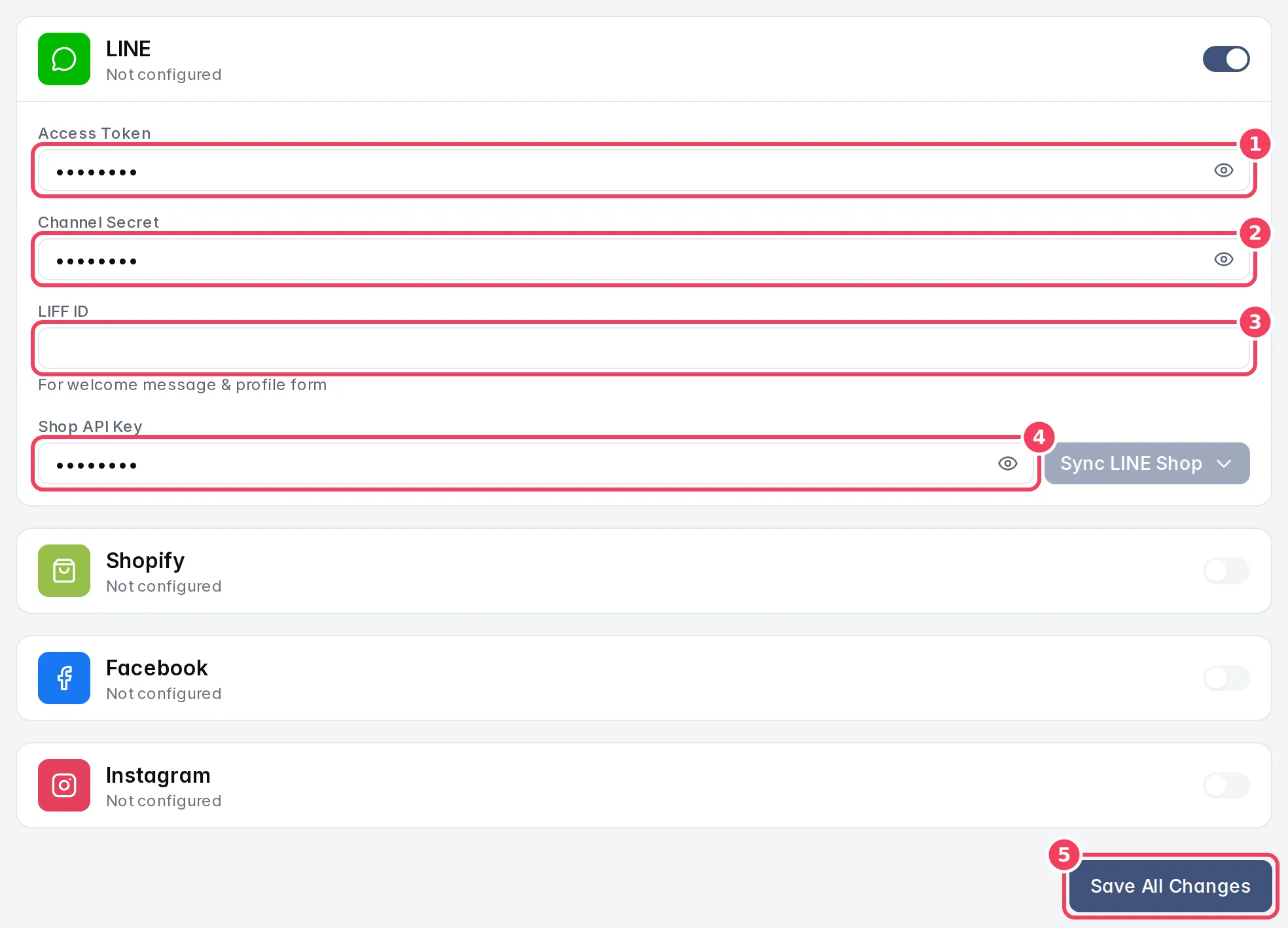
| # | Field | What to paste |
|---|---|---|
| 1 | Access Token | The channel access token from the Messaging API tab. Required. |
| 2 | Channel Secret | The channel secret from the Basic settings tab. Required. |
| 3 | LIFF ID | Optional. See Optional: LIFF ID. |
| 4 | Shop API Key | Optional. Only if you sell on LINE Shop. See Optional: LINE Shop. |
| 5 | Save All Changes | Saves the credentials. |
When the token is valid, the LINE card shows a green Verified banner with your LINE OA ID (for example @yourshop). If you don't see it, check that you copied the whole token from the right channel.
Step 4: Set the webhook URL in LINE
The webhook URL tells LINE where to deliver your customers' messages. Konkui does not show it in the dashboard, so build it from your workspace ID:
https://konkui.com/api/line/callback/<your workspace ID>
- In the LINE Developers Console, open your channel's Messaging API tab.
- Under Webhook settings, edit Webhook URL, paste the URL above and save.
- Click Verify. LINE sends a test request; it should report success.
- Turn on Use webhook.
Step 5: Turn off LINE's own automatic replies
In LINE Official Account Manager, open the account's response settings and make sure webhooks are on and LINE's built-in auto-response messages are off. Otherwise customers may receive both LINE's canned reply and your bot's answer.
If you plan to send welcome messages from Konkui (see Build a LINE rich menu and welcome messages), also consider turning off LINE's own greeting message so new friends are not greeted twice.
Optional: LIFF ID
A LIFF app opens a web page inside LINE. Konkui uses it for the welcome message and profile form, and you can link rich-menu buttons to it. You can skip it and add it later.
- In the LINE Developers Console, create a LIFF app. LINE keeps LIFF apps in a LINE Login channel; use one under the same provider as your Messaging API channel.
- Set the endpoint URL to
https://konkui.com/liff/<your workspace ID>. - Copy the LIFF ID that LINE shows and paste it into LIFF ID in Konkui, then click Save All Changes.
Optional: LINE Shop
If you sell through LINE Shop (MyShop), Konkui can import your products so the bot can answer questions about them.
- Get the API key for your LINE Shop from LINE's seller tools. If you cannot find it, ask LINE or Konkui support.
- Paste it into Shop API Key.
- Click Sync LINE Shop and choose Sync (Merge). Konkui saves the page and imports your products into Products.
Use Sync (Replace All) only when you want to wipe the LINE Shop products in Konkui and import them fresh. It deletes any service-booking setup on those products and cannot be undone.
Connect Facebook and Instagram
- In Settings › General, turn on the Facebook card and, if you use Instagram, the Instagram card.
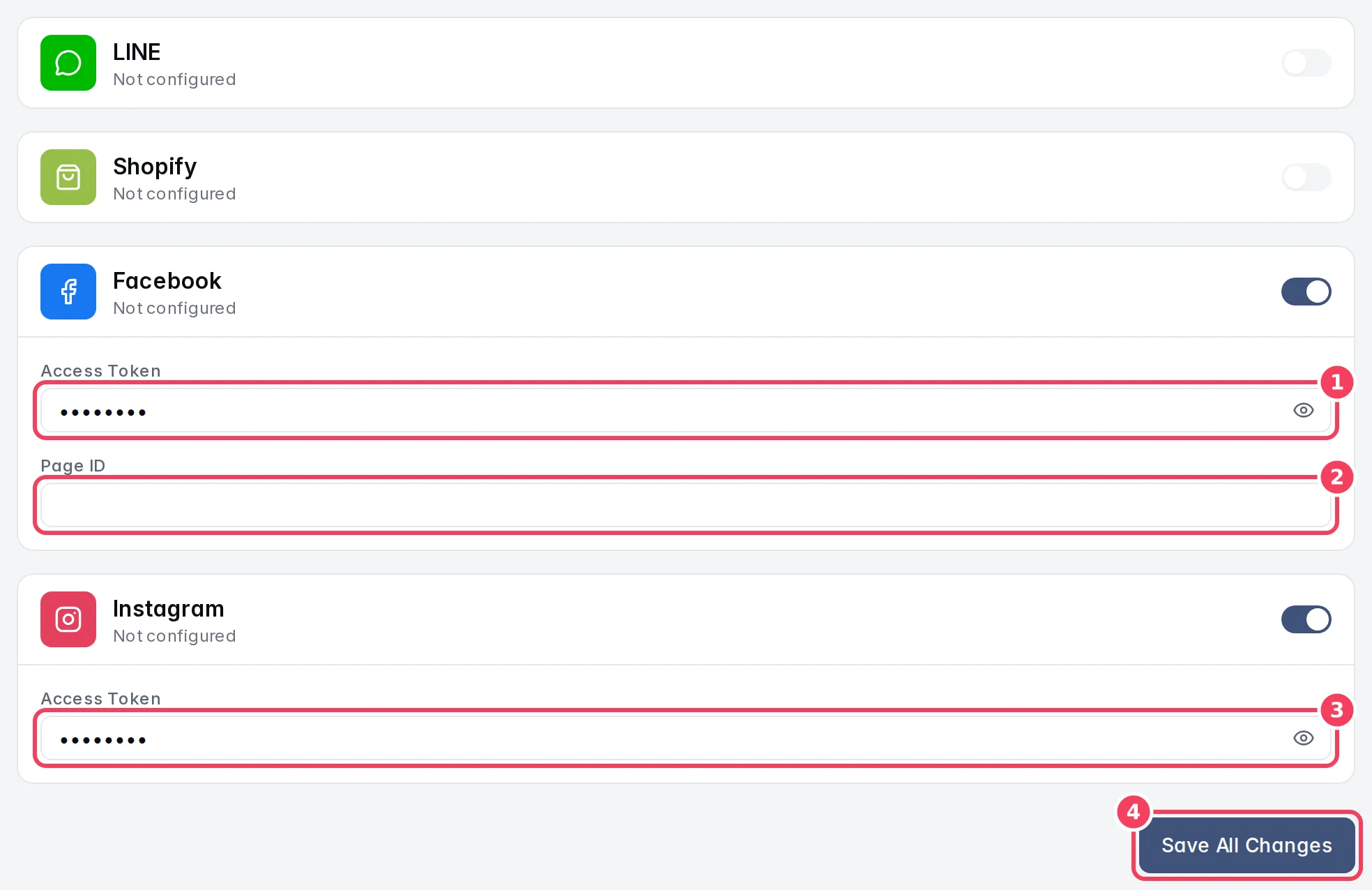
| # | Field | What to paste |
|---|---|---|
| 1 | Facebook Access Token | A Page access token for your Facebook Page. |
| 2 | Page ID | The numeric ID of your Facebook Page. You can find it in your Page's settings or About section. |
| 3 | Instagram Access Token | A Page-scoped token with Instagram messaging permission, for the Instagram account linked to your Page. |
| 4 | Save All Changes | Saves the credentials. |
- Click Save All Changes.
A Facebook Page can be connected to only one Konkui workspace. If the Page is already connected elsewhere, Konkui shows an error when you save.
Connect Shopify
Connecting Shopify imports your catalog so the bot can recommend products and answer questions about price and stock.
- In Shopify, find your store domain under Settings → Domains. Use the
.myshopify.comdomain. - In Shopify, add or open the Headless sales channel and create a storefront: Sales channels → Headless → Your storefront. Copy its Storefront Access Token.
- In Konkui, turn on the Shopify card in Settings › General.
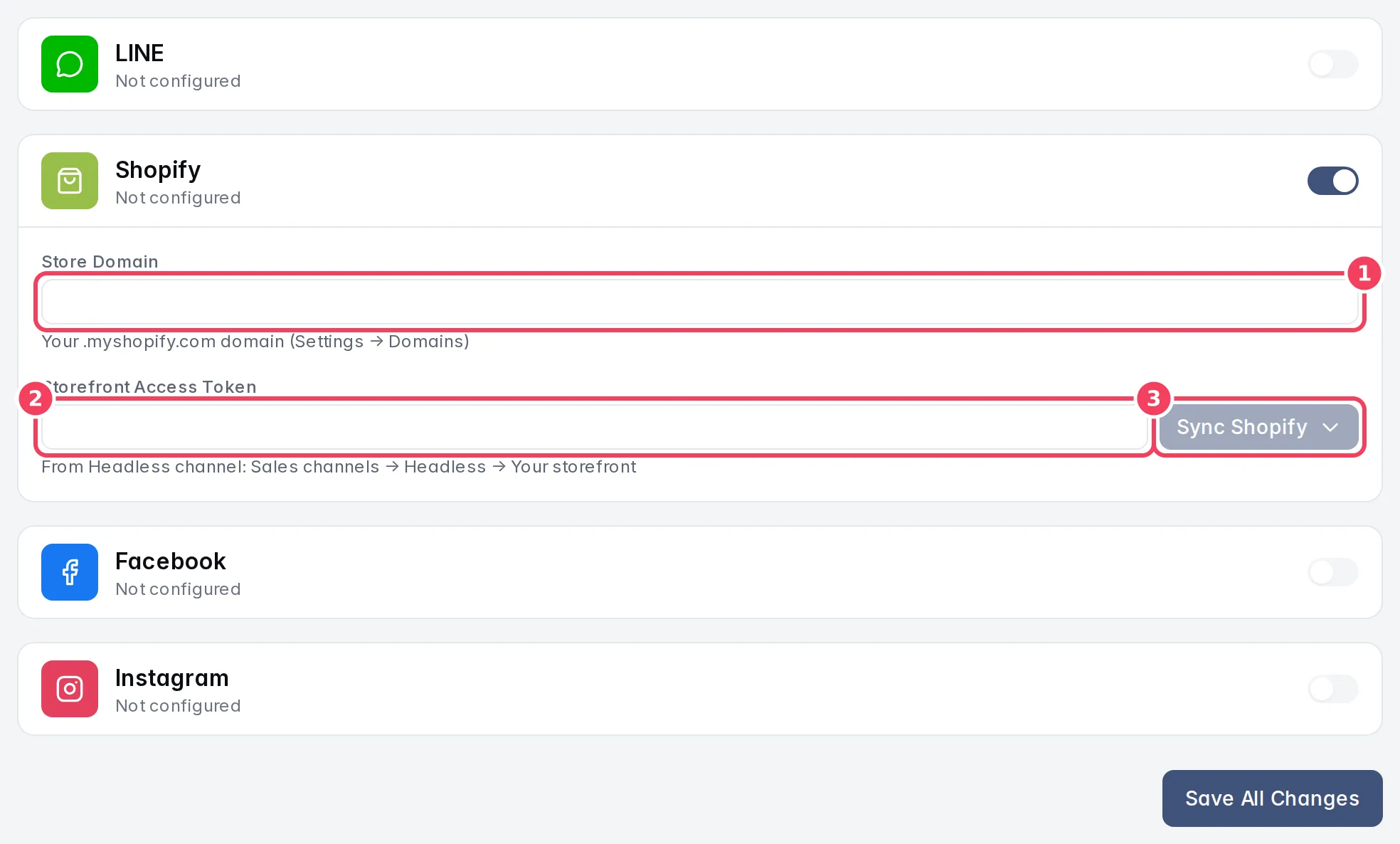
| # | Field | What to paste |
|---|---|---|
| 1 | Store Domain | Your .myshopify.com domain. |
| 2 | Storefront Access Token | The token from the Headless channel. |
| 3 | Sync Shopify | Saves the page and imports your products. |
- Click Sync Shopify and choose Sync (Merge).
Your products appear on Products. You can also add a Shopify store from the Products page; see Sell online with Konkui.
Check that it works
- Make sure a bot is enabled. Scroll down Settings › General to Bot Response Settings; it should say "1 bot enabled".

- On your phone, add your LINE Official Account as a friend (or open your Facebook Page in Messenger) and send a question your bot should know, such as your opening hours.
- Within a few seconds you should get a reply from the bot.
- Open Messages in Konkui. The conversation appears there with your message and the bot's reply.
If nothing arrives:
- No conversation in Messages: the webhook is not reaching Konkui. Recheck the webhook URL (including your workspace ID), that Use webhook is on, and that the Channel Secret in Konkui matches the channel.
- Conversation appears but no bot reply: check that a bot is enabled in Bots and that the conversation has not been handed over to a human in Messages.
- No Verified banner on the LINE card: the Access Token is invalid or from another channel. Issue a new token and save again.
Next steps
- Build a LINE rich menu and welcome messages
- Sell online with Konkui
- Handle conversations and handoff