
Browse the docs
Dashboard reference
Open in dashboardMessages is the shared inbox for conversations from your connected channels, such as your LINE OA. Test conversations from Test Studio are kept separately and do not appear here. It sorts conversations by what needs attention, so you can see at a glance which customers are waiting for a person and which ones the AI is still answering. From an open conversation you can take over from the AI, reply yourself, ask the AI for a draft, send products or start a call.
Admins and Staff can use everything on this page. Each teammate sets their own availability; nobody can change it for someone else.
Where to find it
Click Messages in the sidebar. It is part of the main menu, so it is always visible unless an admin hides it under Settings › General › Tab Visibility › Messages.
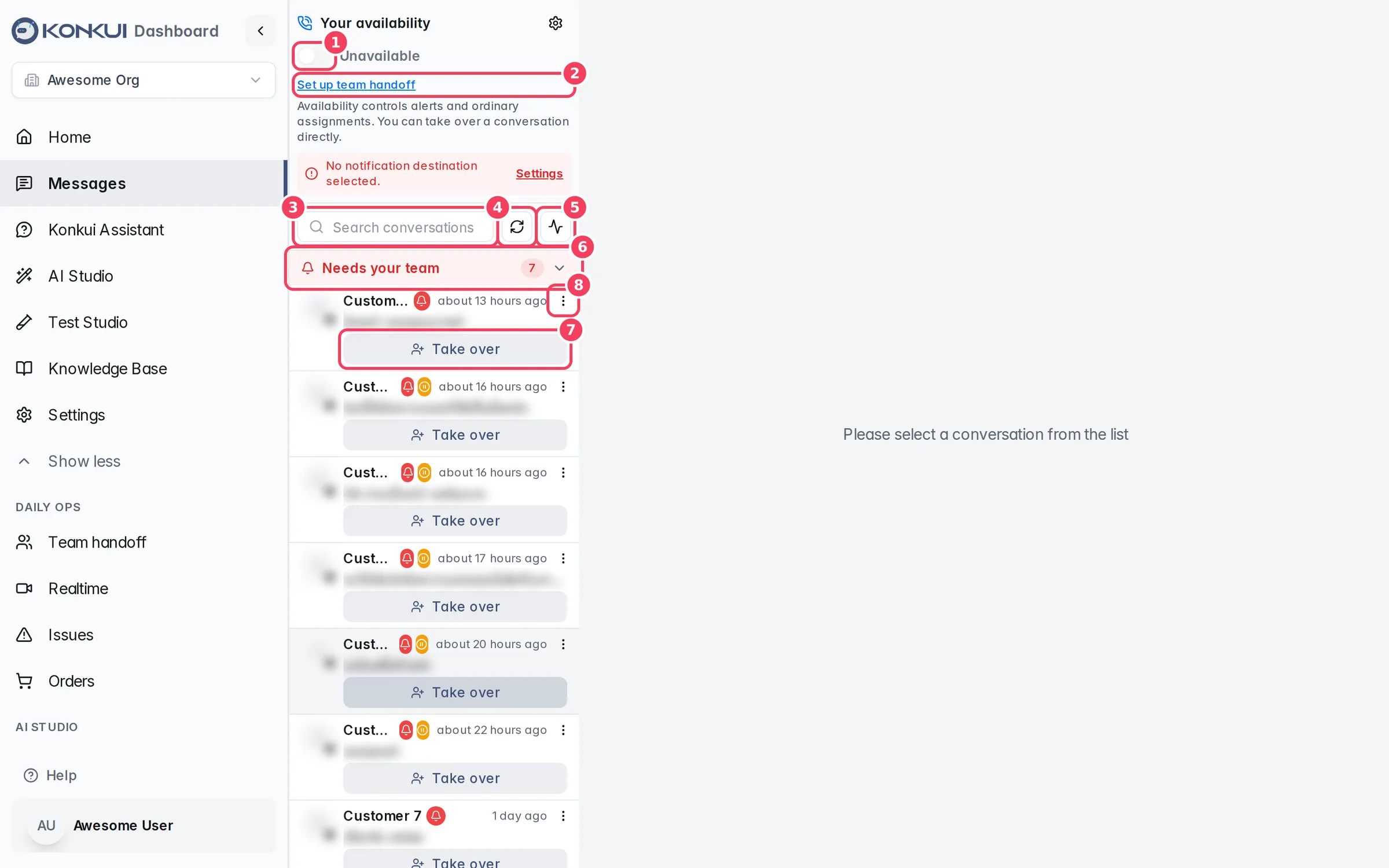
| # | Item | What it does |
|---|---|---|
| 1 | Your availability switch | Shows whether you are Available or Unavailable for handoff alerts and ordinary assignments. |
| 2 | Set up team handoff | Opens the alert setup on Team handoff. The gear icon next to Your availability goes to the same place. |
| 3 | Search conversations | Searches by customer ID and by the latest message text. |
| 4 | Refresh conversations | Reloads the list and section counts now. |
| 5 | Auto-refresh | Turns automatic refresh every 10 seconds on or off. The icon is filled while it is on. |
| 6 | Section header | Shows the section name and how many conversations it holds. Click it to collapse or expand the section. |
| 7 | Take over | Claims the conversation and pauses the AI for it. Only shown in Needs your team. |
| 8 | Conversation actions (⋮) | Opens the actions menu for that row. |
Your availability
The panel at the top of the inbox controls whether you receive team handoff alerts.
- Turn the switch on to become Available. You will receive alerts for conversations that need your team, as long as you have chosen a notification destination.
- Turn it off to become Unavailable. A Confirm Going Offline dialog appears first. Click Go Offline to confirm.
- Before you can go unavailable, you must finish or return any conversation you have taken over. Ordinary assignments are released back to the team automatically.
- If you have not chosen where alerts go, a red No notification destination selected. notice appears with a Settings link to fix it.
Set up your alert channel (Telegram, LINE or SMS) once on Team handoff. Your availability is also shown on Settings › Member.
Inbox sections
Every conversation appears in exactly one section. Sections with no conversations are hidden. The badge on each header counts the whole workspace, not only the rows loaded on screen. While you search, the badges count only matching conversations.
| Section | What it holds | Why it matters |
|---|---|---|
| Needs your team | Conversations where the AI asked for a person and nobody has taken over yet. | The AI stays quiet while a conversation waits here, so the customer is waiting for you. Each row has a Take over button. |
| Bot Reply Queue | Conversations the AI is about to answer or is answering right now. | Tells you that a reply is on the way, so you can wait instead of jumping in. |
| Mine | Conversations assigned to you. | Your own work list. |
| Other Messages | Everything else. | Conversations the AI is handling normally. |
A conversation in Needs your team stays there even while the AI is working on it, so somebody can always claim it. When the AI finishes a reply, the conversation moves back to its usual section.
Your browser remembers which sections you collapsed. The newest conversations load first; older ones load as you scroll down the list.
Row badges and status
| Badge | Meaning |
|---|---|
| Red bell | The conversation is waiting for your team. |
| Amber pause | The AI is paused for this conversation. |
| Orange warning triangle | The AI's last reply in this conversation failed. Check it and answer the customer yourself if needed. |
| Bot replying… | The AI is writing and sending a reply now. |
| Queued or Queued · #N | The AI will answer shortly. #N is the conversation's place in the AI's queue. |
| Assigned to name | A teammate has taken this request. |
Row actions
Open a row's ⋮ menu to act on it without opening the conversation.
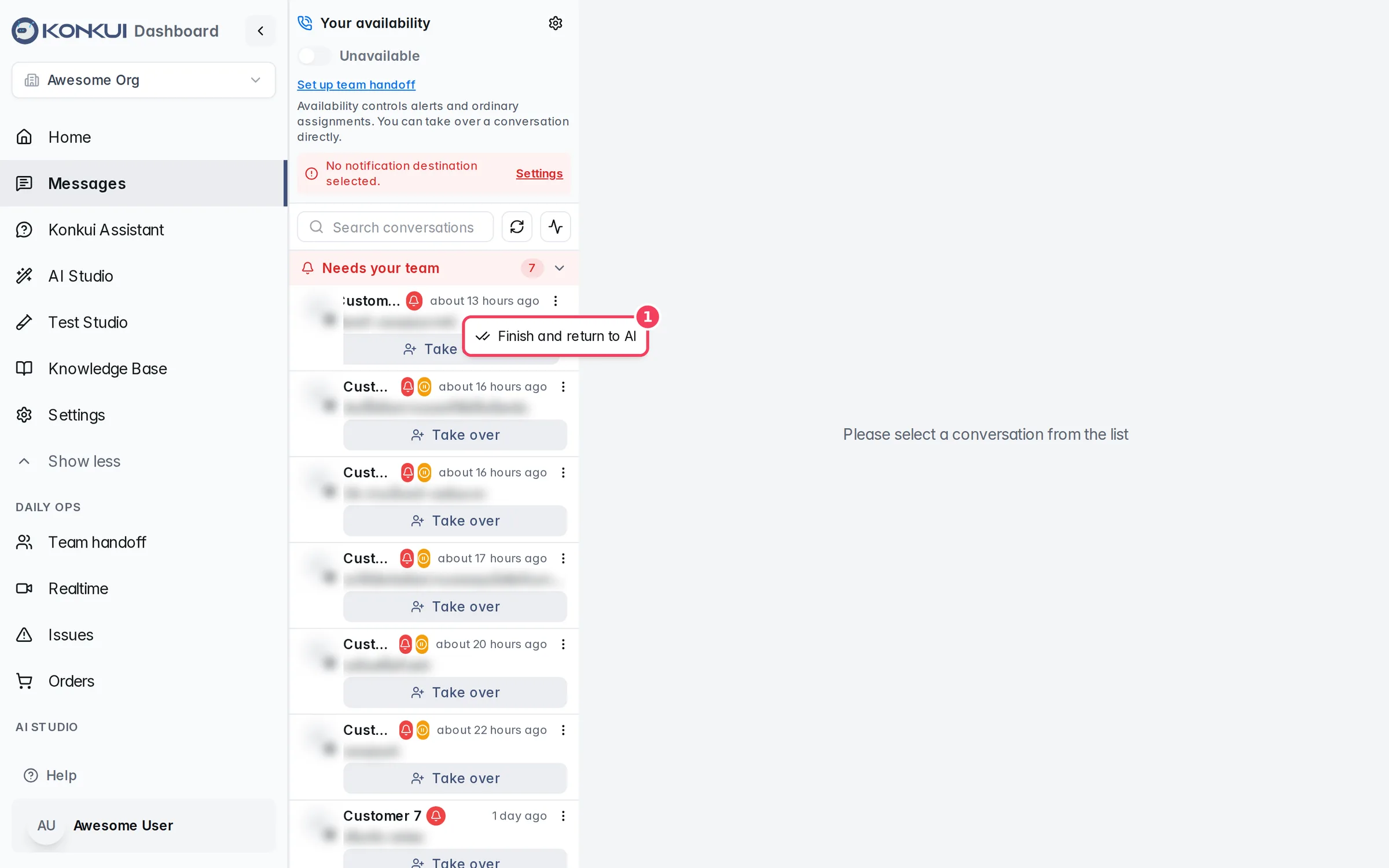
| Action | When it appears | What it does |
|---|---|---|
| Return to team | Conversations assigned to you. | Removes you as the owner and puts the conversation back in Needs your team. The AI may answer again if no teammate can be alerted. |
| Finish and return to AI | Conversations waiting for your team, or assigned to you. | Clears the request and the assignment, and lets the AI answer again. Shows No handoff to finish when there is nothing to finish. |
The conversation view
Click a conversation to open it on the right. The thread refreshes on its own every few seconds.
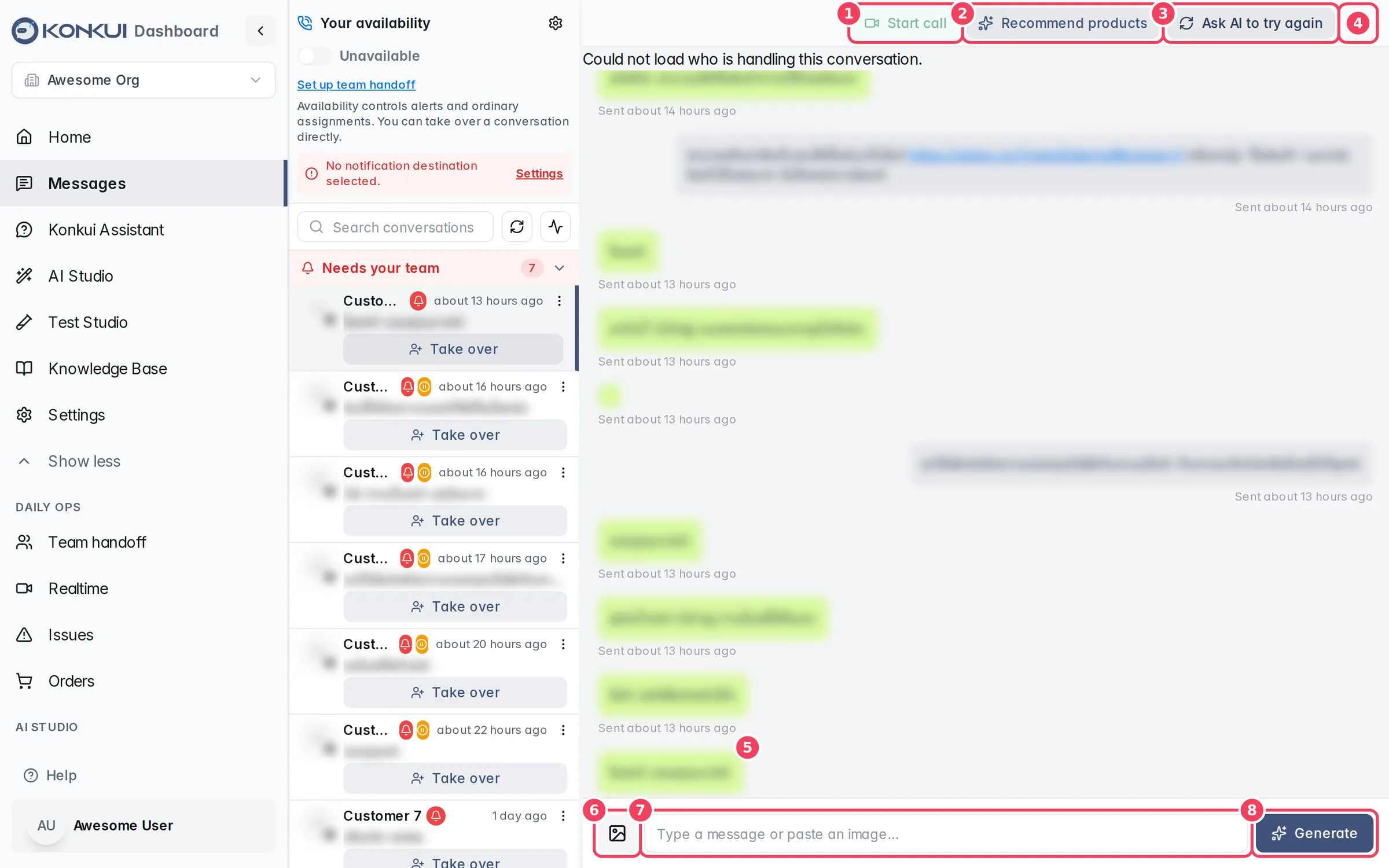
| # | Item | What it does |
|---|---|---|
| 1 | Start call | Sends the customer a video or voice call link. See Start a call. |
| 2 | Recommend products | Opens product suggestions you can send as cards. See Send products. |
| 3 | Ask AI to try again | Has the AI write a new reply and send it to the customer straight away. Disabled while a reply is already in progress. |
| 4 | More actions (⋮) | Contains Send products manually. |
| 5 | Message thread | Customer messages on the left, replies from the AI and your team on the right. Scroll up to load older messages. |
| 6 | Attach image | Adds an image to your reply. JPEG, PNG, GIF and WebP up to 10 MB are supported. You can also paste an image. |
| 7 | Reply box | Type your reply. |
| 8 | Generate / Send | With an empty reply box the button reads Generate: the AI writes a draft into the box for you to edit. Once you type, it becomes Send. |
AI status and handoff controls
Above the thread, a bar shows who is answering this conversation and lets you change it.
| Status | Meaning |
|---|---|
| Bot active | The AI answers this conversation. |
| Bot paused | The AI is paused for this conversation. |
| Waiting for your team | The AI asked for a person and is staying quiet. |
| No bot enabled | No bot is turned on for the workspace, so nothing will answer automatically. Turn one on in Bots. |
The switch next to the status pauses or resumes the AI for this conversation only. You cannot use it while someone has taken over the conversation, or when another teammate owns it.
The handoff panel below it explains the current state, such as AI is enabled for this conversation or name is handling this · AI paused, and offers the buttons you are allowed to use:
| Button | What it does |
|---|---|
| Take over | Assigns the conversation to you and pauses new AI replies. A reply the AI was already preparing may still arrive. |
| Finish and return to AI | Ends your handoff and lets the AI answer again. Your workspace still needs an enabled bot. |
| Return to team | Gives the conversation back to the team. It is shown only to the person handling it. |
If the person who took over has left your workspace, the panel says so, and you can take over or finish to recover the conversation.
LINE resolution check
On a LINE conversation that the AI is handling, the panel also shows Send LINE resolution check. It sends the customer a card asking whether the latest AI answer solved their question. You can send one new check per conversation every 24 hours, and the customer has 24 hours to answer. A new message from the customer cancels the check.
Status banners
| Banner | Meaning |
|---|---|
| The bot is queued to answer this customer. | The AI will reply shortly. |
| The bot is replying to this customer. You can wait. | The AI is writing a reply now. |
| N messages are queued. They will send after the bot replies. | You sent messages while the AI was replying. They go out one by one after its reply. |
Replying to a customer
On LINE, Facebook and Instagram conversations, the message you send goes straight to the customer through that channel. Use Generate when you want the AI's suggested wording but want to check it first; nothing is sent until you click Send. If the AI returns an empty draft, you will see No suggestion and can write the reply yourself.
Start a call
Click Start call to open the Start a call dialog. It shows who will receive the link and on which channel. Click Send call invite to send the customer a join link and open the call for you in a new tab. The customer does not need an account to join, and their link expires after one hour. Calls are not available for every conversation type; the dialog tells you when the channel cannot receive a call. Calls you start this way also appear on Realtime.
Send products
Recommend products opens a dialog with two tabs:
- AI recommendations: products the AI suggests from the recent conversation and your active catalog. Click Generate again for new suggestions.
- Manual search: search your active products by name, category, tag or data source. Send products manually in the ⋮ menu opens this tab directly.
Select up to 12 products, optionally add an intro message, and click Send selected products. Product cards can only be sent to LINE conversations.