
Browse the docs
On this page
Dashboard reference
Open in dashboardLINE Features is where you shape what your LINE friends see outside the bot's answers: the rich menu pinned to the bottom of the chat, the messages new friends get when they add you, and messages sent on a schedule.
It has two tabs:
- Rich Menu: build menus, deploy them to LINE and choose which one everyone sees.
- Messages: welcome messages and scheduled messages.
Any workspace member can use LINE Features.
Where to find it
Open LINE Features in the sidebar, or go straight to LINE Features.
The sidebar item appears only after LINE is connected, meaning both the Access Token and Channel Secret are saved in Settings › General. Admins can also hide it with the Rich Menu switch under Tab Visibility. To connect LINE, follow Connect your channels.
Rich Menu tab
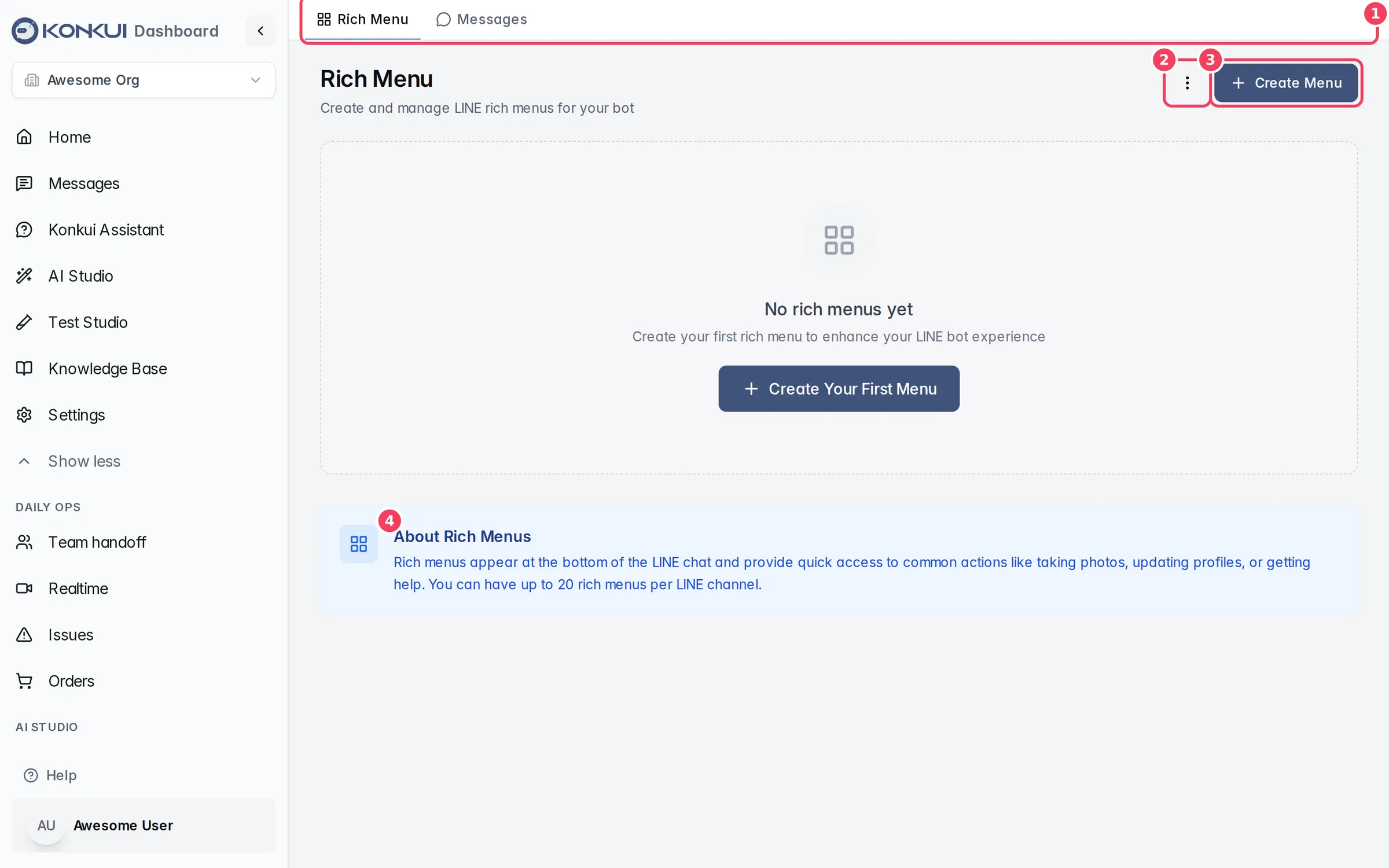
| # | Item | What it does |
|---|---|---|
| 1 | Tabs | Switch between Rich Menu and Messages. |
| 2 | More menu (⋮) | Sync with LINE refreshes each menu's deployed and default status from LINE. Use it if someone changed menus in LINE Official Account Manager. |
| 3 | Create Menu | Opens the rich-menu editor. |
| 4 | About Rich Menus | A reminder of what rich menus are. LINE allows up to 20 rich menus per channel. |
Each menu you create appears as a card with its image, name, chat bar text, size and number of buttons. Status badges show whether it is a Draft, Deployed, and the Default menu.
Menu card actions
| Action | What it does |
|---|---|
| Edit | Opens the menu in the editor. |
| Deploy / Deploy to LINE | Uploads the menu and its image to LINE. Needs an image. The first menu you deploy when no default exists becomes the default automatically. |
| Redeploy | Uploads your latest changes to a menu that is already on LINE. A default menu stays the default. |
| Activate / Set as Default | Makes a deployed menu the one every LINE friend sees. |
| Deactivate / Remove as Default | Stops showing it as the default menu. |
| Delete | Deletes the menu after you confirm. If it was deployed, it is removed from LINE too. |
The rich-menu editor
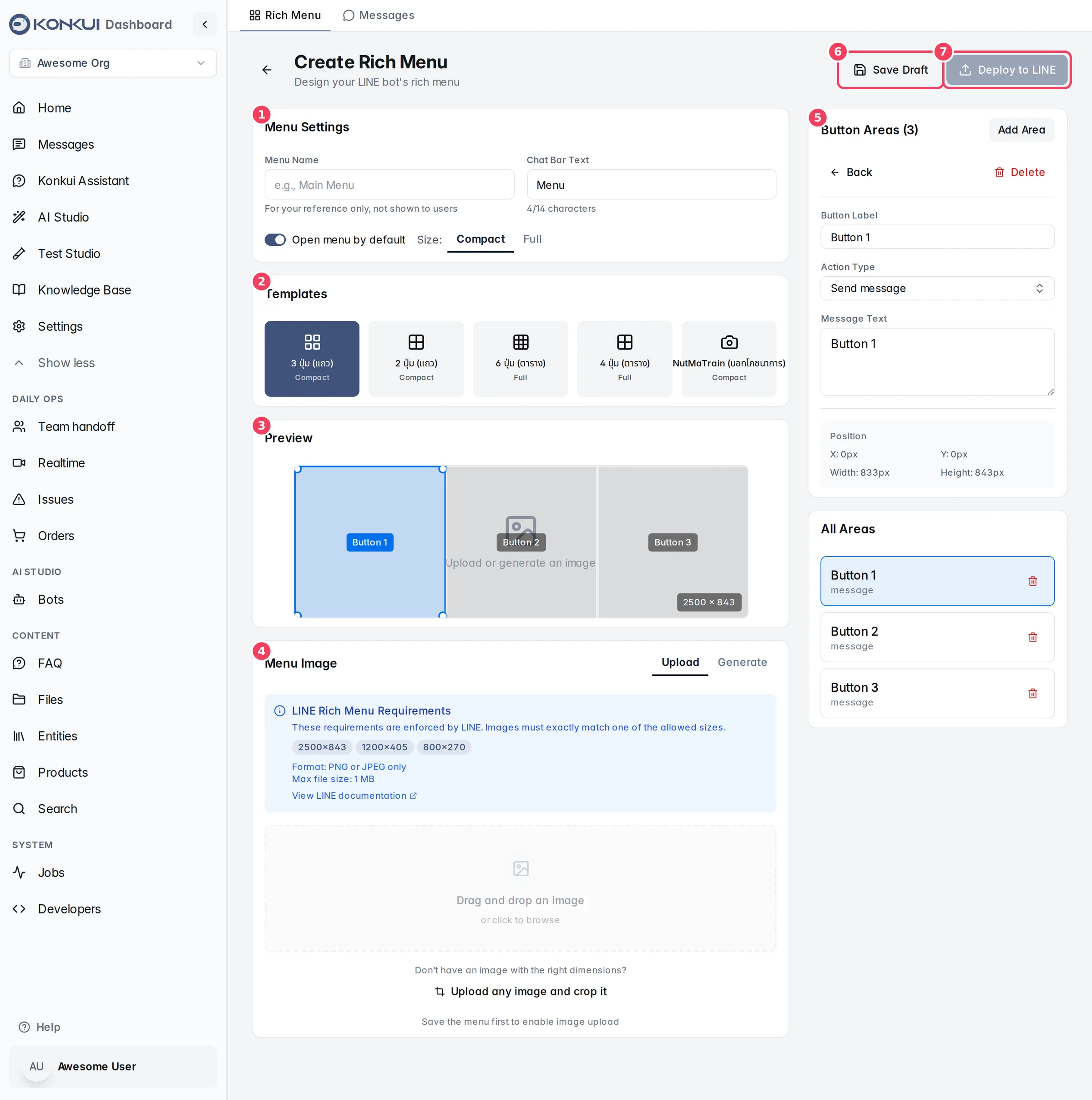
| # | Item | What it does |
|---|---|---|
| 1 | Menu Settings | Name, chat bar text, open-by-default and size. |
| 2 | Templates | Ready-made button layouts. Picking one replaces the current buttons. |
| 3 | Preview | Shows the image with the button areas on top. Click an area to edit it. |
| 4 | Menu Image | Upload your own image or generate one. |
| 5 | Button Areas | Settings for the selected button, plus Add Area. |
| 6 | Save Draft | Saves the menu without sending it to LINE, then returns to the list. |
| 7 | Deploy to LINE | Saves and deploys. Available once the menu has an image and at least one button. |
Menu Settings
| Setting | What it does | Notes |
|---|---|---|
| Menu Name | A name to help you find the menu. | For your reference only; LINE friends never see it. |
| Chat Bar Text | The label on the bar customers tap to open or close the menu. | Up to 14 characters. Defaults to "Menu". |
| Open menu by default | Shows the menu expanded when a customer opens the chat. | On by default. |
| Size | Compact (2500 × 843 px) or Full (2500 × 1686 px). | Templates set this for you. |
Templates
The templates are 3 buttons (row) and 2 buttons (row) in compact size, and 6 buttons (grid) and 4 buttons (grid) in full size. Template names are shown in Thai in the editor. Choosing a template sets the size and creates one button area per cell, each starting as a "Send message" button.
Button areas
Click an area in the preview, or a row under All Areas, to edit it. Add Area adds a new button; the bin icon deletes one.
| Setting | What it does | Notes |
|---|---|---|
| Button Label | A short name for the button. | Shown on the area in the preview and in All Areas. |
| Action Type | What happens when a customer taps the button. | See the action types below. |
| Position | The area's X, Y, width and height on the image, in pixels. | Read-only; set by the template. |
| Action type | What the customer gets | Extra settings |
|---|---|---|
| Send message | Sends a text message from the customer, which your bot then answers. | Message Text. |
| Open URL | Opens a web page. | URL. If your workspace has a LIFF ID, you can pick a LIFF Page instead. |
| Postback | Sends hidden data to Konkui without posting a message. | Postback Data and optional Display Text shown in the chat. |
| Open camera | Opens the phone's camera. | None. |
| Open photo gallery | Opens the phone's photo gallery. | None. |
Menu Image
LINE only accepts images of exactly 2500 × 843, 1200 × 405 or 800 × 270 px (compact) or 2500 × 1686, 1200 × 810 or 800 × 540 px (full), in PNG or JPEG, up to 1 MB.
- Upload: drag in an image that matches. If it doesn't, use Upload any image and crop it (or Crop & Resize) to crop, pick a resolution and compress it below 1 MB.
- Generate: builds a simple image from your buttons. Customize each button's label, emoji and colors, then click Generate & Upload Image.
Image upload unlocks once the menu is saved. A new menu saves itself as a draft as soon as it has a Menu Name and at least one button area.
Messages tab
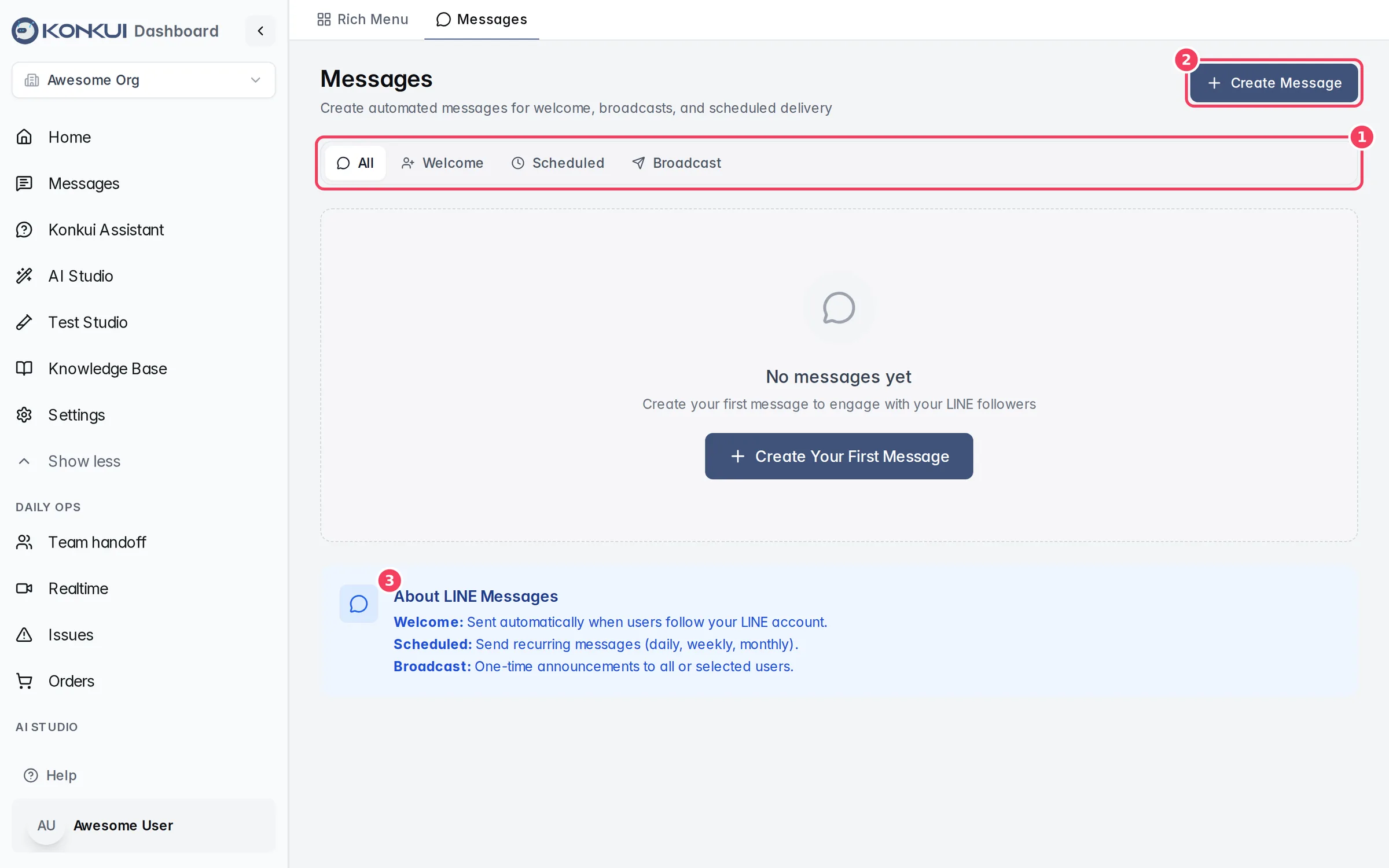
| # | Item | What it does |
|---|---|---|
| 1 | Filter tabs | Show All messages or only Welcome, Scheduled or Broadcast ones. Each tab shows a count. |
| 2 | Create Message | Opens the message editor. |
| 3 | About LINE Messages | A summary of the message types. |
Message types:
- Welcome: sent automatically when someone adds your LINE account as a friend.
- Scheduled: sent on a repeating schedule or once at a set time.
- Manual Broadcast: one-off announcements. Broadcasts are covered separately and are not described here.
On the Welcome tab, when you have more than one welcome message, Reorder lets you drag them into the order they are sent; click Save Order to keep it. LINE delivers at most five message bubbles in one reply, so only the first five are sent to a new friend.
Message card actions
Each message card shows its name, status (Active or Inactive), audience, and for scheduled messages the next send time and how many times it has been sent. Its menu offers Edit, Duplicate, Activate / Deactivate and Delete. Inactive messages are never sent.
The message editor
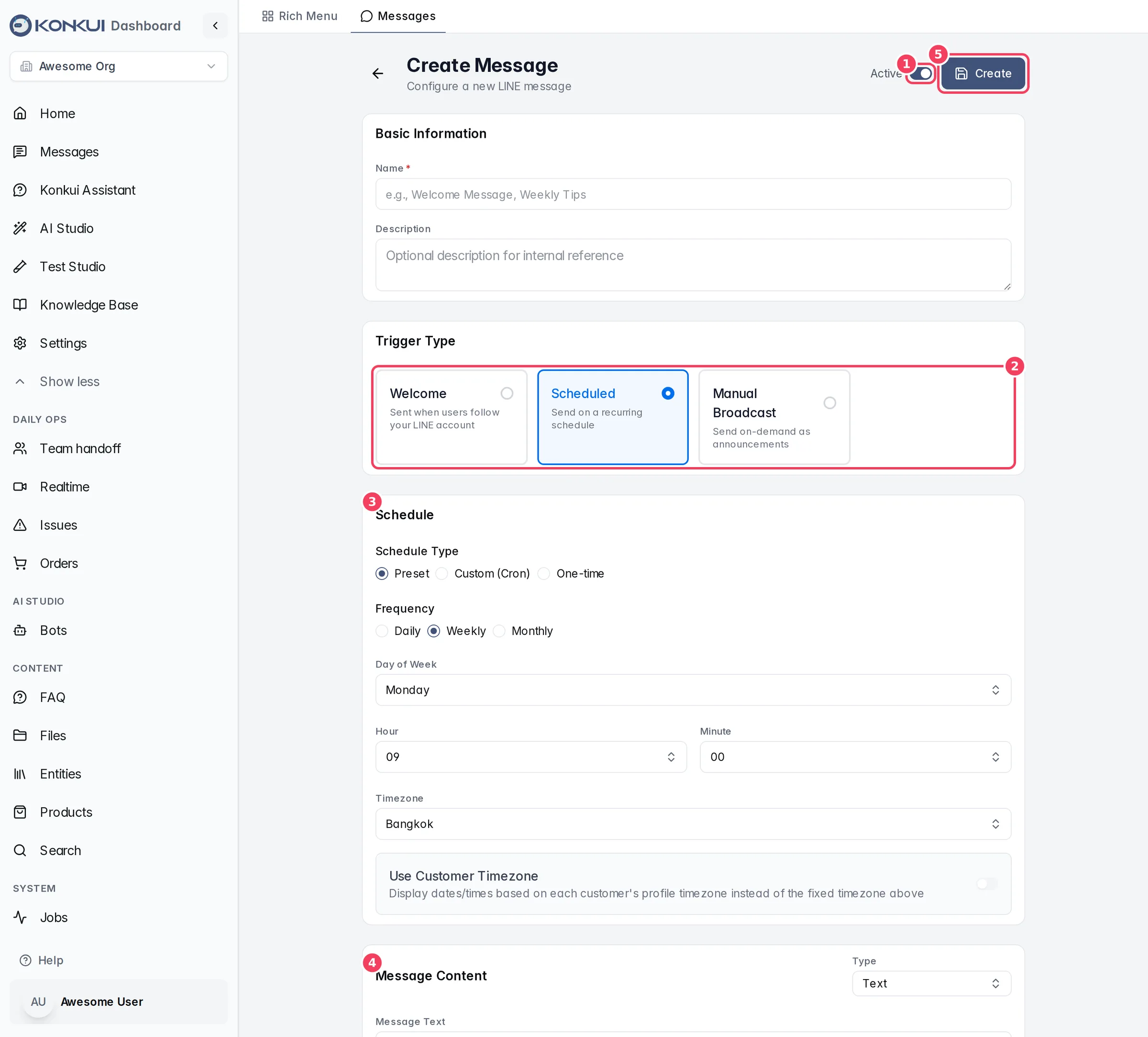
| # | Item | What it does |
|---|---|---|
| 1 | Active | Whether the message is live. Turn it off to keep a draft. |
| 2 | Trigger Type | Welcome, Scheduled or Manual Broadcast. |
| 3 | Schedule | When a scheduled message is sent. Shown for Scheduled only. |
| 4 | Message Content | What is sent, and its Type. |
| 5 | Create / Save | Saves the message. |
Basic Information
| Setting | What it does | Notes |
|---|---|---|
| Name | Identifies the message in Konkui. | Required. |
| Description | A note for your team. | Optional; customers never see it. |
Schedule
| Setting | What it does | Notes |
|---|---|---|
| Schedule Type | Preset, Custom (Cron) or One-time. | |
| Frequency (Preset) | Daily, Weekly or Monthly, with Day of Week or Day of Month, Hour and Minute. | |
| Cron Expression (Custom) | A cron schedule in the format minute hour day month weekday. | For advanced schedules. |
| Date (One-time) | The single date and time to send. | |
| Timezone | The timezone the schedule follows. | Defaults to Bangkok. |
| Use Customer Timezone | Shows dates and times in each customer's own timezone from their profile. |
The schedule preview shows the Next run time.
Message Content
| Type | What you provide | Notes |
|---|---|---|
| Text | Message Text. | |
| Flex Message | Alt Text (shown in notifications) and the Flex Message JSON. | Paste JSON designed with LINE's Flex Message tools. |
| Image | One image. | PNG, JPEG, GIF or WebP, up to 10 MB. Save the message first, then upload. |
| Image Carousel | Up to 10 images, in the order you drag them. | Same image limits. |
Some workspaces also see Customize Content, which generates personalised content for each customer. It appears only when such generators are set up for your workspace.
Audience Targeting
Scheduled messages can target part of your audience.
| Setting | What it does | Notes |
|---|---|---|
| Target Audience | All Users, Include Only (only matching users) or Exclude (everyone except matching users). | |
| Include waitlisted users | Also sends to people waiting on the LINE waitlist. | Off by default. |
| User Status | Active users only, inactive users only, or all. | Segment filter. |
| Tags | Comma-separated tags to match. | Segment filter. |
| Specific Users | Pick individual LINE users. | Segment filter. |
| Joined After / Joined Before | Match by when people became friends. | Segment filter. |
Estimated Recipients summarises who will receive the message.