
Browse the docs
Dashboard reference
Open in dashboardThe Knowledge Base (Knowledge Index Management) holds short, focused pieces of knowledge the bot searches and quotes from. Use it for facts you want to type in directly, such as a return policy, delivery fees or a product detail, without making a file. Entries also appear here when they are created from your processed files; those link back to their source document.
Admins and Staff can create, edit and delete entries. Entries belong to the whole workspace and every bot uses them.
Where to find it
Click Knowledge Base in the sidebar's everyday menu. Admins can hide it in Settings › General (Tab Visibility).
Create an entry
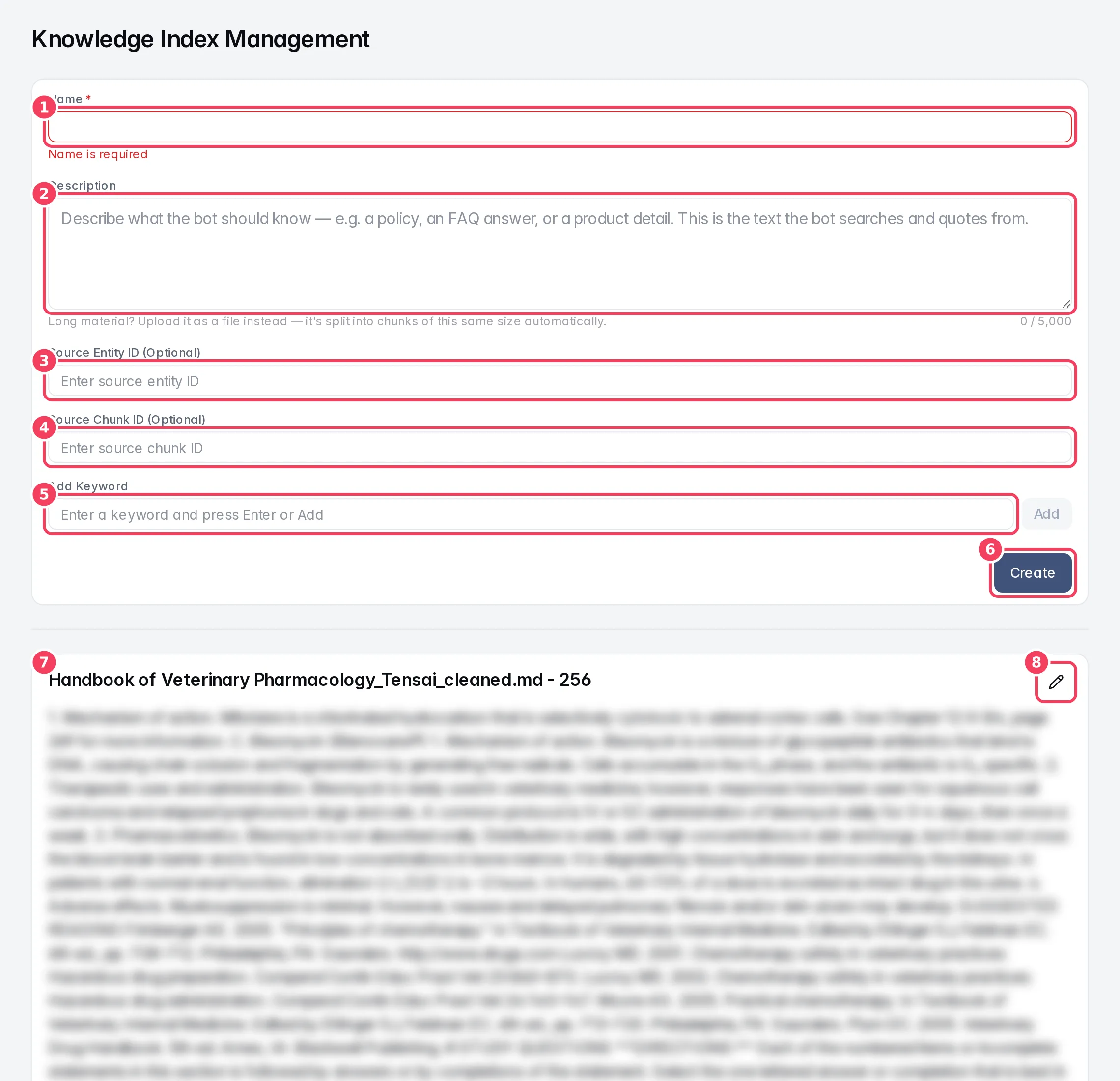
| # | Item | What it does |
|---|---|---|
| 1 | Name | Required. A short title for the entry. |
| 2 | Description | The knowledge itself, the text the bot searches and quotes. |
| 3 | Source Entity ID (Optional) | Links the entry to a record in Entities. |
| 4 | Source Chunk ID (Optional) | Links the entry to a piece of a file. |
| 5 | Add Keyword | Type a keyword and press Enter or Add. |
| 6 | Create | Saves the entry. |
| 7 | Entry | An existing entry with its name, text and keywords. |
| 8 | Edit | Opens the entry for editing. |
| Setting | What it does | Notes |
|---|---|---|
| Name | Identifies the entry in the list. | Required, under 100 characters. |
| Description | What the bot should know, written plainly. | Up to 5,000 characters. A counter turns amber near the limit. For longer material, upload a file instead; it's split into pieces of the same size automatically. |
| Source Entity ID | Ties the entry to a structured record, shown as View Source Entity. | Optional. Most people leave it empty. |
| Source Chunk ID | Ties the entry to a passage of a file, shown as View Source Document. | Optional. Filled in for entries created from files. |
| Keywords | Extra words customers might use, to help the bot find the entry. | Up to 20 keywords, each under 50 characters. Click × on a keyword to remove it. |
Edit or delete an entry
Click the pencil icon on an entry. Change any field, then click Update, or Cancel to discard. Delete removes the entry permanently.
View Source Document on an entry opens the file it came from in Files.
Knowledge Base, FAQ or Files?
| Use | When |
|---|---|
| FAQ | A question customers ask often, with one fixed answer you want sent the same way every time. |
| Knowledge Base | A short fact or policy the bot should use in its own words. |
| Files | Longer documents: catalogues, manuals, policies, articles. |