
Browse the docs
Dashboard reference
Open in dashboardHome is the first page you see when you open a workspace. It answers two questions in order: is anyone waiting on us right now? and how is the bot doing? The Overview tab puts live work first; the Detailed reports tab holds the charts and numbers.
Everyone in the workspace, Admins and Staff, can use Home. This page also explains the sidebar that frames every dashboard page.
Where to find it
Click Home at the top of the left sidebar, or the Konkui logo. Home is always shown and can't be hidden.
The sidebar
The sidebar keeps everyday pages up front and tucks the rest under More.
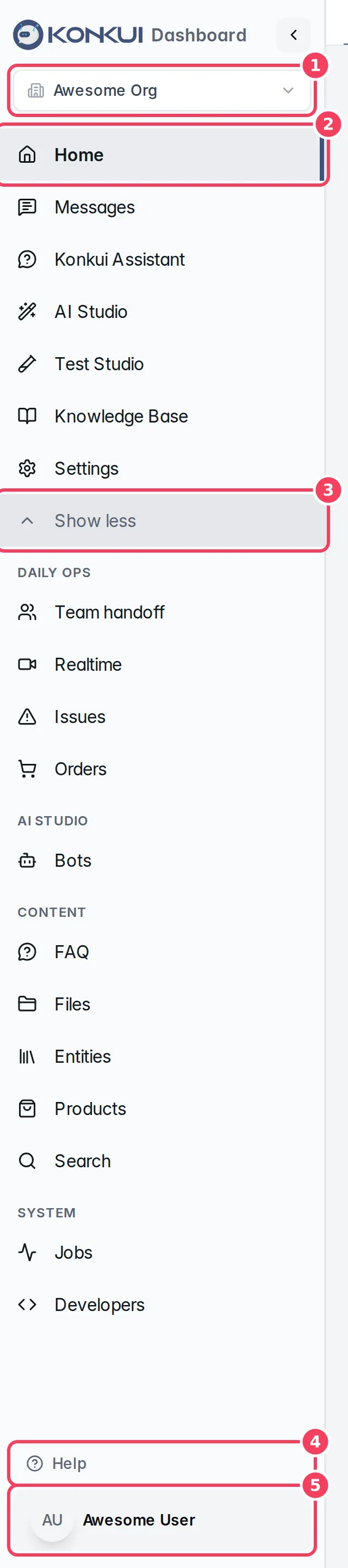
| # | Item | What it does |
|---|---|---|
| 1 | Workspace switcher | Shows the workspace you are in. Click it to switch to another workspace you belong to. |
| 2 | Everyday menu | Home, Messages, Konkui Assistant, AI Studio, Test Studio, Knowledge Base and Settings. |
| 3 | More / Show less | Opens the less frequent pages, grouped under Daily Ops, AI Studio, Content, Customers and System. Konkui remembers whether you left it open. |
| 4 | Help | Replays the one-minute dashboard tour. |
| 5 | Profile menu | Shows who is signed in, switches the dashboard language, and signs you out. |
A few things to know:
- If you open a page that lives under More (from a bookmark or a link), the section opens by itself so you can always see where you are.
- Admins can hide most pages from the sidebar in Settings › General under Tab Visibility. Home and Settings are always shown. A hidden page simply doesn't appear in the menu for anyone in the workspace.
- The arrow next to the logo collapses the sidebar to icons only. On a phone, the sidebar opens from the menu button.
Switching workspaces and choosing a default
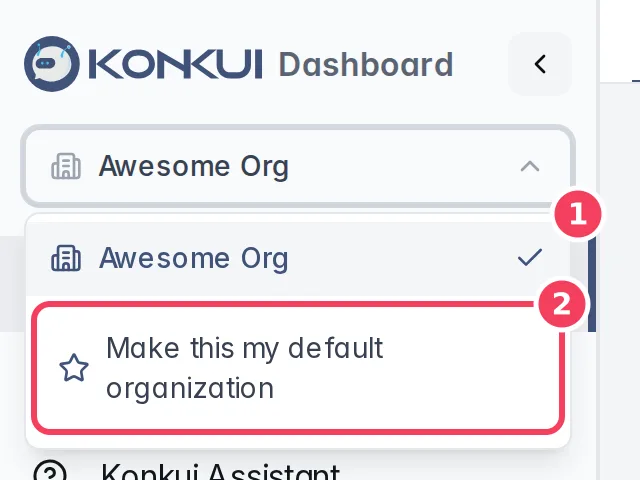
| # | Item | What it does |
|---|---|---|
| 1 | Workspace list | Every workspace you are a member of. The current one has a check mark. |
| 2 | Make this my default organization | Stars the current workspace so it opens first when you sign in. Click Clear default organization to remove the star. |
The default is personal: it changes where you land, not your teammates.
Changing the language
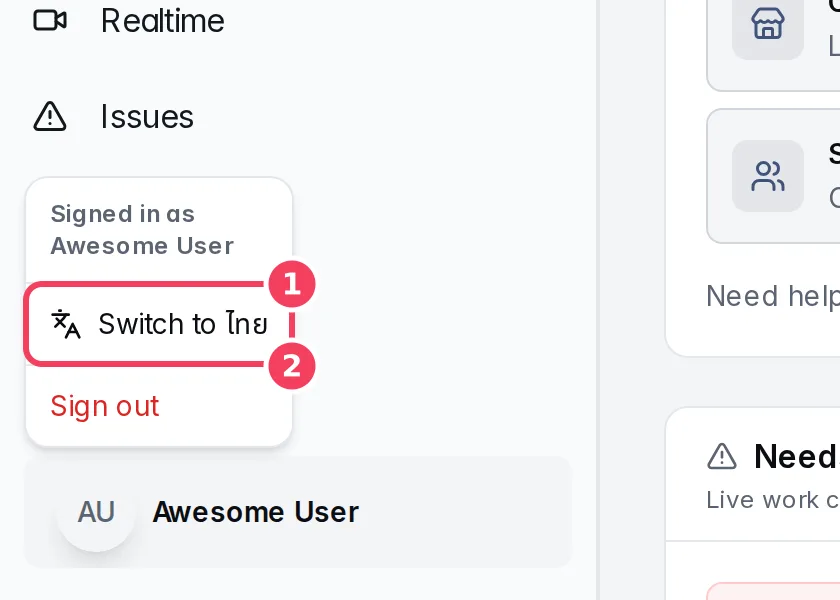
| # | Item | What it does |
|---|---|---|
| 1 | Switch to … | Switches the whole dashboard between Thai and English. The item names the language you would switch to, written in that language. Your choice is remembered. |
| 2 | Sign out | Signs you out of Konkui. |
The dashboard tour
The first time you open the dashboard on a computer, a short guided tour points out the workspace switcher, the everyday menu, AI Studio, More, Settings, Help and the language switch. Press Help at any time to replay it. Once you finish or skip it, it won't start again by itself, even in another workspace or on another device.
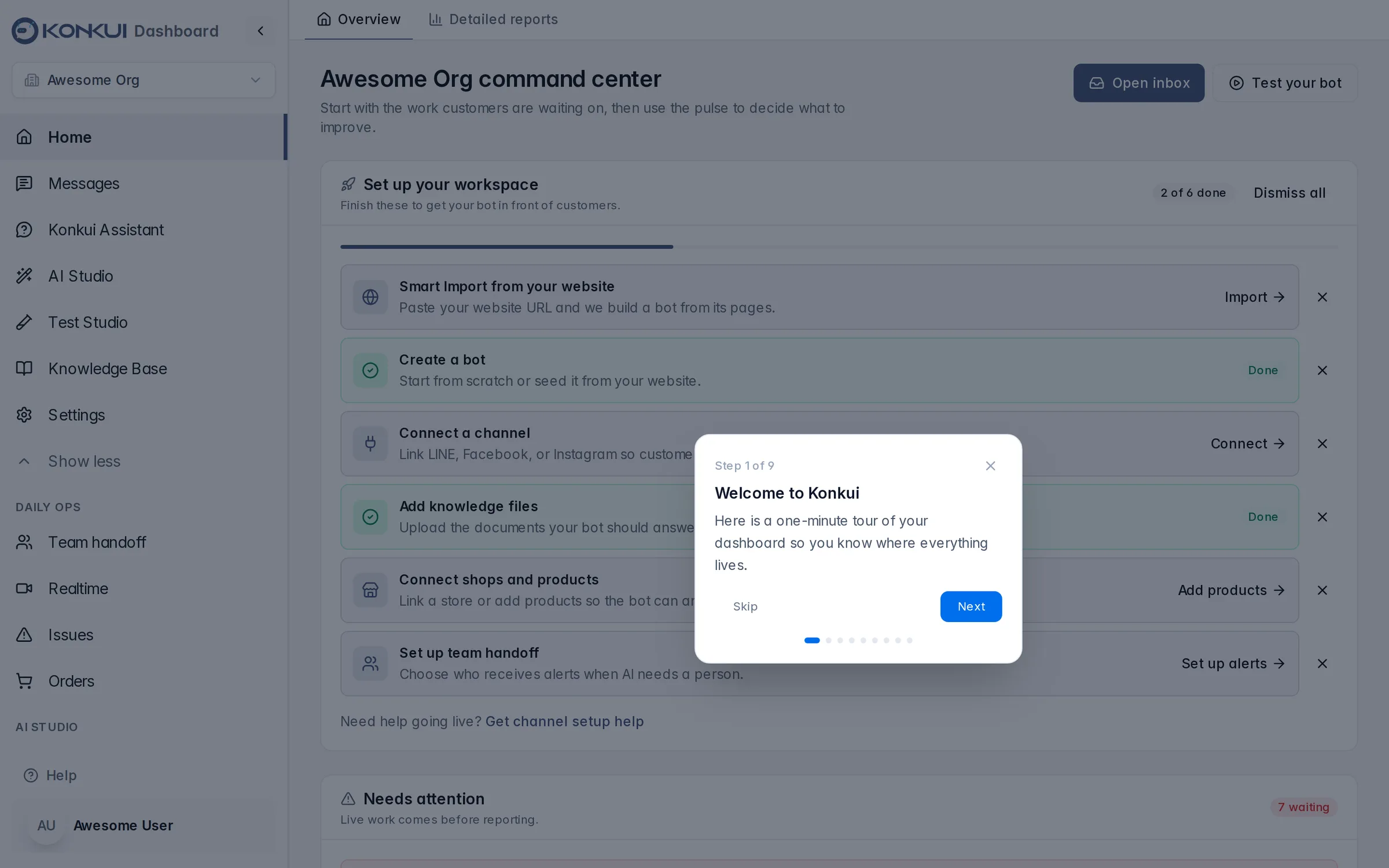
Overview
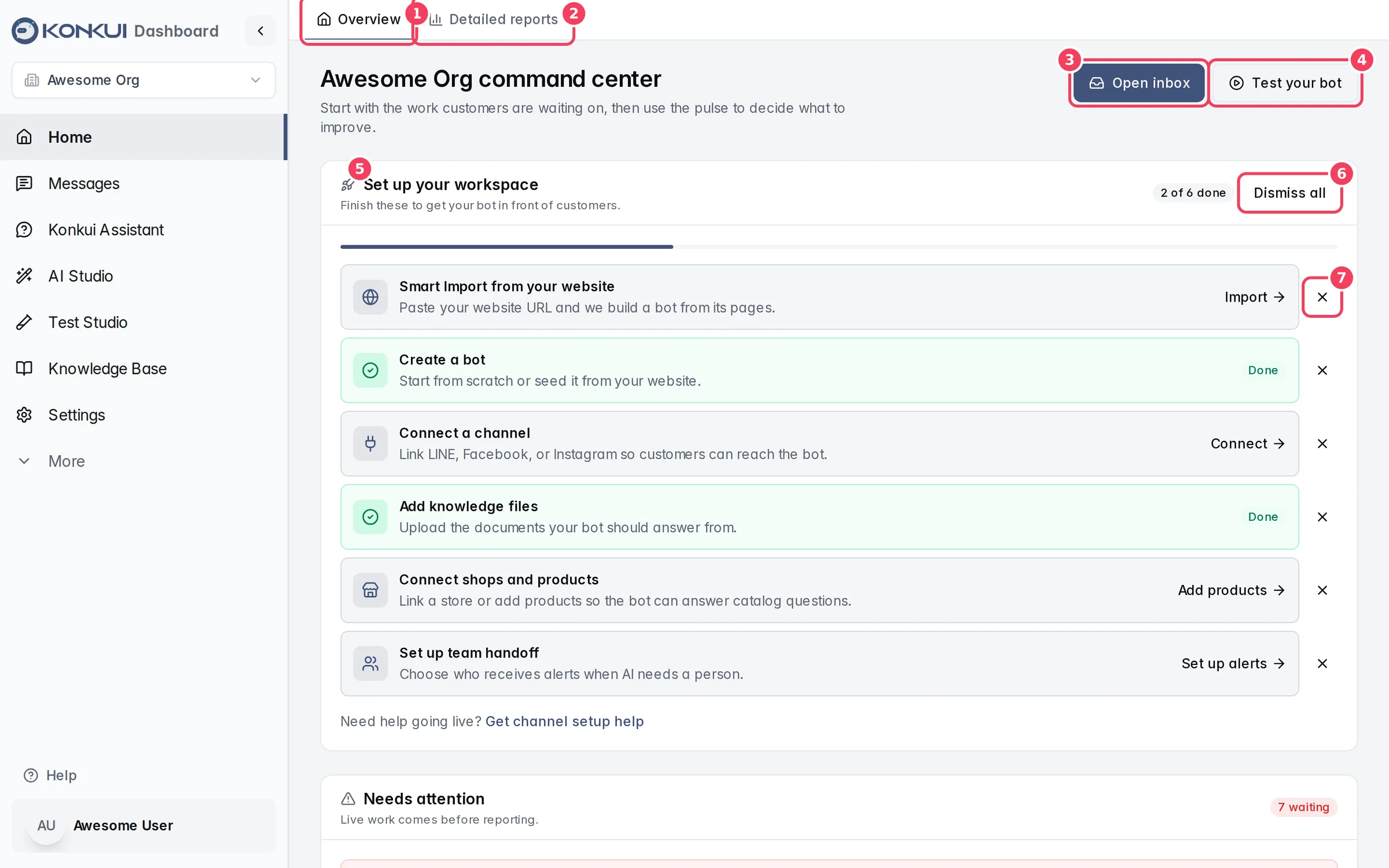
| # | Item | What it does |
|---|---|---|
| 1 | Overview | The live command center described below. |
| 2 | Detailed reports | Charts and numbers. See Detailed reports. |
| 3 | Open inbox | Goes to Messages, where you read and reply to customer conversations. |
| 4 | Test your bot | Opens Test Studio so you can try a question as a customer would. |
| 5 | Set up your workspace | The setup checklist. |
| 6 | Dismiss all | Hides the whole checklist. |
| 7 | Dismiss (×) | Hides a single task. |
Set up your workspace
The checklist lists the steps that get a bot in front of customers. A bar and a counter (for example 2 of 6 done) show your progress. Click a task to go where it gets done; a finished task turns green and shows Done.
| Task | Done when | Click to |
|---|---|---|
| Smart Import from your website | A website import has finished at least once | Open the Quick setup from website dialog (see Bots) |
| Create a bot | The workspace has at least one bot | Open Bots |
| Connect a channel | LINE, Facebook or Instagram is connected | Open Settings › Integrations |
| Add knowledge files | At least one file is uploaded | Open Files |
| Connect shops and products | A store or product source is connected | Open Products |
| Set up team handoff | At least one teammate is online with a phone number selected for alerts | Open Team handoff |
When every remaining task is done, the card changes to Setup complete. Below the list, Get channel setup help opens a contact form if you'd like a hand going live.
Dismissing hides a task for everyone in the workspace, not just you. To bring one back, open Settings › General, find Dismissed tasks, and click Restore next to it.
Needs attention
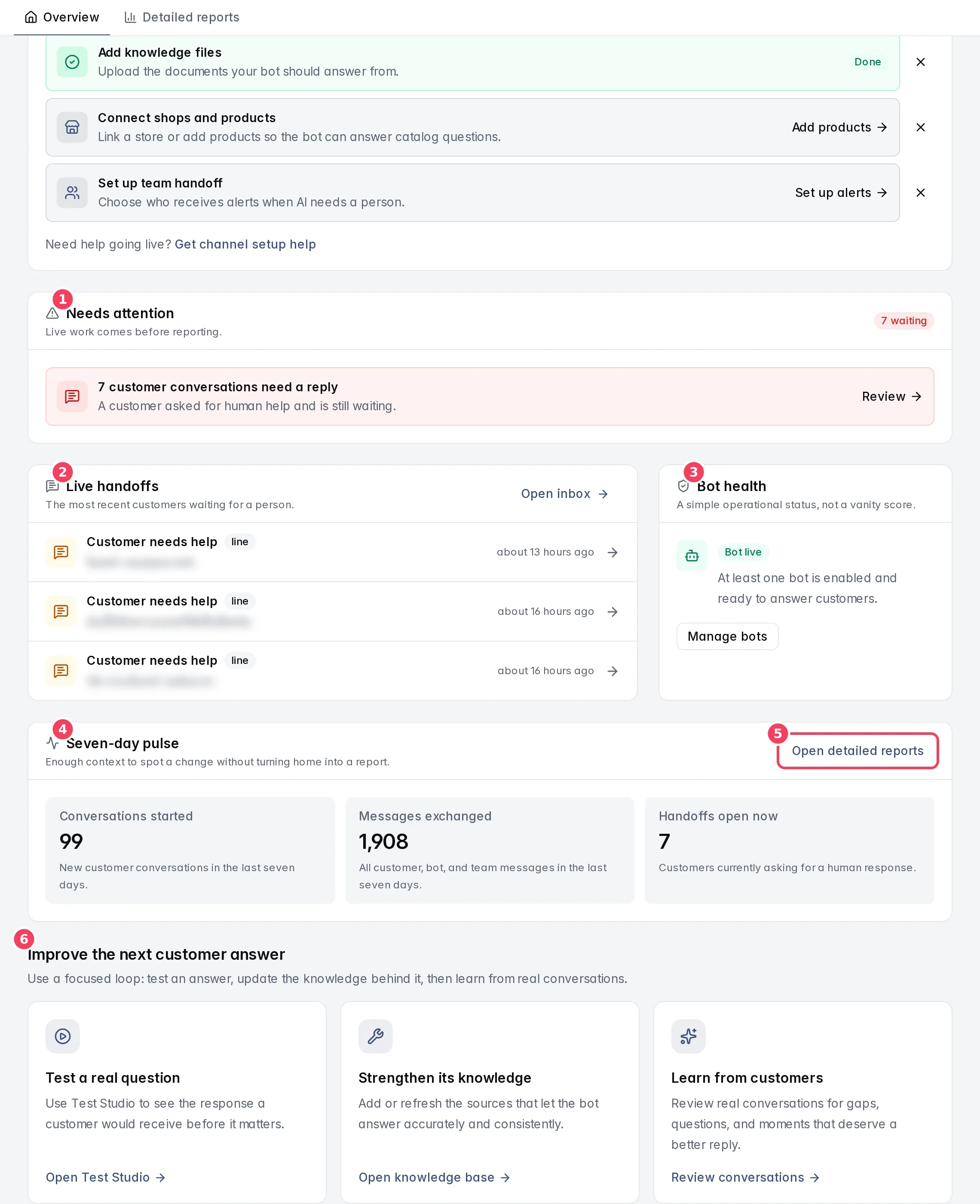
| # | Item | What it does |
|---|---|---|
| 1 | Needs attention | Live work that should come before reporting. |
| 2 | Live handoffs | The three most recent customers waiting for a person. |
| 3 | Bot health | Whether a bot is switched on and answering. |
| 4 | Seven-day pulse | Three numbers for the last seven days. |
| 5 | Open detailed reports | Switches to the Detailed reports tab. |
| 6 | Improve the next customer answer | Shortcuts for improving the bot. |
Needs attention shows a row for each of these, only when it applies:
- Customer conversations need a reply (red): customers asked for a human and are still waiting. Review opens Messages. A red waiting chip in the card header repeats the count. Counts of 50 or more show as 50+.
- Open customer issues (amber): reported problems that are open or in progress. Open issues goes to Issues.
- No bot is enabled (blue): customers get no automated replies. Set up goes to Bots.
When none apply, you see The customer queue is clear. If some data can't load, the card tells you to check the inbox rather than showing a false "all clear".
Live handoffs
Lists up to three conversations where a customer is waiting for a person, with the channel, a preview of the last message and how long ago it arrived. Click a row to open that conversation, or Open inbox to see them all. Learn how handoffs work in Inbox and handoff.
Bot health
A simple on/off status:
- Bot live: at least one bot is switched on. Manage bots opens Bots.
- Setup required: no bot is switched on. Create a bot opens the new-bot form.
Seven-day pulse
| Number | What it counts |
|---|---|
| Conversations started | New customer conversations in the last seven days. |
| Messages exchanged | All customer, bot and team messages in the last seven days. |
| Handoffs open now | Customers currently waiting for a human reply. |
A dash (—) with Unavailable right now. means that number couldn't be loaded; refresh to try again.
Improve the next customer answer
Three cards for a simple improvement loop: Test a real question (opens Test Studio), Strengthen its knowledge (opens the Knowledge Base) and Learn from customers (opens Messages to review real conversations).
Detailed reports
The Detailed reports tab has three sub-tabs: Analytics, AI Insight and Bot Value.
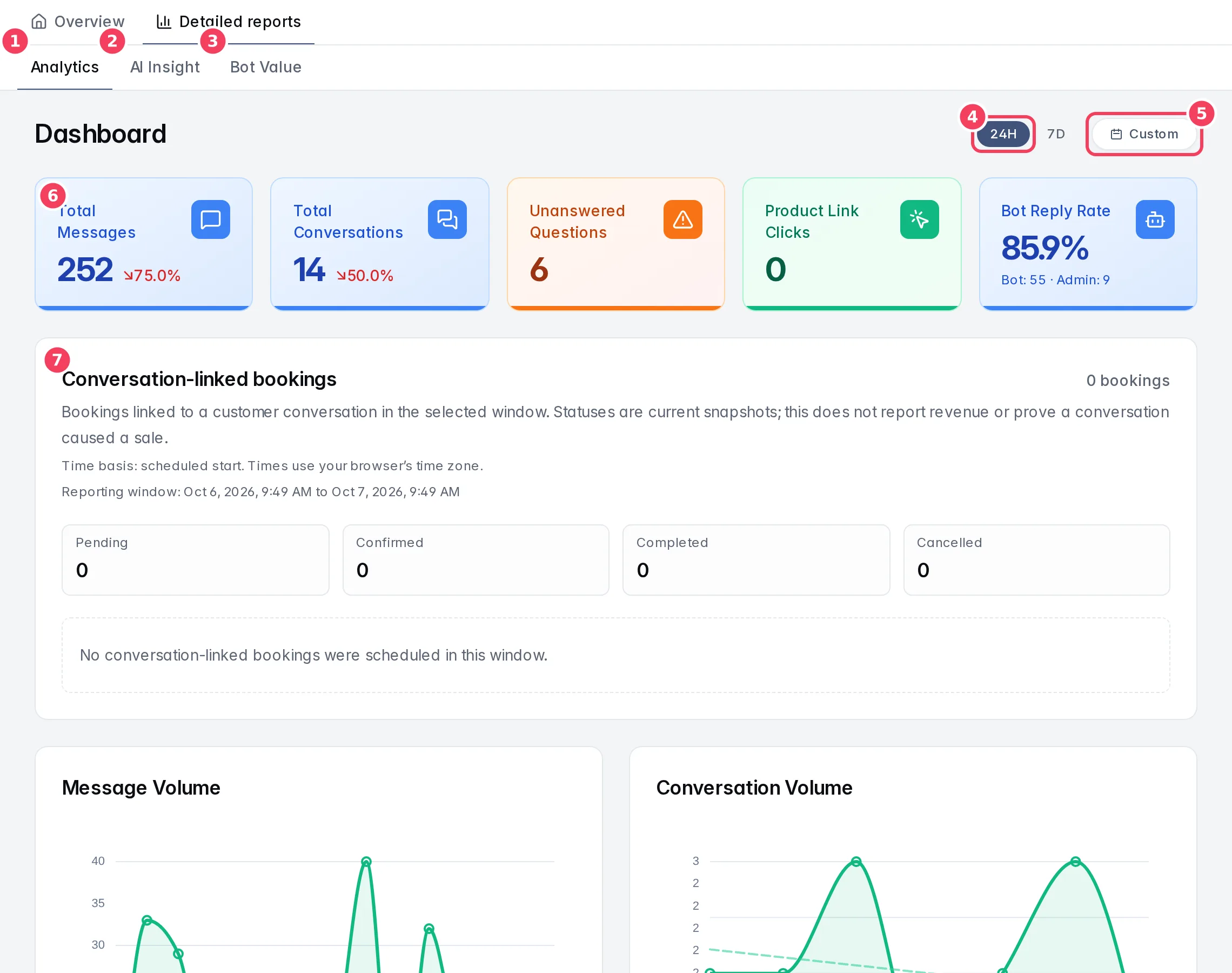
| # | Item | What it does |
|---|---|---|
| 1 | Analytics | Message, conversation and click statistics for a time range. |
| 2 | AI Insight | AI summaries of recent conversations. |
| 3 | Bot Value | The value your bot creates: automation, workload and outcomes. |
| 4 | 24H / 7D | Shows the last 24 hours or the last 7 days. |
| 5 | Custom | Opens a date-range picker. |
| 6 | Stat cards | The headline numbers for the selected range. |
| 7 | Conversation-linked bookings | Bookings linked to a customer conversation in the range. |
Analytics
Time range. Choose 24H (charts by hour) or 7D (charts by day). Custom opens a panel:
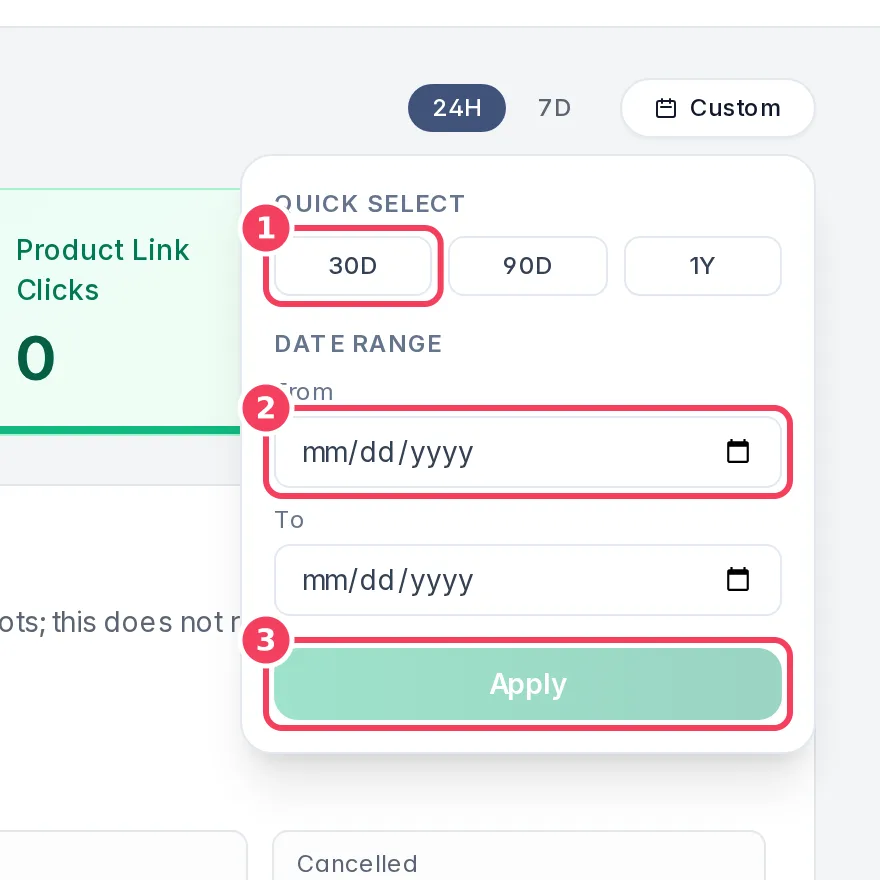
| # | Item | What it does |
|---|---|---|
| 1 | Quick Select | 30D, 90D or 1Y applies a preset range at once. |
| 2 | From / To | Pick your own start and end dates. |
| 3 | Apply | Applies the dates you picked. The button then shows the chosen range. |
Stat cards. Each card compares the selected range with the period before it (the small arrow and percentage).
| Card | What it shows |
|---|---|
| Total Messages | All messages in the range. |
| Total Conversations | Conversations in the range. |
| Unanswered Questions | Conversations waiting for human support. A fall here is good news, so the arrow colours are reversed. The card turns amber when more than three are waiting. |
| Product Link Clicks | Clicks on product links the bot sent. |
| Bot Reply Rate | The share of replies sent by the bot, with the bot and admin counts underneath. |
Charts and lists below the cards:
- Conversation-linked bookings: bookings tied to a customer conversation, counted by status (Pending, Confirmed, Completed, Cancelled). Statuses are current snapshots, and the card does not report revenue. A custom range can be at most 366 days for this card.
- Message Volume and Conversation Volume: line charts over the range.
- Unanswered Questions Requiring Attention: a chart that appears only when questions are waiting.
- Recent unanswered questions: the latest waiting messages. Add as test case sends one to the test-case review queue in AI Studio, so you can make sure the bot handles it next time.
- Product Link Clicks chart and Top Products by Clicks table: shown once customers have clicked product links. The table lists rank, product, clicks and share; Show Tags reveals each product's tags.
AI Insight
AI Insights asks AI to summarize your most recently updated conversations. A Sentiment Overview chart counts them as Positive, Neutral or Negative, and each Conversation card shows a recommendation, whether the customer seemed interested, and a short summary. Click a card to open the conversation.
Bot Value
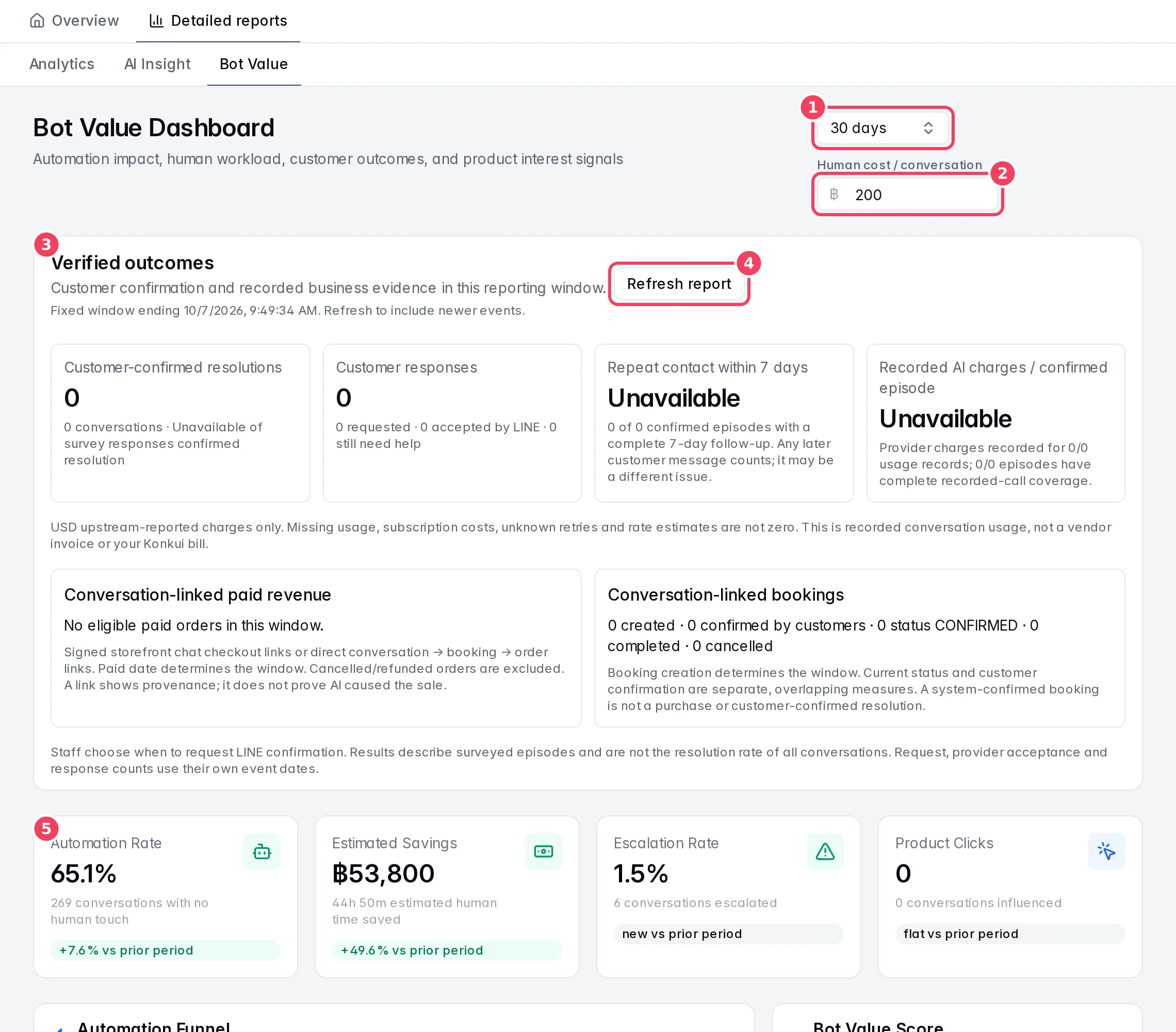
| # | Item | What it does |
|---|---|---|
| 1 | Period | Reporting window: 7, 30, 90 or 365 days. |
| 2 | Human cost / conversation | What one conversation costs you when a person handles it, in baht (200 by default). Used only to estimate savings on this screen; it isn't saved. |
| 3 | Verified outcomes | Customer confirmations and recorded business evidence. |
| 4 | Refresh report | Reloads Verified outcomes to include newer events. |
| 5 | Headline metrics | Automation Rate, Estimated Savings, Escalation Rate and Product Clicks, each compared with the previous period. |
The sections of Bot Value:
| Section | What it shows |
|---|---|
| Verified outcomes | Customer-confirmed resolutions (from LINE satisfaction requests your team sends), repeat contact within 7 days, recorded AI charges per confirmed episode, conversation-linked paid revenue and conversation-linked bookings. Each figure explains how it is counted. Numbers that can't be measured yet show Unavailable. |
| Automation Rate | Conversations handled with no human touch. |
| Estimated Savings | Human time and cost saved, estimated only from conversations the bot handled on its own, using your cost per conversation. |
| Escalation Rate | Conversations handed to your team. |
| Product Clicks | Tracked product clicks and how many conversations they came from. |
| Automation Funnel | From all customer conversations → bot answered → bot deflected (no human needed), plus outcome coverage and how many were marked Resolved, Converted or Abandoned. |
| Bot Value Score | A score out of 100 combining automation, low escalation, outcome coverage and volume: 70 and up is healthy automation, 40–69 needs tuning, below 40 needs attention. |
| Daily Impact Trend | Daily bot-deflected, human-touched and escalated conversations. |
| Platform Workload | Per channel, how much the bot handled versus handed off. |
| What To Fix Next | The customer messages that most often led to a handoff. Add as test case sends one to the test-case review queue. |
| Revenue Influence | Product clicks, influenced conversations, distinct products clicked and conversions, with the most-clicked products. Clicks count as influence, not booked revenue. |