
Browse the docs
Dashboard reference
Open in dashboardFiles is your bot's library. Every document you add here is split into small searchable pieces (chunks) so the bot can find and quote the right passage when a customer asks. Files belong to the whole workspace, so every bot uses them.
Admins and Staff can add, process and delete files.
Where to find it
Open More in the sidebar and click Files under Content. Admins can hide this page in Settings › General (Tab Visibility).
The Files page
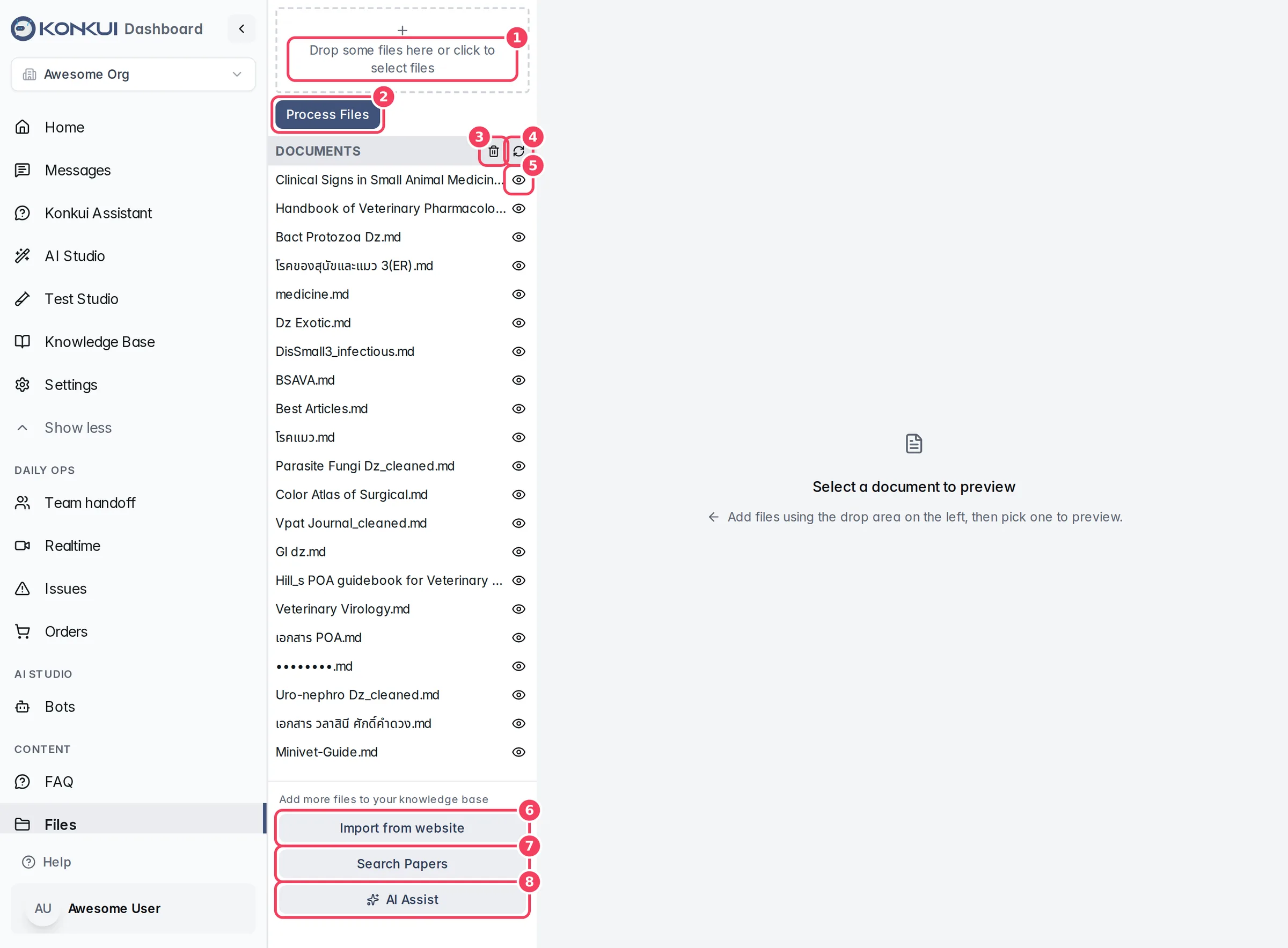
| # | Item | What it does |
|---|---|---|
| 1 | Drop area | Drag files here, or click to choose them. |
| 2 | Process Files | Starts processing files that are waiting, so the bot can use them. |
| 3 | Delete Files | Switches the list into delete mode. |
| 4 | Refresh | Reloads the list, for example to see processing progress. |
| 5 | Preview | Opens the document on the right. |
| 6 | Import from website | Crawls a website and imports its pages and linked documents. |
| 7 | Search Papers | Finds open-access academic papers and adds them. |
| 8 | AI Assist | Has AI write knowledge documents for your active bot. |
Upload files
- Drag files onto the drop area, or click it and choose files. They appear in a queue below it; click × to remove one.
- Click Upload All. A progress bar shows each upload.
- Click Process Files. Each file shows its status while it's being prepared:
| Status | Meaning |
|---|---|
| PENDING | Uploaded and waiting to be processed. |
| PROCESSING | Being split into chunks. |
| ERROR | Processing failed. Check the file and upload it again. |
| (no label) | Ready. The bot can use it. |
Supported files: PDF, Word (.doc, .docx), plain text (.txt), Markdown (.md), HTML, and images (PNG, JPG, GIF, WebP, BMP, TIFF). A file needs a recognizable extension; if Konkui can't tell its type, it asks you to rename it.
Replacing a file. Uploading a file with the same name as an existing one replaces it. Replacing doesn't count as a new file against your plan.
The number of files you can add depends on your plan; see Usage.
Preview a file
Click the eye icon next to a file to open it on the right:
- Preview shows the original document.
- Chunks (once processed) shows the pieces the bot actually searches. This is the best way to check that a scanned or complex file was read correctly.
Documents written by AI Assist carry an Auto-generated label.
Import from website
Import from website opens Crawl a website for knowledge. Use it to bring in help-centre articles, blog posts, policies and linked documents (such as PDFs) from your site.
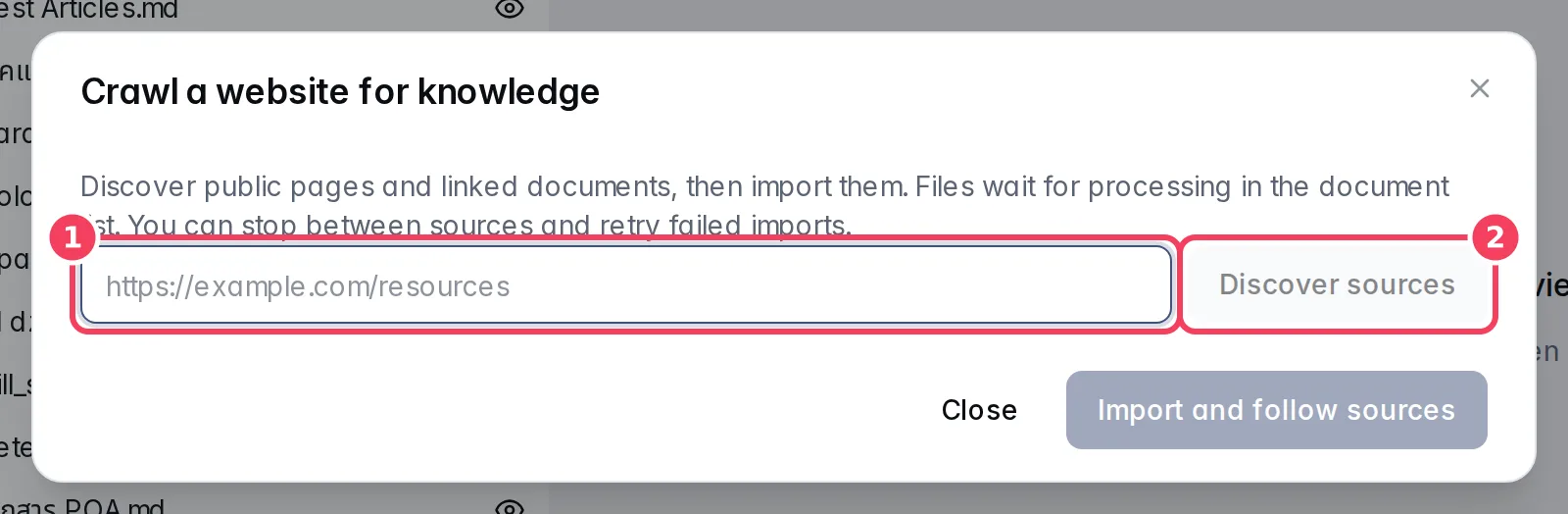
| # | Item | What it does |
|---|---|---|
| 1 | Website URL | The page to start from. |
| 2 | Discover sources | Finds public pages and linked documents and lists them. |
After discovery you see how many sources were found and a list you can filter by All, Imported, Failed and Not attempted. Then:
- Import and follow sources imports them one by one into the file list, where they wait for processing.
- Stop after current source pauses between sources.
- Retry failed sources tries the failed ones again.
When a source can't be imported automatically (blocked, protected PDF, wrong document, too large…), the row says why. Open original source lets you get the document yourself and upload it through the drop area.
This is different from Setup from website on the Bots page, which creates a whole new bot.
Search Papers
Search Papers finds academic papers to add as knowledge, which is useful for clinics, health and technical businesses.
- Keywords: type search terms and click Search.
- AI Assist: describe what you need in a sentence; AI turns it into keywords and searches.
Each result shows its abstract. Download adds the paper's open-access PDF to your files; View Source and PDF open the original. Auto-select & Download lets AI pick the papers most relevant to your active bot and add them for you. Papers without an open-access PDF can't be added.
AI Assist
AI Assist opens your active bot and starts Generate Knowledge Docs, which writes documents on topics you choose. See Generate knowledge and edit drafts. The button is disabled until a bot is switched on.
Delete files
- Click the trash icon (Delete Files). Checkboxes appear next to each file.
- Tick the files to remove and click Delete Selected.
- Confirm with Delete Files.
Deleting can't be undone. The bot stops using those files right away.