
Browse the docs
Dashboard reference
Open in dashboardFAQs are questions your customers ask again and again, each with the exact answer you want them to get. When a customer's message matches an FAQ, the bot replies with your answer instead of writing its own, so prices, policies and greetings stay consistent.
Admins and Staff can create, edit and delete FAQs. Switching Fast FAQ and generating FAQs with AI are admin-only.
Where to find it
Open More in the sidebar and click FAQ under Content. Admins can hide this page in Settings › General (Tab Visibility).
The FAQ page
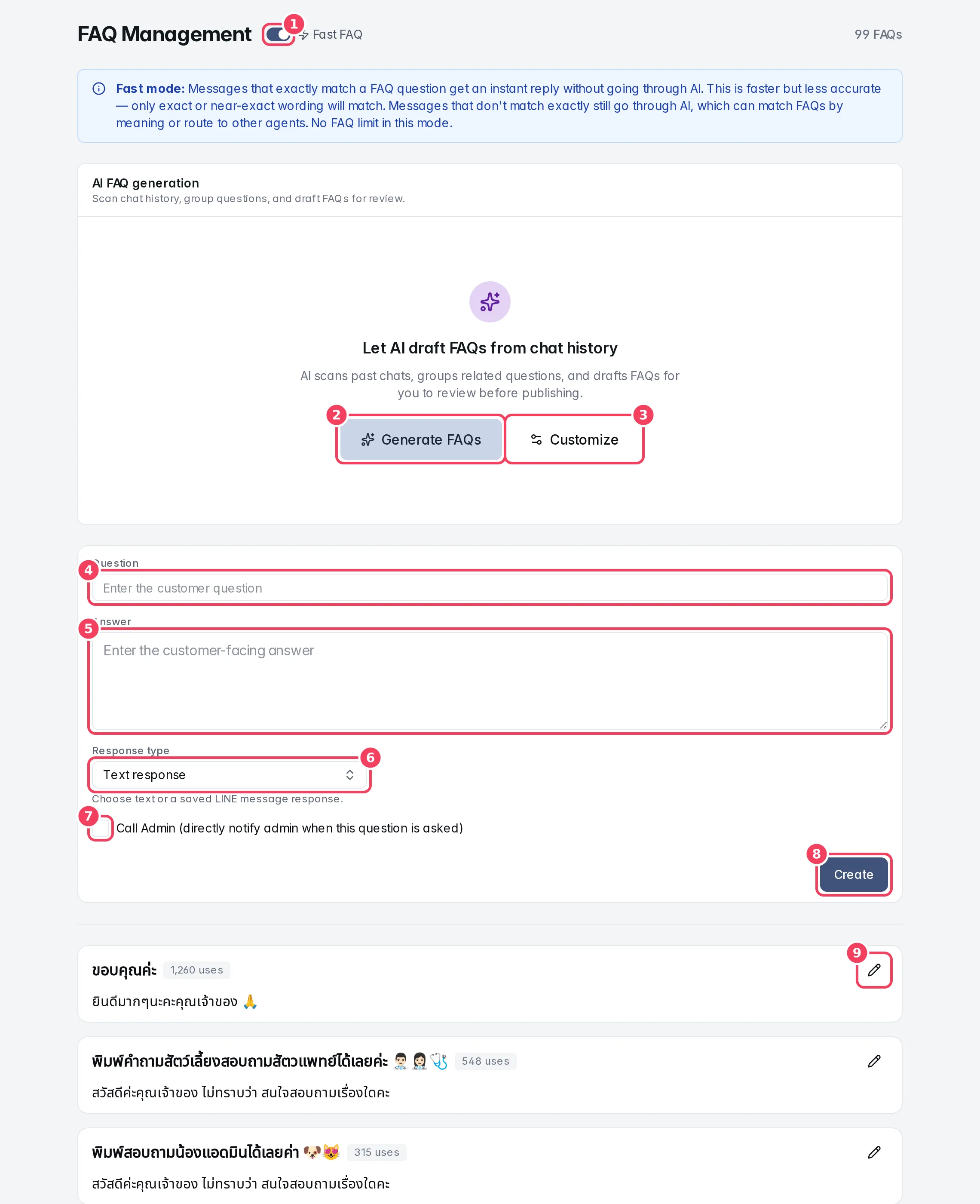
| # | Item | What it does |
|---|---|---|
| 1 | Fast FAQ | Switches between Fast and Normal mode. The counter next to it shows how many FAQs you have, and your limit in Normal mode. |
| 2 | Generate FAQs | Lets AI scan your chats and draft FAQs with the default settings. |
| 3 | Customize | Chooses which chats AI scans before it drafts FAQs. |
| 4 | Question | The customer question. |
| 5 | Answer | The answer to send. |
| 6 | Response type | Reply with text, or with a saved LINE message. |
| 7 | Call Admin | Notifies your admins whenever this question is asked. |
| 8 | Create | Saves the FAQ. |
| 9 | Edit FAQ | Opens a saved FAQ for editing or deleting. |
Fast mode and Normal mode
| Mode | How matching works | Limit |
|---|---|---|
| Normal (Fast FAQ off) | Every message goes through AI, which understands meaning, so it matches FAQs even when customers word things differently. | Your plan may limit how many FAQs AI uses. The banner shows the limit. |
| Fast (Fast FAQ on) | A message that matches an FAQ question exactly, or almost exactly, gets your answer instantly without going through AI. Anything else still goes through AI, which can match FAQs by meaning or pass the chat on. | No FAQ limit. |
Fast mode is quicker and costs no AI for exact matches, but only catches identical wording. Normal mode is smarter about phrasing.
When you reach the limit in Normal mode, a notice appears and the create form is disabled. Delete an FAQ, or turn on Fast FAQ for unlimited FAQs. FAQs are listed by how often they've been used (the uses count), and any FAQs beyond your limit sit below a line marked FAQs below are not used by AI, greyed out.
Create an FAQ
- Type the Question as a customer would ask it.
- Choose the Response type:
- Text response: type the Answer the customer should receive.
- Saved LINE message: pick a message from Saved LINE message. LINE sends that message (text, image, image carousel or Flex) instead of the FAQ text. The text box becomes Internal matching notes (optional): context that helps AI match this FAQ, never sent to the customer. Create or manage LINE messages opens LINE Features.
- Tick Call Admin if a person should be alerted whenever this question comes in, for example for refunds or complaints.
- Click Create.
| Setting | What it does | Notes |
|---|---|---|
| Question | The customer question to match. | Required. |
| Answer | The reply sent to the customer. | Required for a text response. |
| Response type | Text response or Saved LINE message. | Saved LINE messages are sent on LINE. |
| Saved LINE message | The LINE message to send. | Messages that can't be used (for example personalized messages or an image message without images) are marked unavailable with the reason. |
| Internal matching notes | Extra wording to help matching. | Only for saved LINE messages; never sent to LINE. |
| Call Admin | Directly notifies admins when this question is asked. | Shown as a Call Admin badge on the FAQ. |
Each saved FAQ shows its badges (Saved LINE message, Call Admin) and how many times it's been used. If its linked LINE message has been deleted or became invalid, the FAQ warns you to choose another one.
Edit or delete an FAQ
Click the pencil (Edit FAQ). Change the question, answer, response type or Call Admin, then click Update. Delete removes the FAQ; Cancel discards your changes.
Let AI draft FAQs from chat history
AI FAQ generation scans past chats, groups related questions, and drafts FAQs for you to review. Nothing is published until you accept it.
- Generate FAQs starts right away with the default settings: all channels, up to 100 conversations and up to 20 drafts.
- Customize lets you choose first:
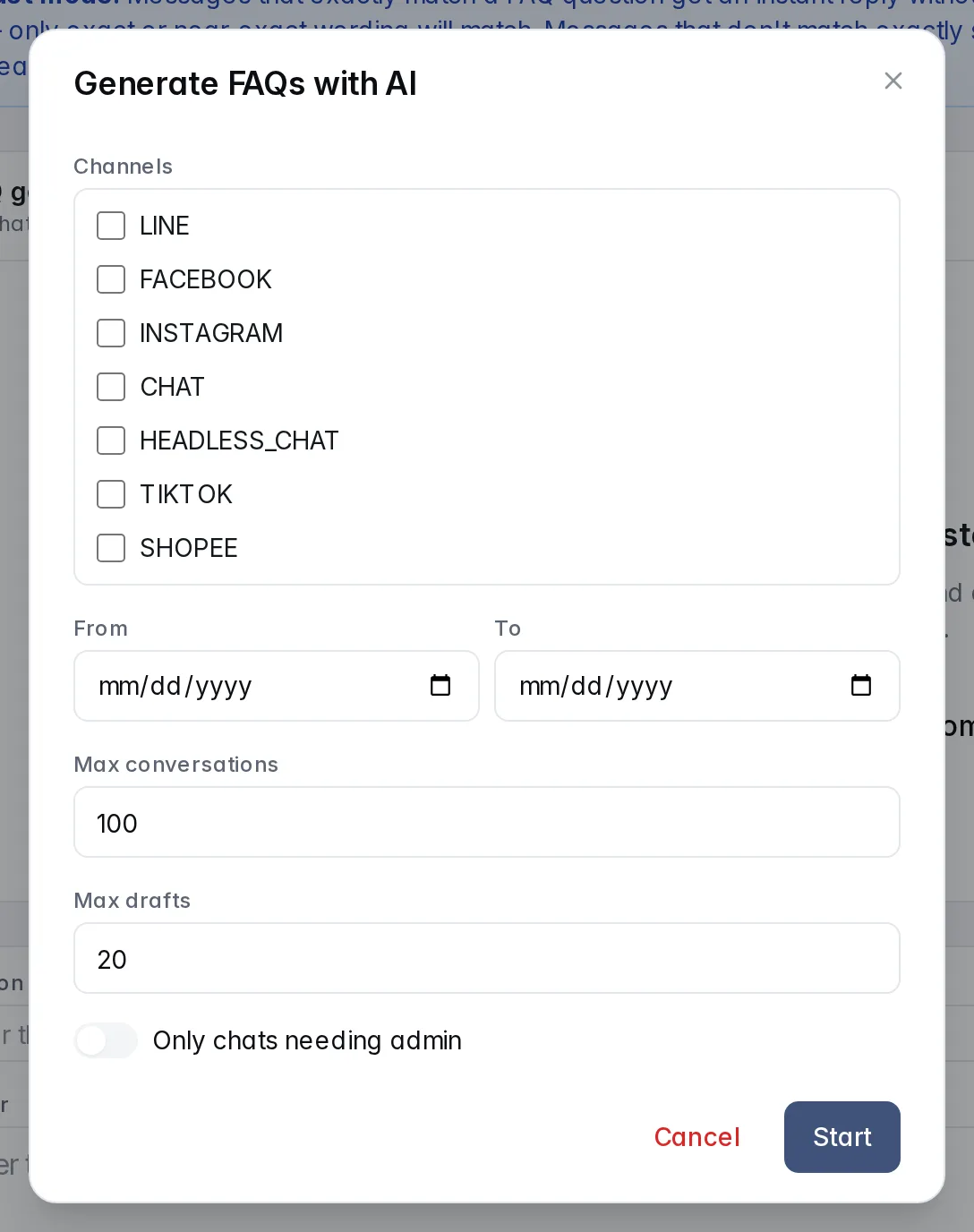
| Setting | What it does | Notes |
|---|---|---|
| Channels | Which channels' chats to scan. | None ticked means all channels. |
| From / To | Only scan chats in this date range. | Optional. |
| Max conversations | How many conversations to scan. | Default 100, up to 300. |
| Max drafts | The most FAQ drafts to create. | Default 20, up to 50. |
| Only chats needing admin | Only scan chats where a customer needed a person: the questions your bot couldn't answer. |
Click Start. Progress shows how many questions, clusters and drafts were found; Cancel stops the job. Recent jobs lists earlier runs.
Under Pending drafts, each draft shows how many times it was asked, sample questions, the source conversations and Why the AI proposed this FAQ. You can edit the question and answer, then Accept to add it to your FAQs or Reject to discard it.