
Browse the docs
Dashboard reference
Open in dashboardCustomer Profiles lists the profile information your customers have shared through your LINE OA, one entry per customer. Use it to check what a customer told you, such as details they entered in a profile form, before you reply or follow up.
Admins and Staff can view customer profiles. The page is read-only.
Where to find it
Click More in the sidebar, then Customers under Customers. The sidebar item appears only once your workspace has at least one customer profile, and admins can hide it under Settings › General › Tab Visibility › Customer Profiles. You can always open the page directly at Customers.
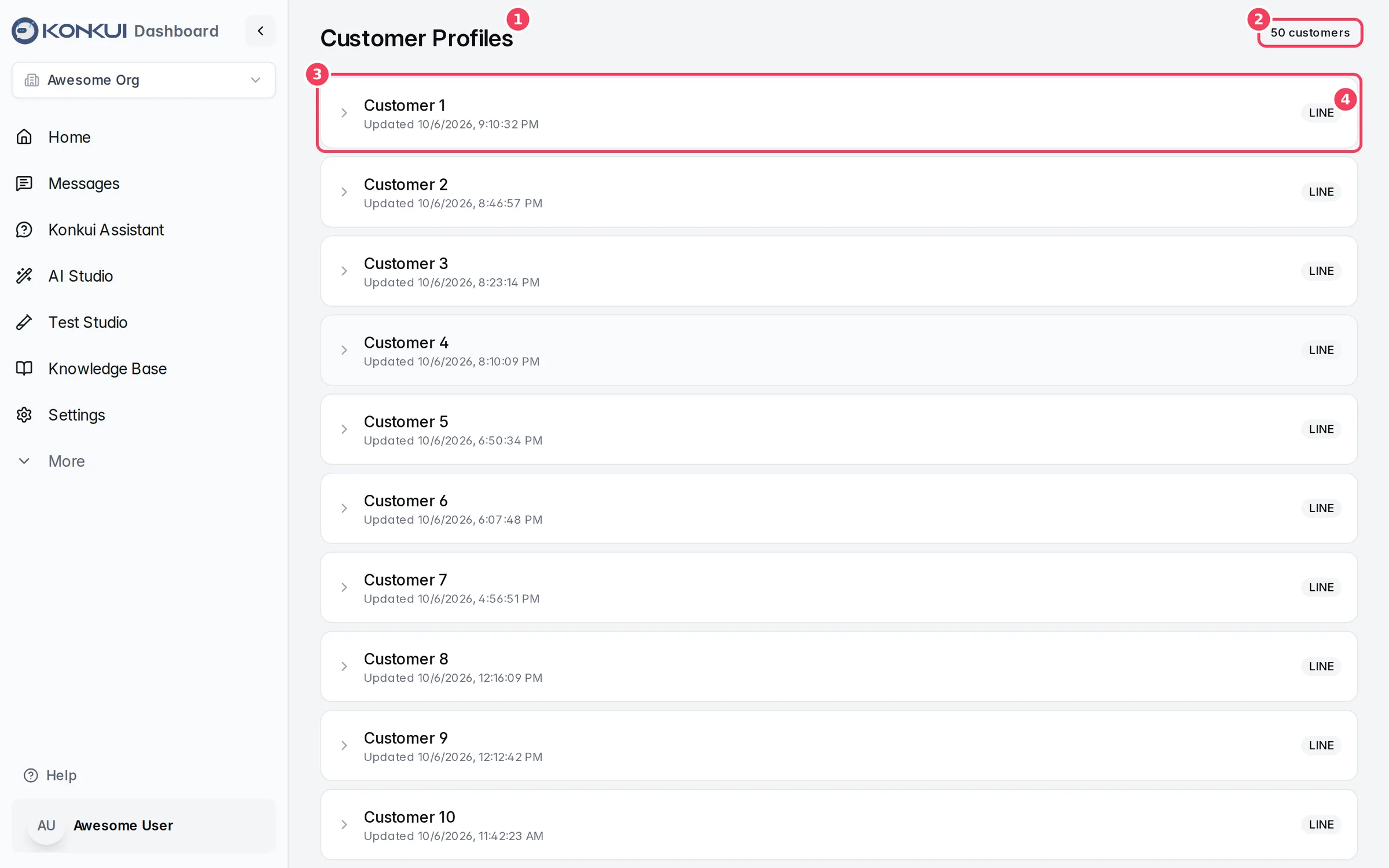
| # | Item | What it does |
|---|---|---|
| 1 | Customer Profiles | The page title. |
| 2 | Customer count | How many profiles are loaded on the page. |
| 3 | Profile row | The customer ID and when the profile was last updated. Click it to expand the profile. |
| 4 | Channel | The channel the customer came from, such as LINE. |
Profiles are listed with the most recently updated first, 50 at a time. Click Load more at the bottom to see older ones.
Where profiles come from
A profile is created when a customer adds your LINE OA as a friend, and filled in as they share details with your business, for example through a profile form in LINE. If no customer has a profile yet, the page shows No customer profiles yet.
View a profile
Click a row to expand it. Click it again to collapse it. Only one profile is open at a time.
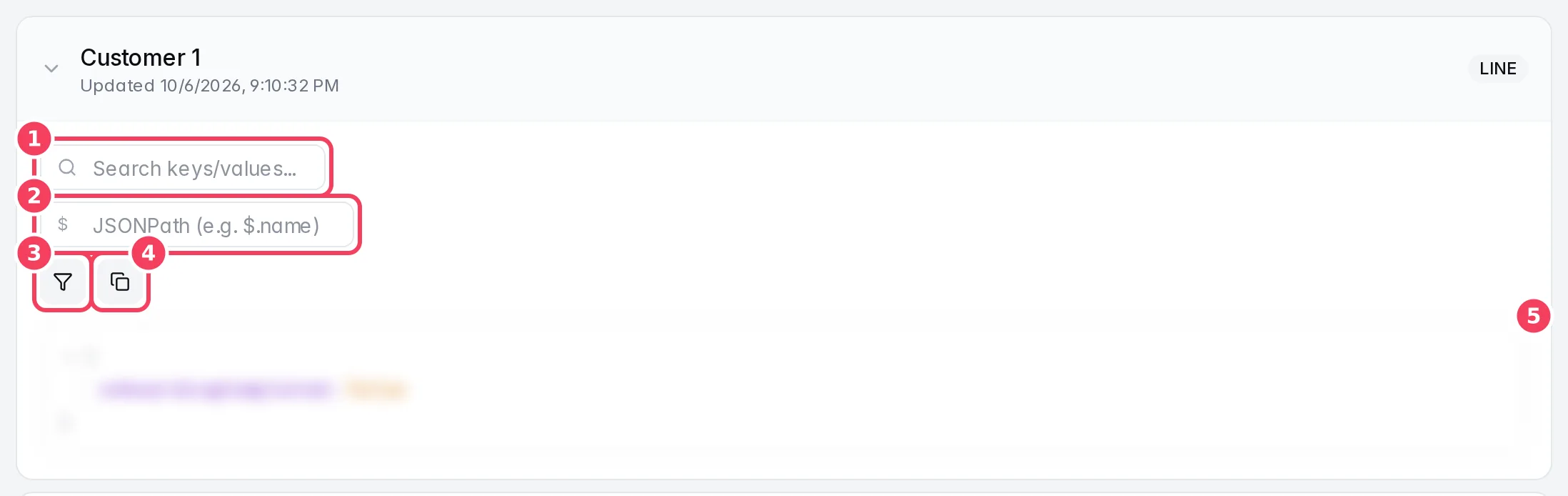
| # | Tool | What it does |
|---|---|---|
| 1 | Search keys/values... | Highlights fields whose name or value contains your text. |
| 2 | JSONPath (e.g. $.name) | Shows only the part of the profile that matches a JSONPath expression, such as $.name. Leave it empty to see everything. |
| 3 | Filter keys | Shows a button for each top-level field. Click a field to hide or show it. |
| 4 | Copy all | Copies the whole profile to your clipboard. |
| 5 | Profile data | The profile as a tree. Expand or collapse nested fields, and hover a value to copy just that value. |