
Browse the docs
Dashboard reference
Open in dashboardAI Studio is where you measure how well your bot answers and make it better. You write example conversations (test cases), let the system tune the bot's instructions against them, compare models safely before switching, add checks that run before a risky answer goes out, and map what customers actually ask.
Everyone in the workspace can open AI Studio. Most tools are open to both Admins and Staff; the few admin-only actions are marked on this page.
Where to find it
Open AI Studio in the left sidebar. The sidebar item appears when at least one of these tab-visibility toggles is on in Settings › General: Test Cases, Bots, Prompts, Experiments or Conversation Map. Each toggle also shows or hides its tab inside AI Studio:
| Tab | Shown when this toggle is on |
|---|---|
| Overview | Always |
| Test Cases, Optimize | Test Cases |
| Compare Models | Bots |
| A/B Experiments | Experiments |
| Prompts | Prompts |
| Verifications | Always |
| Conversation Map | Conversation Map |
Overview
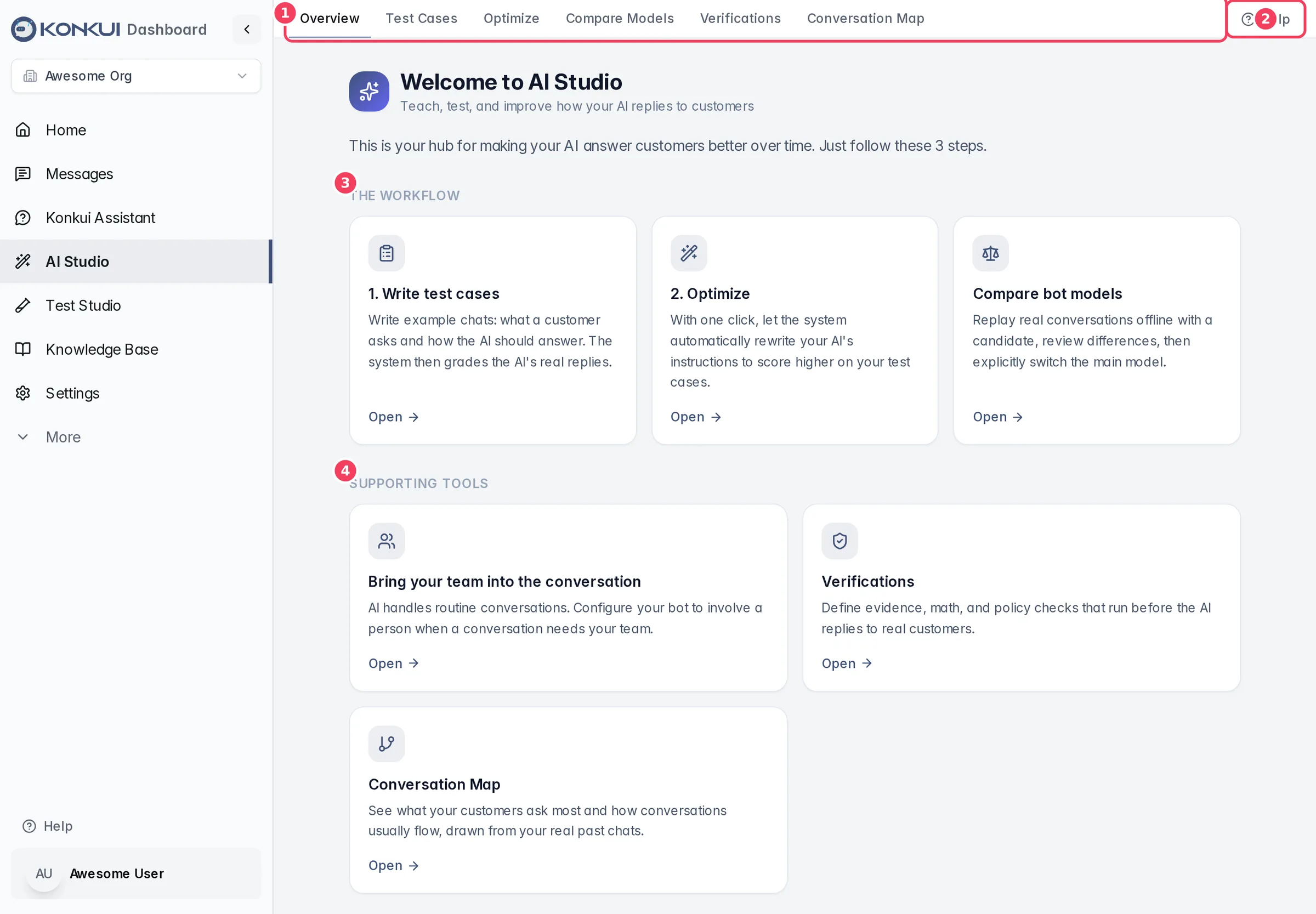
| # | Item | What it does |
|---|---|---|
| 1 | Tab strip | Switches between the AI Studio tools. Tabs are ordered left to right in the order you would normally use them. |
| 2 | Help | Replays the guided tour of the tabs. |
| 3 | The workflow | Cards for the core loop: write test cases, optimize, and compare models (or run A/B tests when Experiments is on). |
| 4 | Supporting tools | Shortcuts to team handoff setup, Prompts, Verifications and the Conversation Map. |
Every tool tab starts with a collapsible How this works panel that explains the feature in plain language, lists the steps, and defines the terms the screen uses. It remembers whether you left it open or closed.
Expert and Sales
Your bot has two personalities: Expert (answers questions) and Sales (focuses on selling). Test cases, optimization and prompts are kept separately for each. The Expert/Sales switch at the top of Test Cases and Optimize is shared, so both tabs always work on the same personality.
Test Cases
Test cases are your bot's report card. Each one is an example conversation: what the customer says and the answer you expect. When you run a test, the bot answers for real and an AI judge scores how close the reply is to your expected answer, from 1 to 5 (5 is excellent, below 3 is failing).
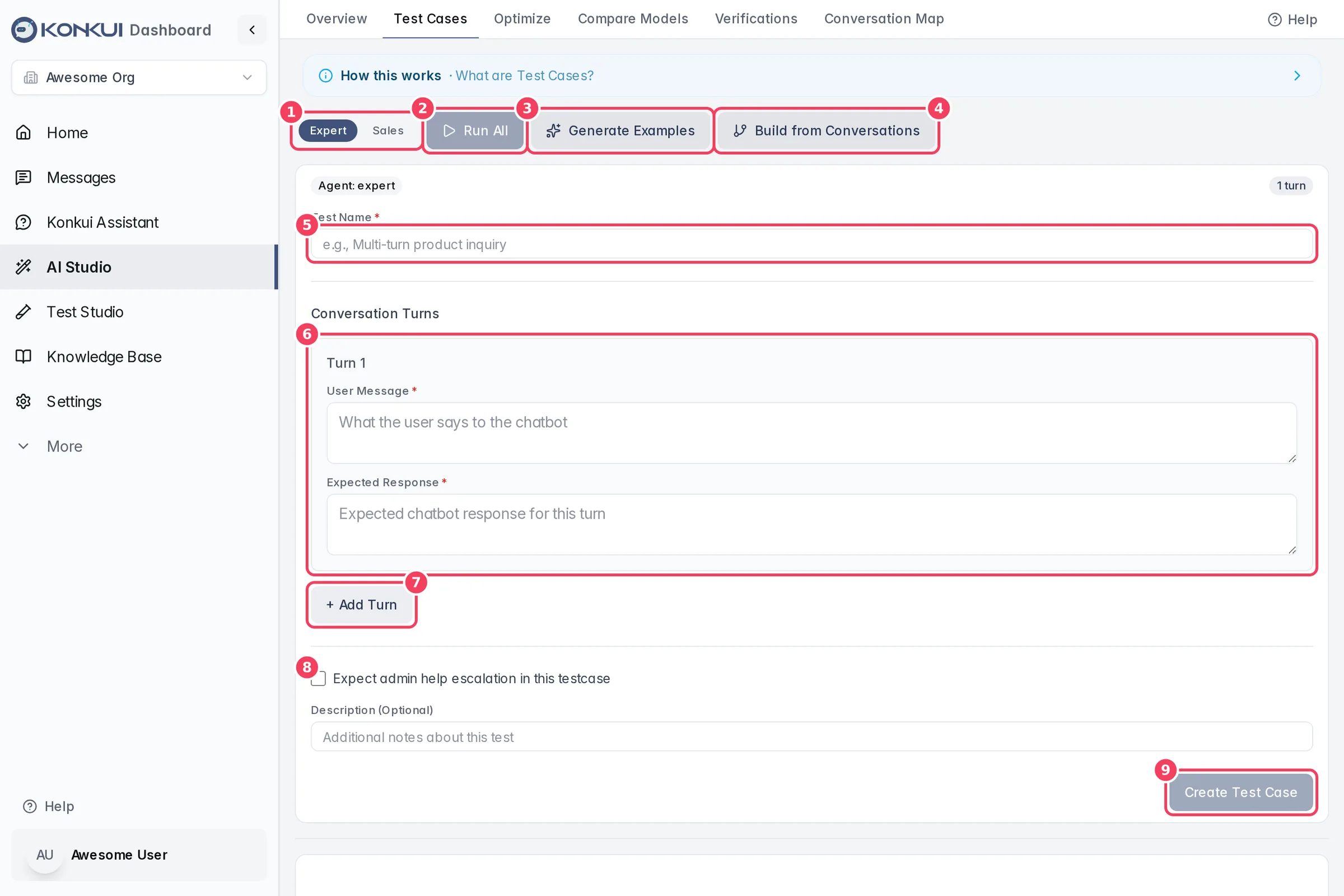
| # | Item | What it does |
|---|---|---|
| 1 | Expert / Sales | Chooses which personality's test cases you are viewing and creating. |
| 2 | Run All | Runs every test case for the selected personality. A confirmation explains that each test calls the AI and may add usage charges. |
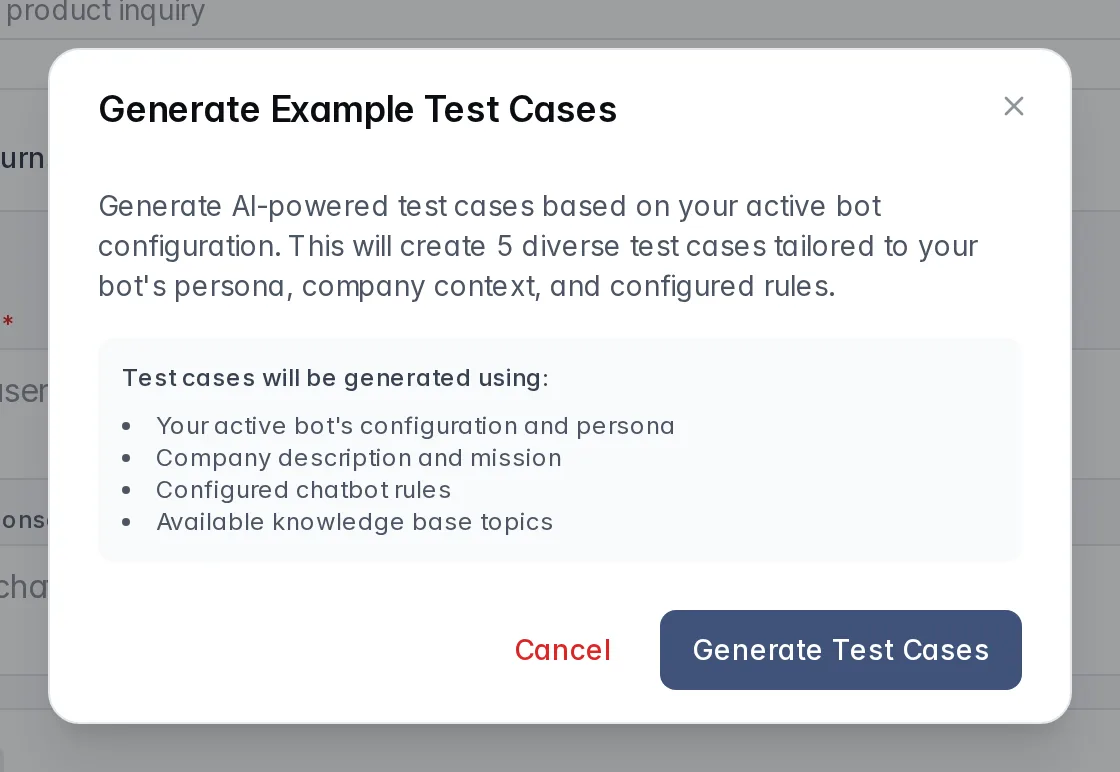
| 3 | Generate Examples | Asks AI to write 5 varied test cases from your active bot's configuration, company description, rules and knowledge-base topics. |
| 4 | Build from Conversations | Opens the Review Queue to turn real chats into test cases. |
| 5 | Test Name | A short, descriptive name for the test. |
| 6 | Conversation turn | One customer message and the response you expect for that turn. |
| 7 | + Add Turn | Adds another turn, so you can test a multi-step conversation. Remove deletes a turn. |
| 8 | Expect admin help escalation | Tick when the right behaviour is for the bot to hand the chat to a person instead of answering. |
| 9 | Create Test Case | Saves the test case for the selected personality. |
Description (Optional) below the checkbox holds your own notes about what the test checks.
Running and reading results
Each saved test case appears as a card below the form with its turns, Run Test, edit and delete buttons. After a run, the card shows Latest Test Run: with a pass/fail score chip, the actual reply for each turn and the Judge Reasoning that explains the score. Multi-turn tests also show how many turns passed and failed, with Expand All / Collapse All.
| Action | What it does | Notes |
|---|---|---|
| Run Test | Runs one test case now. | Uses AI, so it counts toward usage. |
| Edit | Changes the name, question, expected output or description. | Click Update to save or Cancel to discard. |
| Delete | Removes the test case permanently. | Cannot be undone. |
Review Queue: build test cases from real chats
Build from Conversations opens Build test cases from real chats. It has two tabs.
AI drafts
AI scans your past conversations, finds answers it thinks were wrong, and drafts test cases for you to review.
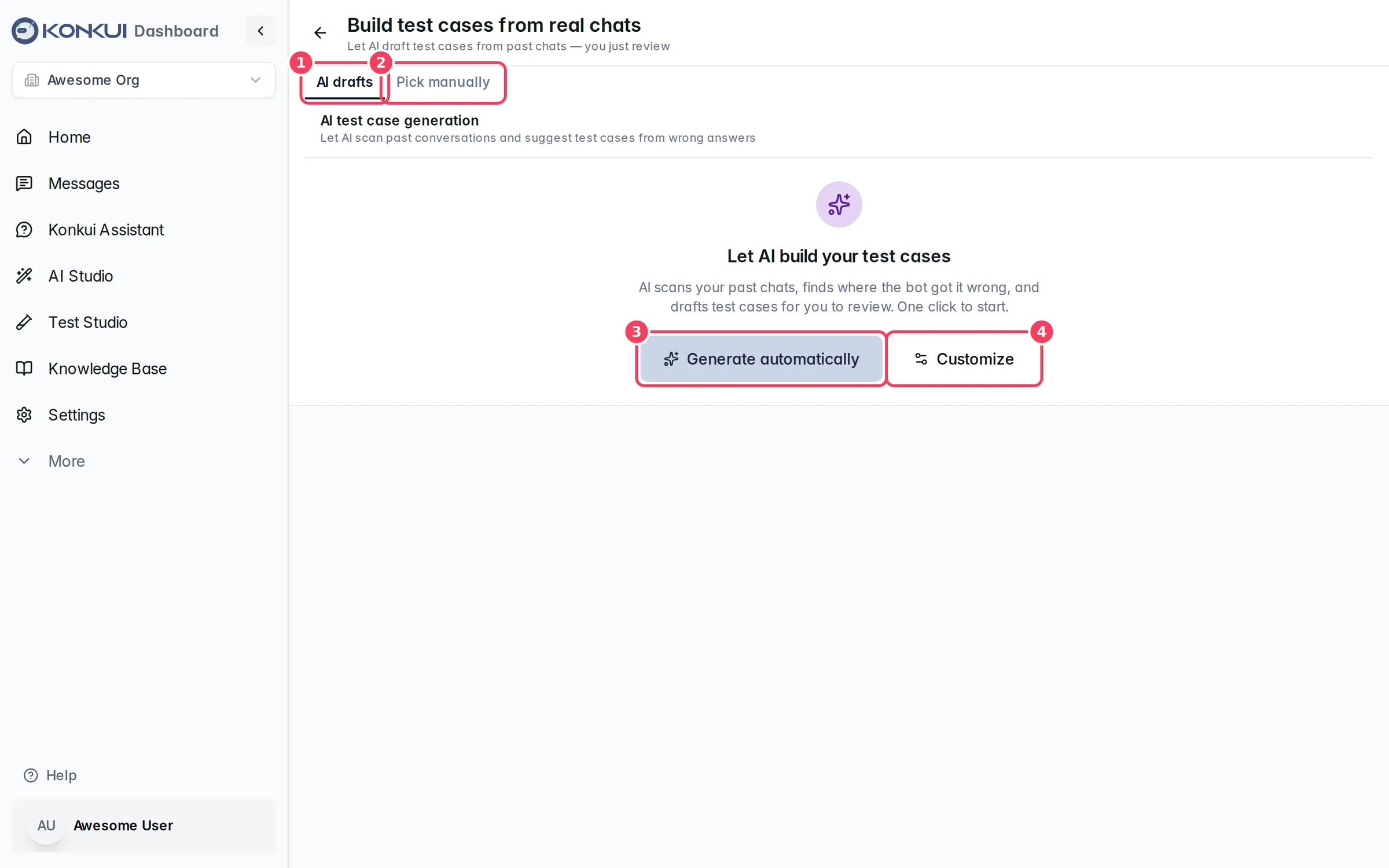
| # | Item | What it does |
|---|---|---|
| 1 | AI drafts | AI-generated drafts from past chats. |
| 2 | Pick manually | Choose conversations yourself and turn great human replies into tests. |
| 3 | Generate automatically | Starts a scan with default settings. |
| 4 | Customize | Opens Generate with AI so you can narrow the scan. |
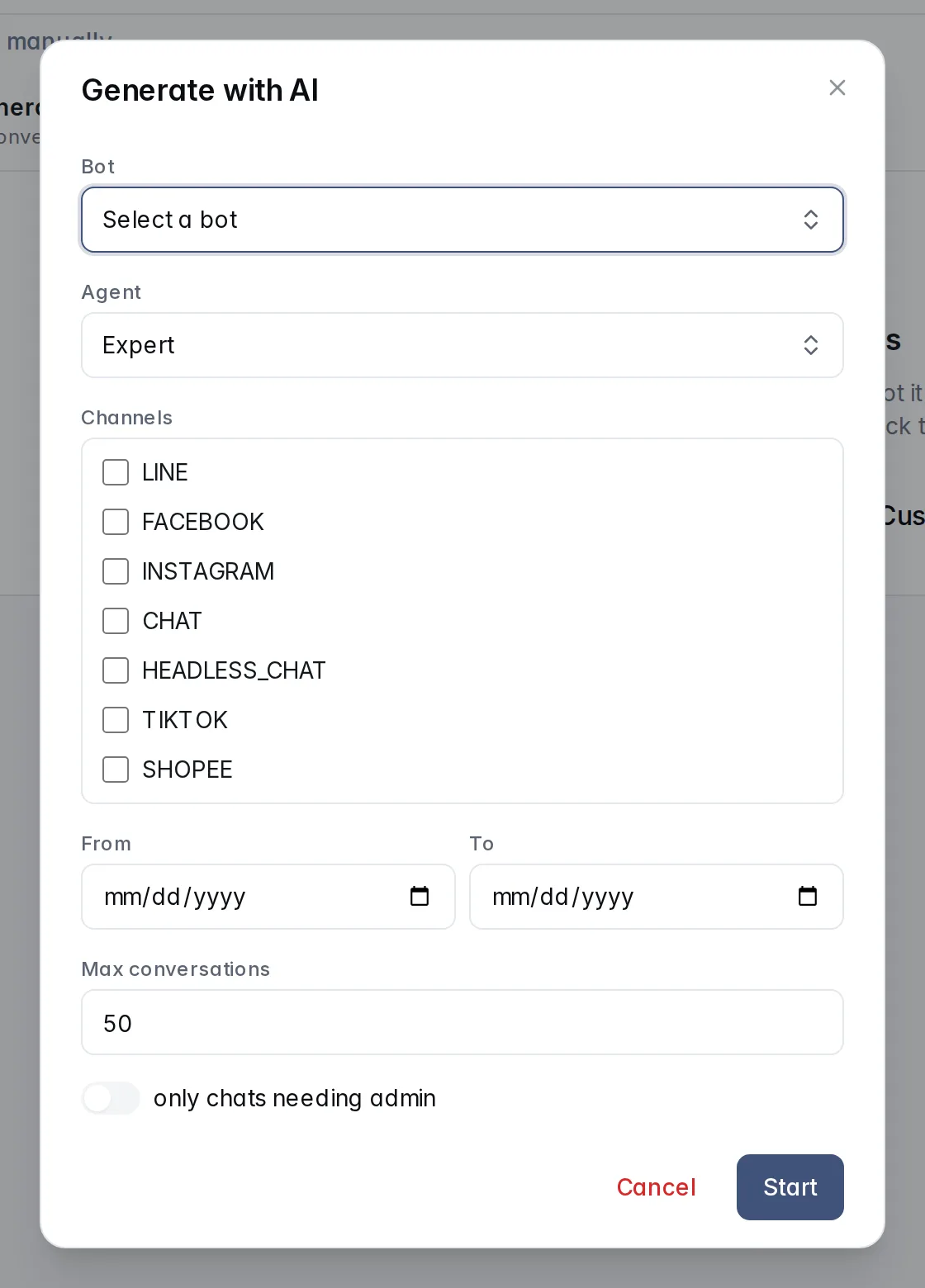
| Setting | What it does | Notes |
|---|---|---|
| Bot | The bot whose conversations to scan. | Optional. |
| Agent | Expert or Sales; the drafts become test cases for that personality. | |
| Channels | Limits the scan to the channels you tick. | Leave empty for all channels. |
| From / To | Limits the scan to a date range. | Optional. |
| Max conversations | How many conversations to read. | Between 1 and 200 (default 50). |
| only chats needing admin | Scans only chats where the customer needed a person. | These are often where the bot struggled. |
Once a scan starts, Recent jobs on the left shows each scan's status, progress, how many chats were scanned and how many drafts it made; you can cancel a running scan. Pending drafts on the right lists drafts to review, with the ones marked Worth keeping first. Each draft shows whether the bot answered correctly, why the AI thinks the answer was wrong, the original bot answer, the source transcript and an editable correct answer. Edit the name or answers, then Accept to save it as a test case or Reject to drop it.
Pick manually
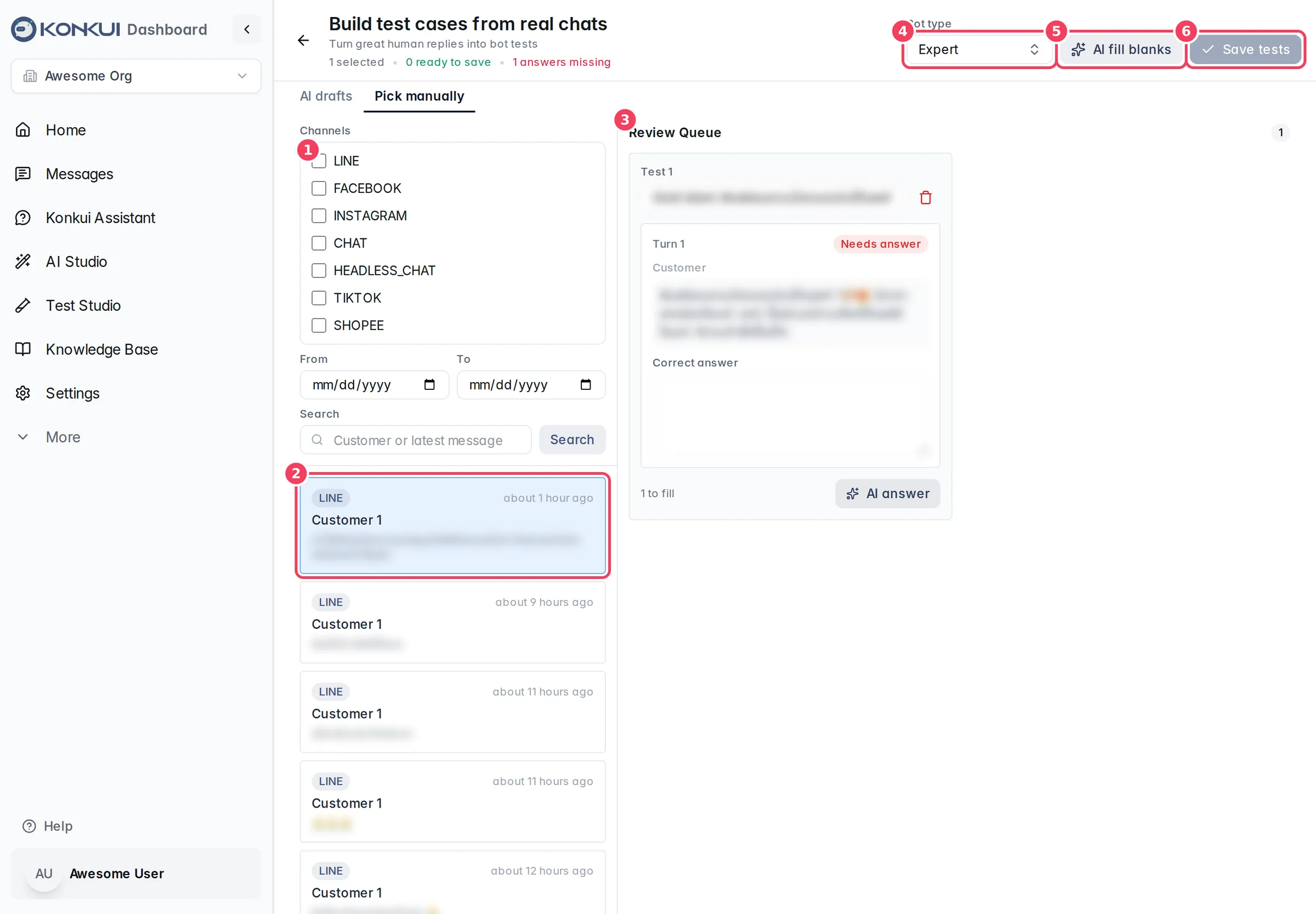
| # | Item | What it does |
|---|---|---|
| 1 | Filters | Filter conversations by channel and date, or search by customer or latest message. |
| 2 | Conversation | Click a chat to add it to the review queue (up to 25 at a time). Chats without text questions and answers are skipped. |
| 3 | Review Queue | Each queued chat becomes a test. Every turn shows the customer's message, an editable Correct answer and where the answer came from: Human, AI draft, Edited or Needs answer. |
| 4 | Bot type | Expert or Sales; the saved tests belong to that personality. |
| 5 | AI fill blanks | Asks the bot to draft every missing answer. Each card also has AI answer for just that test. |
| 6 | Save tests | Saves every test that has no missing answers, then returns you to Test Cases. |
Optimize
Instead of editing the bot's instructions yourself, Optimize tries to rewrite them so they score higher on your test cases. It runs in the background for a few minutes. When it finishes you review the result and decide whether to use it; nothing changes for customers until you apply it.
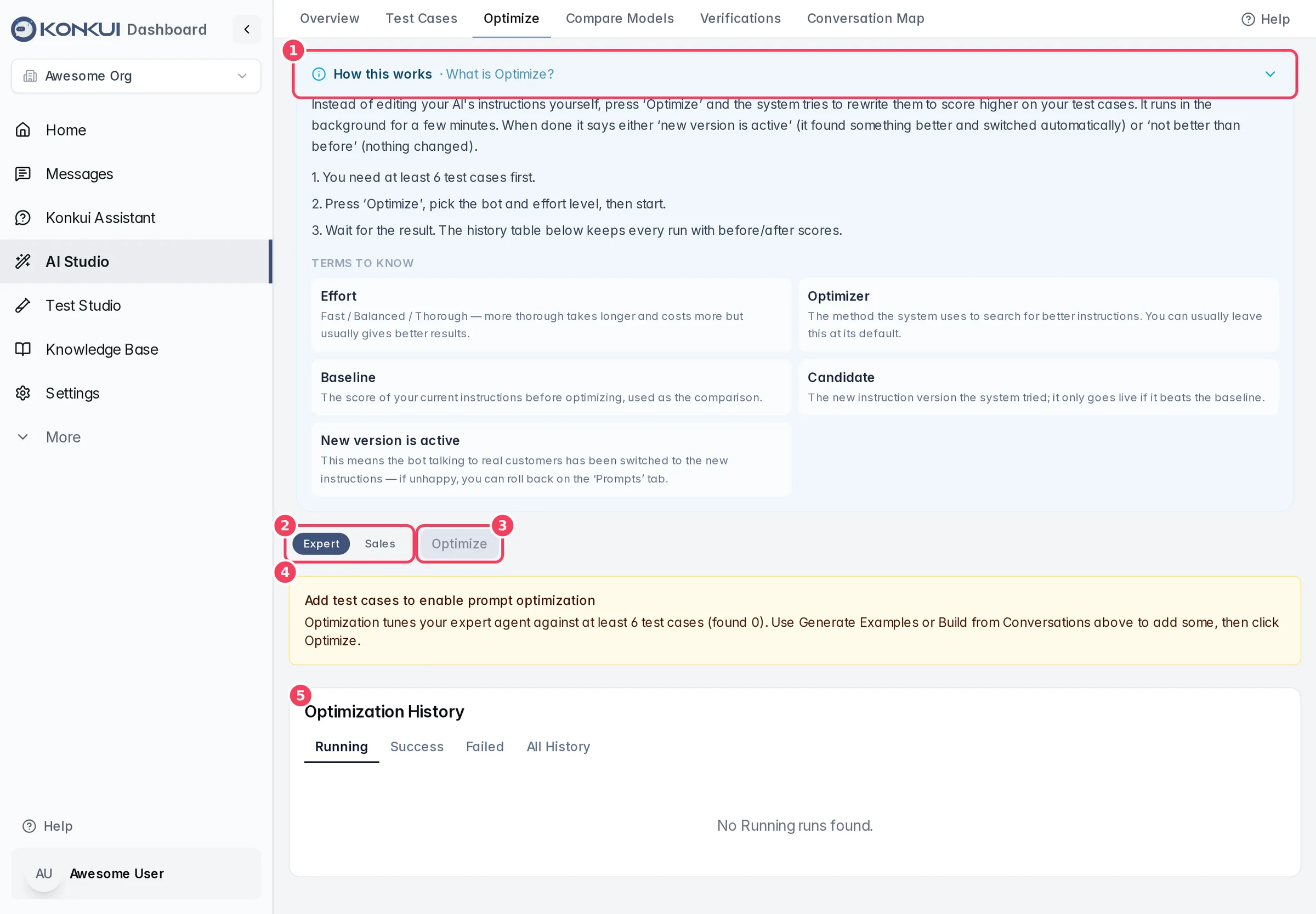
| # | Item | What it does |
|---|---|---|
| 1 | How this works | Open by default on this tab; explains the review-and-apply flow and its terms. |
| 2 | Expert / Sales | The personality to optimize (shared with Test Cases). |
| 3 | Optimize | Opens the configuration. Disabled until the selected personality has at least 6 test cases; if a run is already in progress it shows that run instead. |
| 4 | Not enough test cases | Tells you how many test cases you have and how to add more. |
| 5 | Optimization History | Every run, filterable by Running, Success, Failed and All History. |
Configure Optimization
| Setting | What it does | Notes |
|---|---|---|
| Bot | The enabled bot whose instructions to tune. | Picked automatically when you have only one enabled bot. |
| Optimizer (Advanced settings) | MiPROv2 proposes instructions systematically and is a stable default. GEPA explores more widely using the judge's feedback. | If unsure, start with MiPROv2. |
| Effort (Advanced settings) | Fast (about 1–3 minutes), Balanced (about 3–8 minutes, recommended) or Thorough (about 8–20+ minutes). | More effort takes longer and uses more AI calls, but usually gives better results. |
| Validation split (Advanced settings) | The share of test cases held back to score the result instead of training on them. | Effort presets set 10%, 20% or 30%; the dialog shows the train/validation counts and a rough AI-call estimate. |
Click Improve my bot to start. A progress window shows the log, the baseline score and, when finished, the before and after scores. If a run shows no progress for over 20 minutes, the window warns that it may be stuck; you can cancel it and try again.
Review and apply the result
When a run succeeds, Review the optimized prompt shows:
- the recommendation (apply the new version, or keep the current one because it did not score higher);
- before and after scores;
- the current prompt next to the new prompt;
- a per-test-case comparison of the before and after scores.
| Action | What it does |
|---|---|
| Apply | Makes the new prompt version live for real customers. |
| Discard | Keeps your current prompt; the candidate stays stored but unused. |
| Roll back | After applying, switches back to the previous prompt. You can also roll back from the Prompts tab. |
In Optimization History, the Decision column shows Pending review, Applied, Discarded or Rolled back. Click a successful run to reopen its review. Failed runs offer Retry (with the same settings, after a short cooldown) and Clear Failed Runs removes them from view. A running run can be cancelled.
Compare Models
Compare Models lets you try a different AI model for a bot without risking live conversations. It replays the bot's real recent conversations offline with the candidate model, compares the results with the current model, and only lets an admin switch once every safeguard passes.
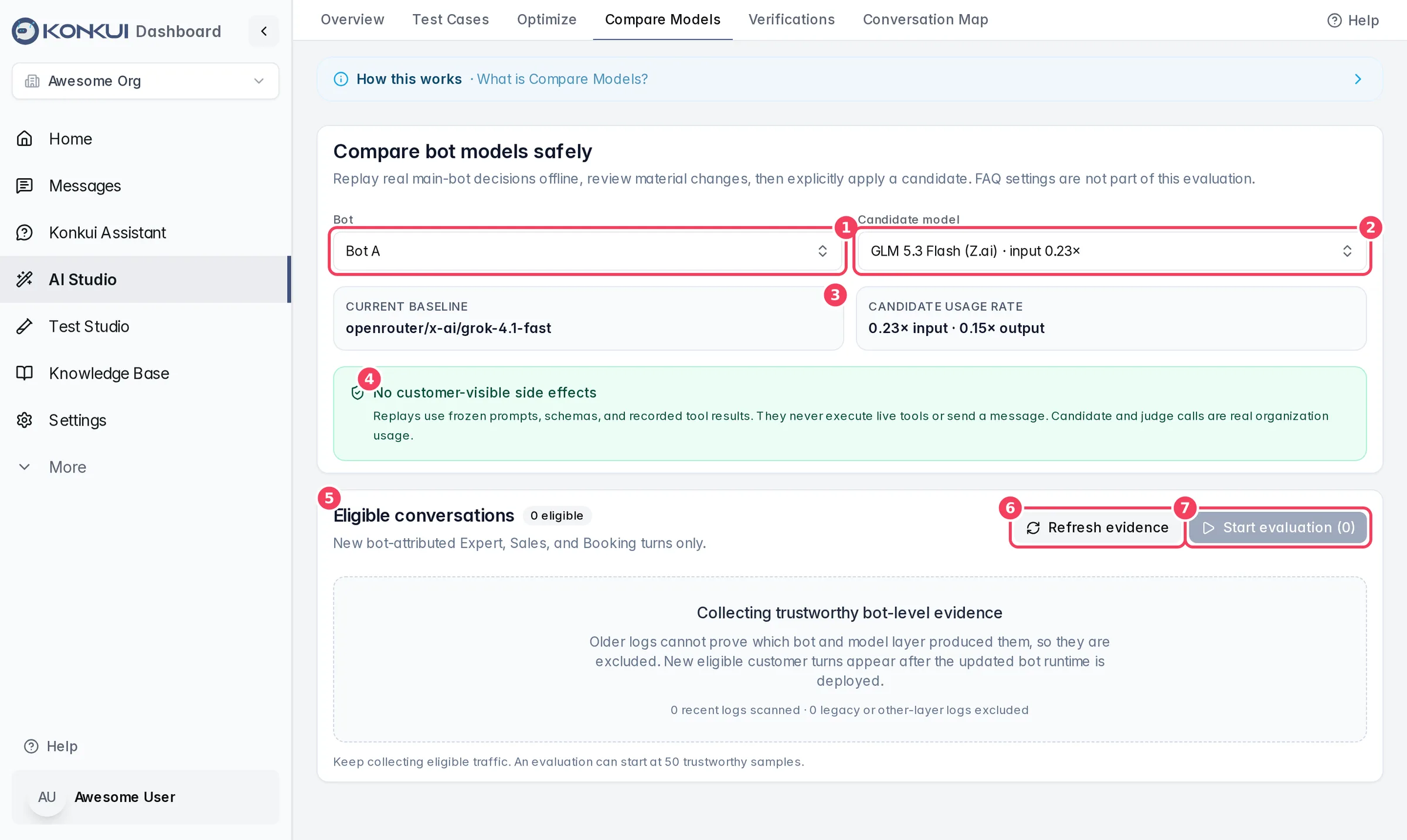
| # | Item | What it does |
|---|---|---|
| 1 | Bot | The bot to evaluate. |
| 2 | Candidate model | The model to try. Each option shows its usage rate relative to the current model. |
| 3 | Current baseline | The bot's current main model, frozen as the comparison point when the run starts. Candidate usage rate beside it shows the candidate's relative input and output rates. |
| 4 | No customer-visible side effects | Replays use recorded prompts and tool results; they never run live tools or send messages. Candidate and judge calls are still real usage for your workspace. |
| 5 | Eligible conversations | How many recent bot conversations can be used. Only new turns that can be reliably attributed to this bot count; older logs are excluded. |
| 6 | Refresh evidence | Rescans recent conversations for eligible samples. |
| 7 | Start evaluation | Starts the background run. The page says how many trustworthy samples are needed before you can start. |
When it is offered for the bot, Require OpenRouter ZDR limits the model list to models that meet the bot's zero-data-retention policy.
Reading the results
The run continues in the background; you can close the page. The result shows Agreement, Coverage, p95 latency change, Relative usage cost and Blockers / review, followed by every material difference: the customer message, what the current model did, what the candidate did, and the automatic verdict (Same safe behavior, Candidate is safe, Keep the current model, Cannot compare yet or Not comparable). An admin can record a decision and reason for any result with Save review.
If every safeguard passes, Switch to candidate asks you to confirm. Switching changes only the bot's main model; FAQ and image-model settings stay the same, and new customer messages use the new model immediately. Roll back model restores the previous model, unless someone changed the bot's model since. Evaluation history keeps every run.
A/B Experiments
A/B experiments run two or more prompt versions at the same time with real customers, splitting traffic between them, so you can see which performs better before rolling one out to everyone. This tab appears when Experiments is on in tab visibility.
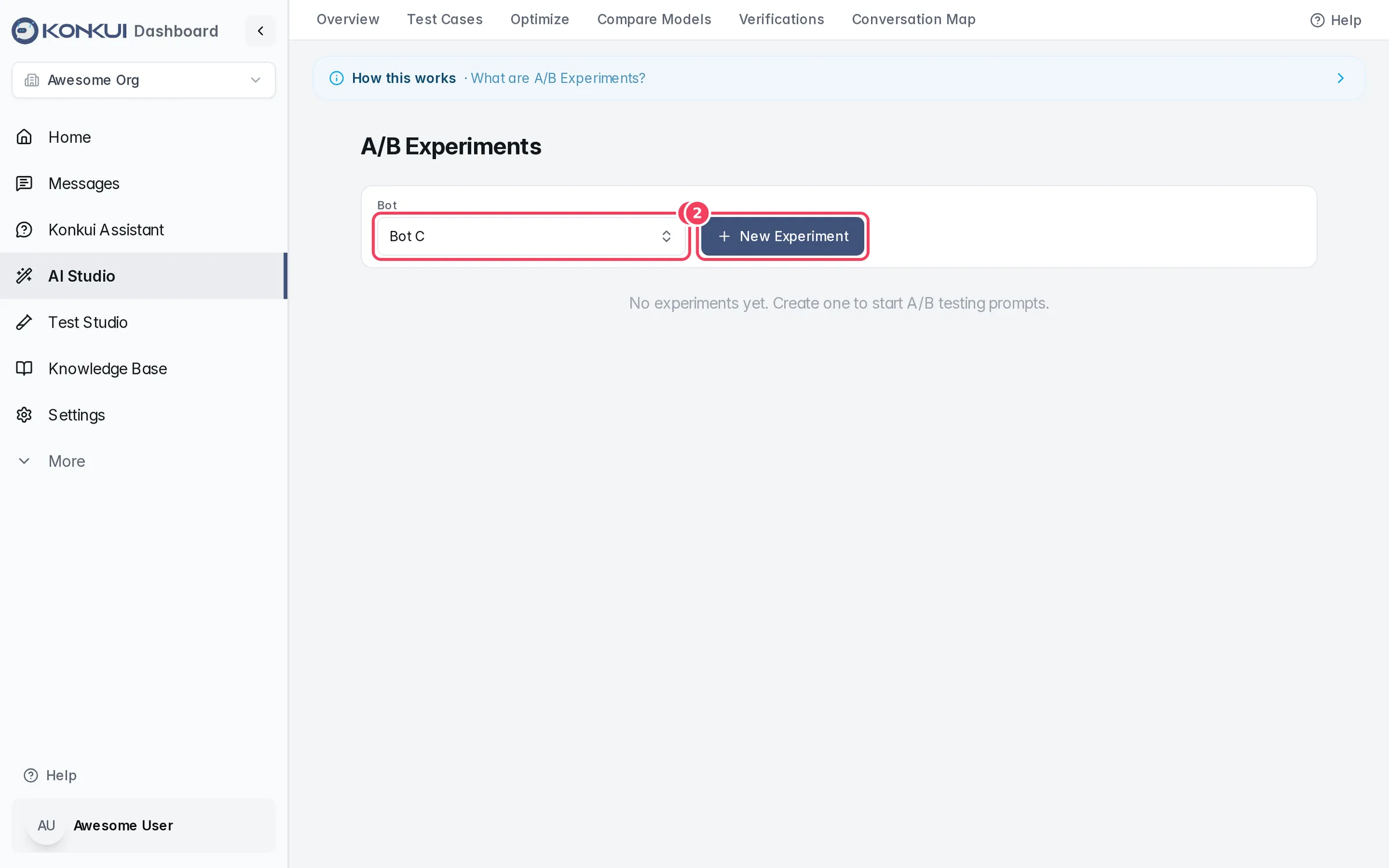
| # | Item | What it does |
|---|---|---|
| 1 | Bot | The bot whose experiments to show. |
| 2 | New Experiment | Opens Create New Experiment. |
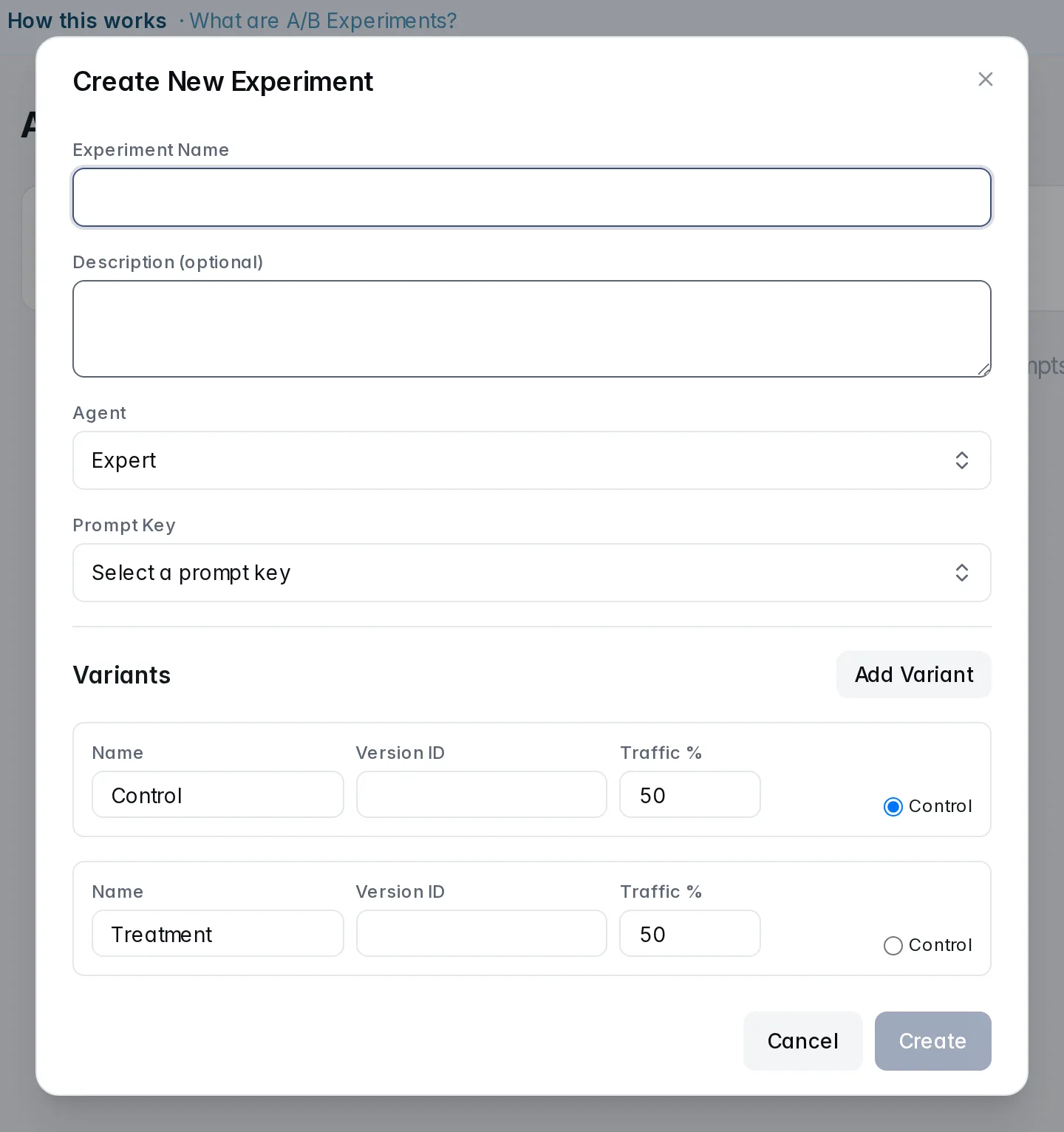
| Setting | What it does | Notes |
|---|---|---|
| Experiment Name | A name for the experiment. | Required. |
| Description (optional) | Your notes. | |
| Agent | Expert or Sales. | |
| Prompt Key | The instruction being tested, for example the main role instruction. | Required. |
| Variants | Each variant has a Name, a Version ID (a prompt version from the Prompts tab or an optimization run) and a Traffic %. One variant is the Control, your current version. | The dialog starts with Control and Treatment at 50% each. Traffic should add up to 100%; Add Variant adds more. |
Each experiment card shows its prompt key, creation date and variants. Use Start to begin a draft experiment, Pause to stop assigning customers, and Complete to finish it. Stats shows how many customers each variant received and the resolution rate per variant; a Winner is shown only once a variant has enough outcomes, and the dialog tells you roughly how many more are needed.
Prompts
A prompt is the behind-the-scenes text that tells the AI how to think and reply. The Prompts tab lets you edit those instructions yourself, keeps every edit as a version, and lets you choose which version is live or roll back. This tab appears when Prompts is on in tab visibility.
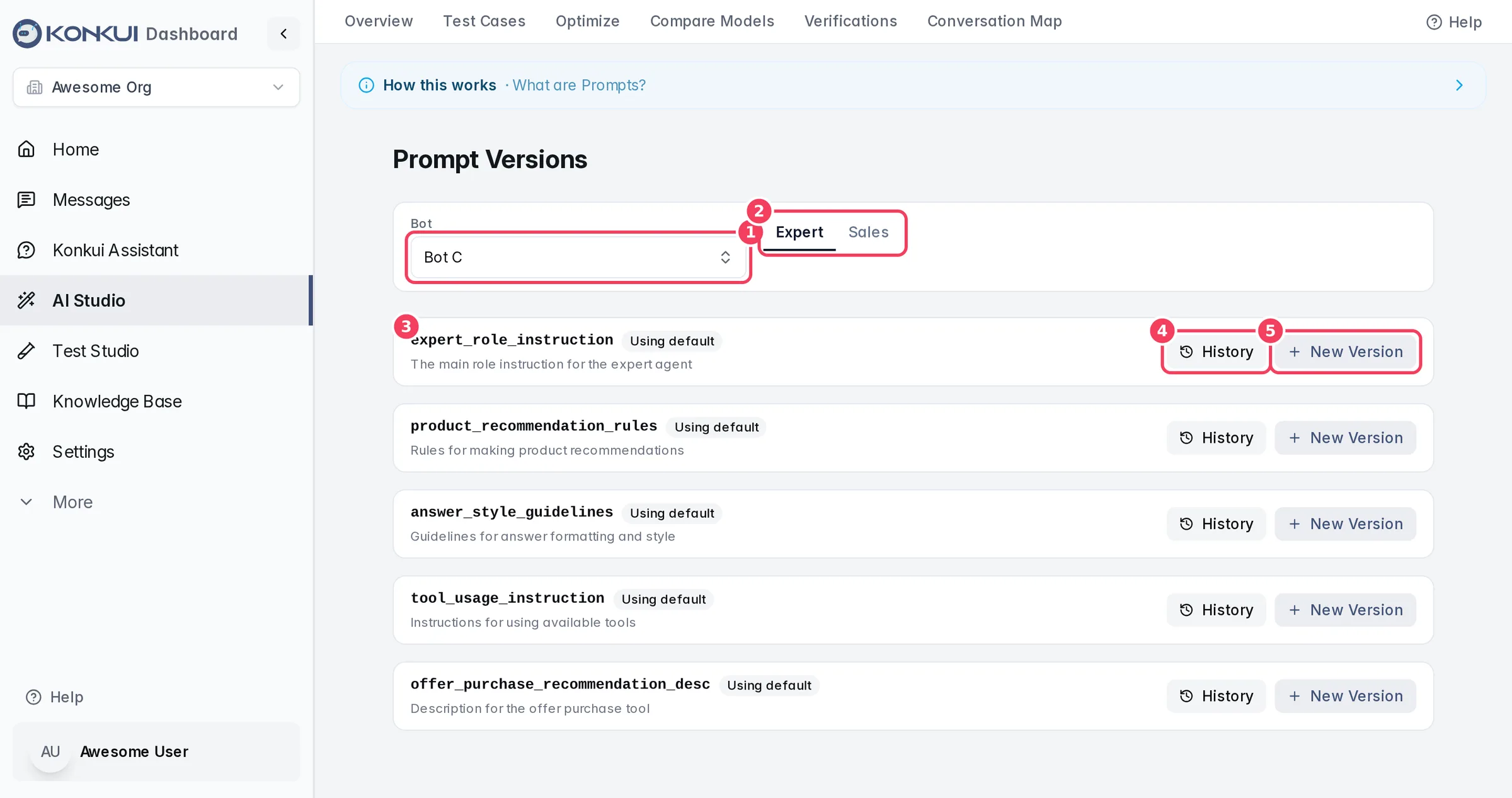
| # | Item | What it does |
|---|---|---|
| 1 | Bot | The bot whose prompts to manage. |
| 2 | Expert / Sales | The personality whose instructions to show. |
| 3 | Instruction | One instruction, with its status: Active: v… (a saved version is live), No active version, or Using default (you never edited it, so the built-in text is used). |
| 4 | History | Expands the version list and Live outcomes for the active version: bot messages sent, 👍 and 👎 feedback, escalation rate and unanswered messages, compared with the previous version. |
| 5 | New Version | Opens Create New Version with Prompt Content, Description (optional) and Activate immediately. |
In the version list you can view any version, Activate an older one, or delete an inactive one. Rollback (shown when an instruction has more than one version) switches back to the previous version.
Verifications
Verification rules are the final check before the bot sends a live reply. Use them for risky answers such as dosage calculations, product specifications, prices or policy terms. If a blocking rule fails, the bot retries once with the verifier's feedback; if it still fails, the chat is handed to your team instead of sending an unsafe answer. Advisory rules only record the failure.
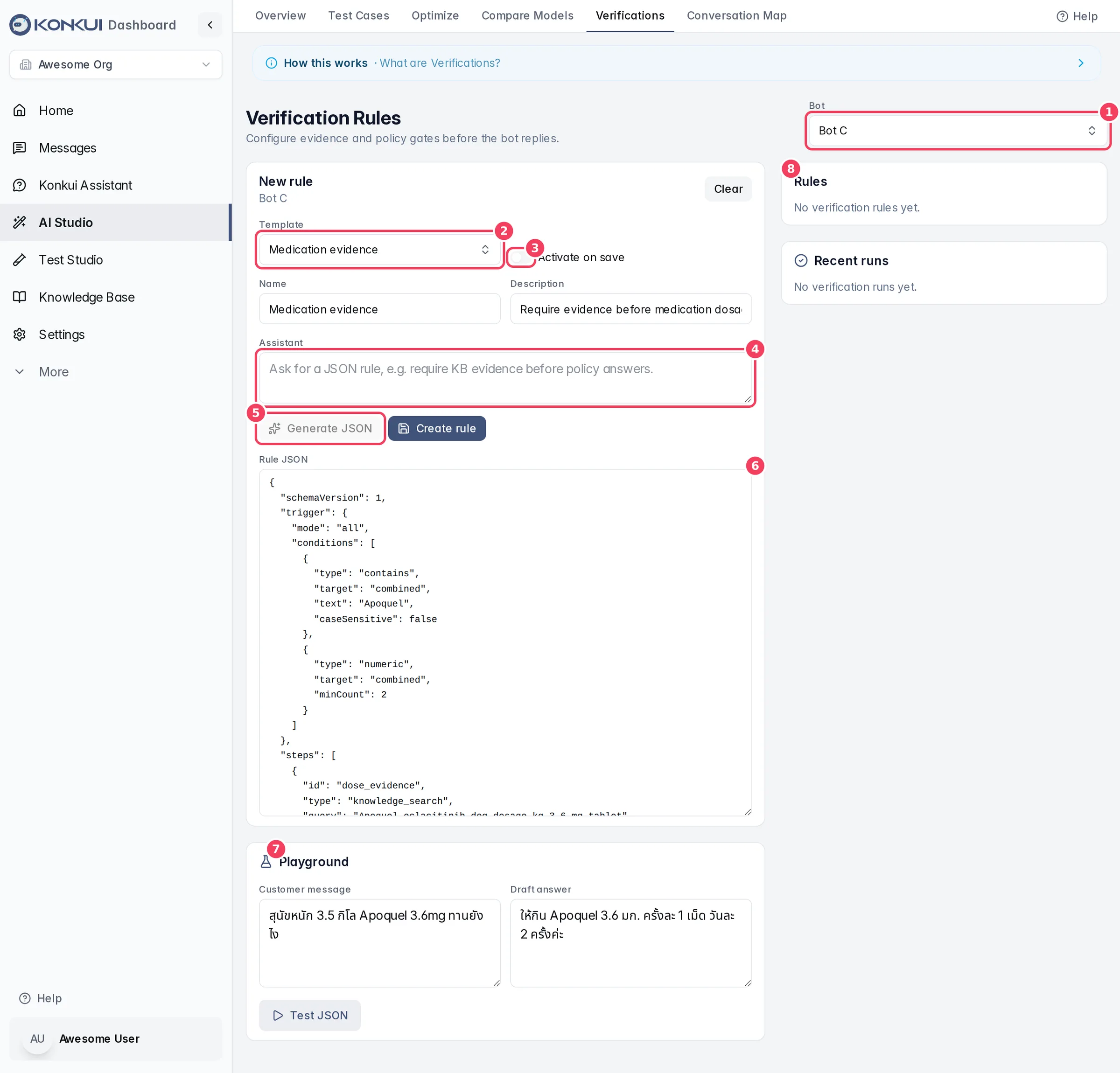
| # | Item | What it does |
|---|---|---|
| 1 | Bot | Rules belong to one bot. |
| 2 | Template | Starts a rule from a template: medication evidence, dosage weight band, product card required, product specification or policy claims. It fills in the name, description and JSON. |
| 3 | Activate on save | Makes the rule live as soon as you save it. Leave it off to save a draft. |
| 4 | Assistant | Describe the rule you want in plain words. |
| 5 | Generate JSON | Turns the Assistant request into rule JSON. Create rule (or Save revision when editing) saves it. |
| 6 | Rule JSON | The rule itself: when it triggers, what evidence it gathers (knowledge base, FAQ, products or a calculation), the checks it runs and what happens when they fail. |
| 7 | Playground | Enter a Customer message and a Draft answer, then Test JSON to see whether the rule would pass, before you activate it. |
| 8 | Rules | Your rules with their status and version. Edit, Pause or Archive each one. Recent runs below shows recent checks and their outcomes. |
Conversation Map
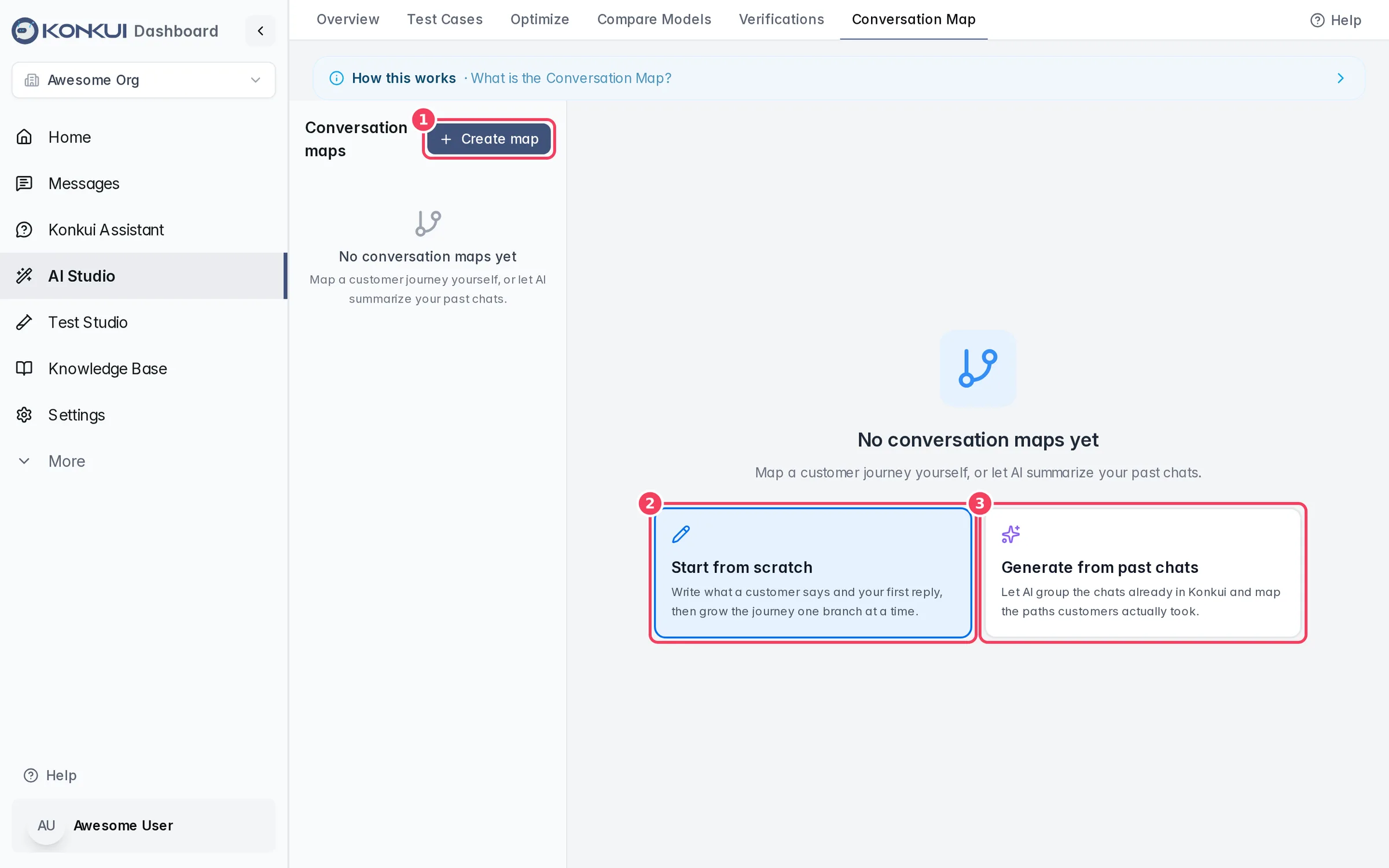
The Conversation Map shows what customers ask most and how conversations usually flow, drawn from your real past chats or mapped by hand. Use it to find what to teach your bot and which test cases to write. This tab appears when Conversation Map is on in tab visibility.
| # | Item | What it does |
|---|---|---|
| 1 | Create map | Opens Create a conversation map. Your maps are listed under it. |
| 2 | Start from scratch | Write what a customer says and your first reply, then grow the journey one branch at a time. |
| 3 | Generate from past chats | Let AI group the chats already in Konkui and map the paths customers actually took. |
| Setting | What it does | Notes |
|---|---|---|
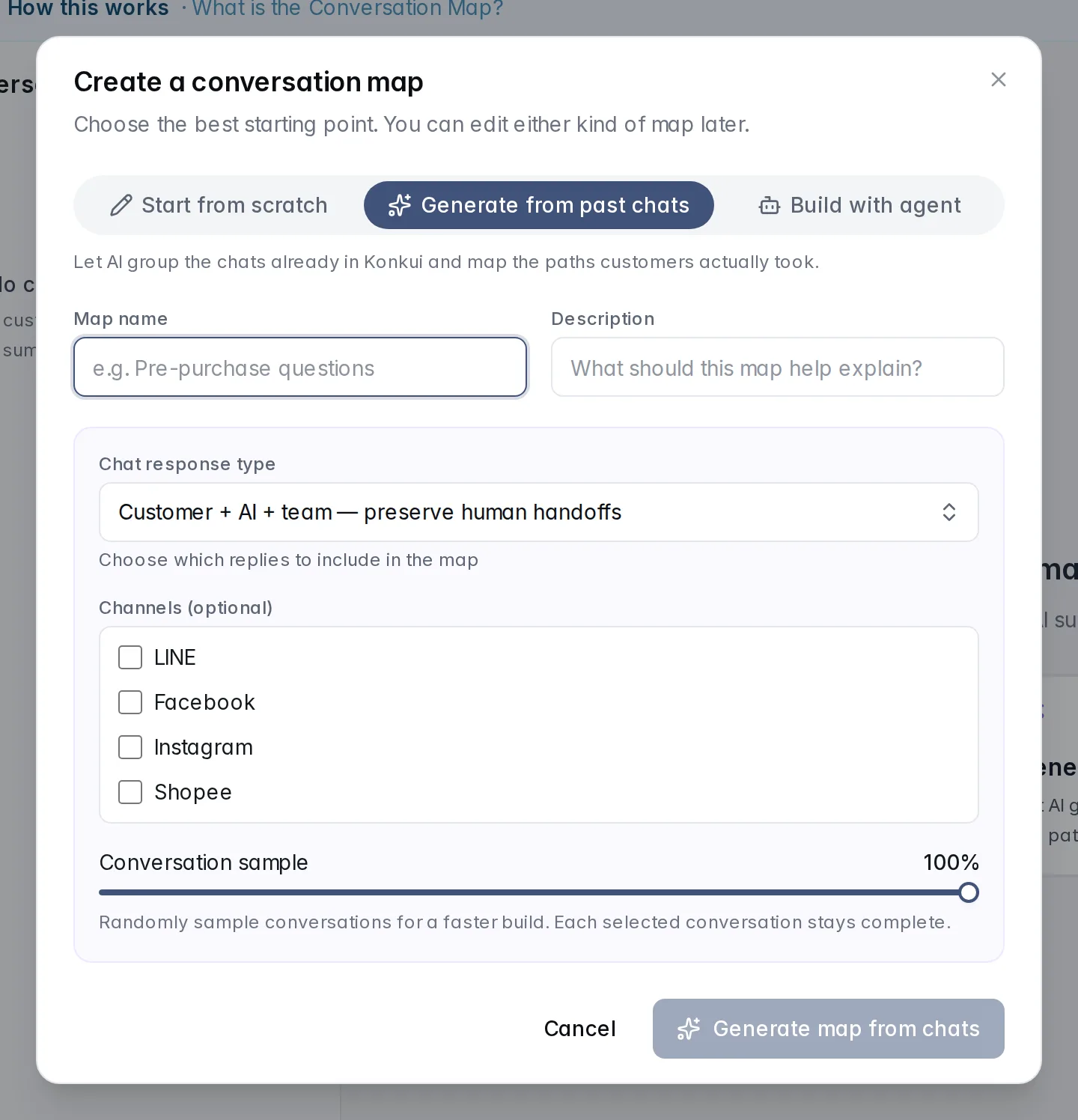
| Starting point | Start from scratch, Generate from past chats or Build with agent (an AI agent builds the map from your conversations while you guide it). | You can edit any map later. |
| Map name / Description | Identify the map. | Names must be unique. |
| 1. Customer says / 2. Team should reply | The first step of a map you build by hand. | Start from scratch only. |
| Chat response type | Which replies to include: customer + AI, customer + AI + team (keeps human handoffs), or customer + team only. | Generate from past chats. |
| Channels (optional) | Limit the map to some channels. | |
| Conversation sample | Randomly sample a share of conversations for a faster build. | Each sampled conversation stays complete. |
Building from chats runs in the background and shows its progress. On the map, each step is a customer message or a team reply; arrows show what usually follows, with how often it happened. Click a step to see its details and the real source conversations, add or connect steps, and label branches. Map checks flags structural problems, Test map lets you walk through the journey (a read-only preview that sends nothing), and Export downloads the map.
Editing a map does not change your bot. Admins can publish a reviewed map for Jev conversation routing, which lets the bot reply with the map's exact replies when it is confident; this works only when the routing pilot is enabled for your workspace (contact support), and editing a published map pauses it until it is published again.