
Browse the docs
Dashboard reference
Open in dashboardRealtime lets your team open video meeting rooms right from the dashboard. Use it for a quick internal call, or to keep track of calls started with customers from Messages. Each room has its own invite link that expires automatically.
Admins and Staff can create, join, rename and delete rooms. Only admins can change the workspace's room limits.
Where to find it
Click More in the sidebar, then Realtime under Daily Ops. Admins can hide it under Settings › General › Tab Visibility › Realtime.
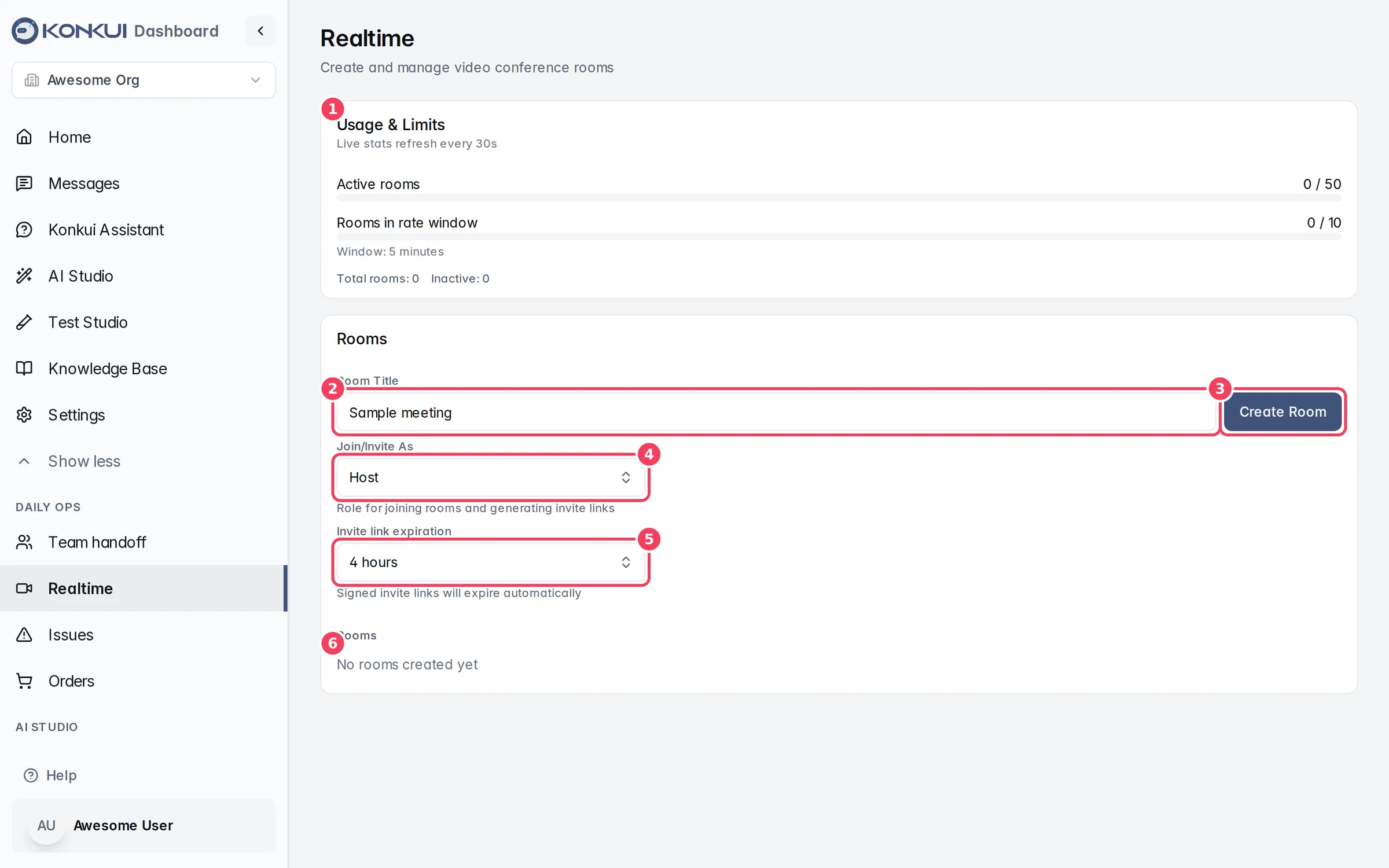
| # | Item | What it does |
|---|---|---|
| 1 | Usage & Limits | How many rooms are open and how many were created recently, against your workspace limits. |
| 2 | Room Title | The name of the next room you create. |
| 3 | Create Room | Creates a room with that title. |
| 4 | Join/Invite As | The role used when you join a room or copy its invite link. |
| 5 | Invite link expiration | How long new invite links stay valid. |
| 6 | Rooms | Your workspace's rooms, newest first. |
Usage and limits
The Usage & Limits card refreshes every 30 seconds.
| Figure | What it means |
|---|---|
| Active rooms | Rooms open now, out of the most your workspace may have open at once. |
| Rooms in rate window | Rooms created in the last few minutes, out of the most you may create in that window. Window: shows the length of the window. |
| Total rooms / Inactive | All rooms, and rooms that have ended. |
If you reach a limit, creating a room shows an error. For Active rooms, delete rooms you no longer need; for Rooms in rate window, wait for the window to pass.
Create a room
| Setting | What it does | Notes |
|---|---|---|
| Room Title | Names the room. | Starts as "Sample meeting". Rename it later if needed. |
| Join/Invite As | Host, Participant or Guest. | Applies when you click Join, Open or Copy Invite. Choose Host to run the meeting yourself, and a lower role for people you invite. |
| Invite link expiration | 30 minutes, 4 hours, 24 hours or 7 days. | Applies to links you copy or open after changing it. Expired links stop working. |
Type a title and click Create Room. The new room appears at the top of the list.
Room list
Each room shows how long it has been open (or how long it lasted), whether it is Active or Inactive, and its title.
| Button | What it does |
|---|---|
| Join / Open | Opens the room in a new tab with your chosen role. |
| Rename | Edits the title. Press Enter or click Save, or Cancel editing to stop. |
| Delete | Deletes the room after you confirm in Delete Room. Everyone in it is disconnected, and this cannot be undone. |
| Copy Invite | Copies a signed invite link with your chosen role and expiry. |
Click Load more at the bottom to see older rooms.
Rooms created by Start call in Messages appear in this list too, titled Call: followed by the customer ID.